TomFromStarbucks
Members
-
Joined
-
Last visited
Everything posted by TomFromStarbucks
-
You seriously saved me. Hope you have a great day!
-
Holy crap it works thank you so much!
-
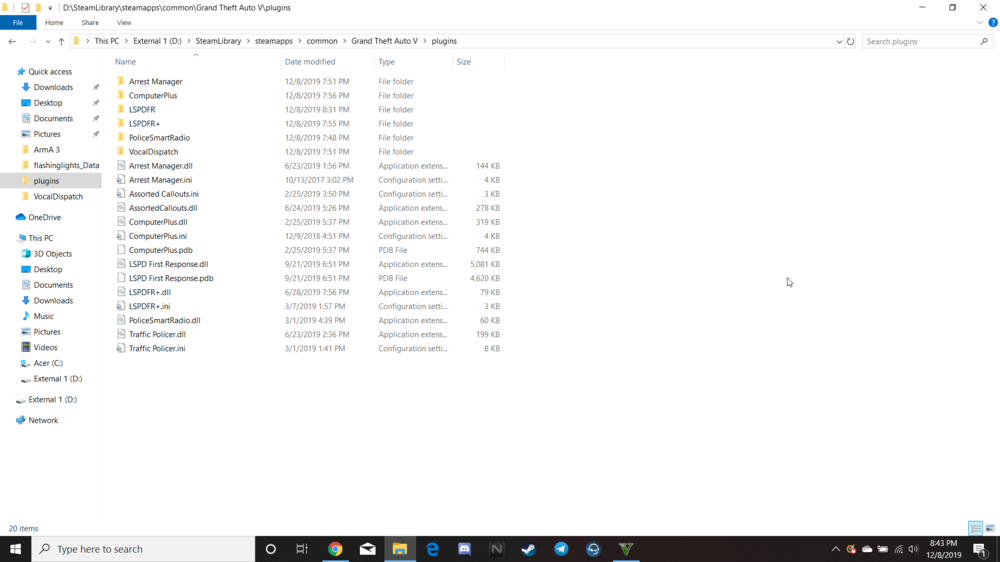
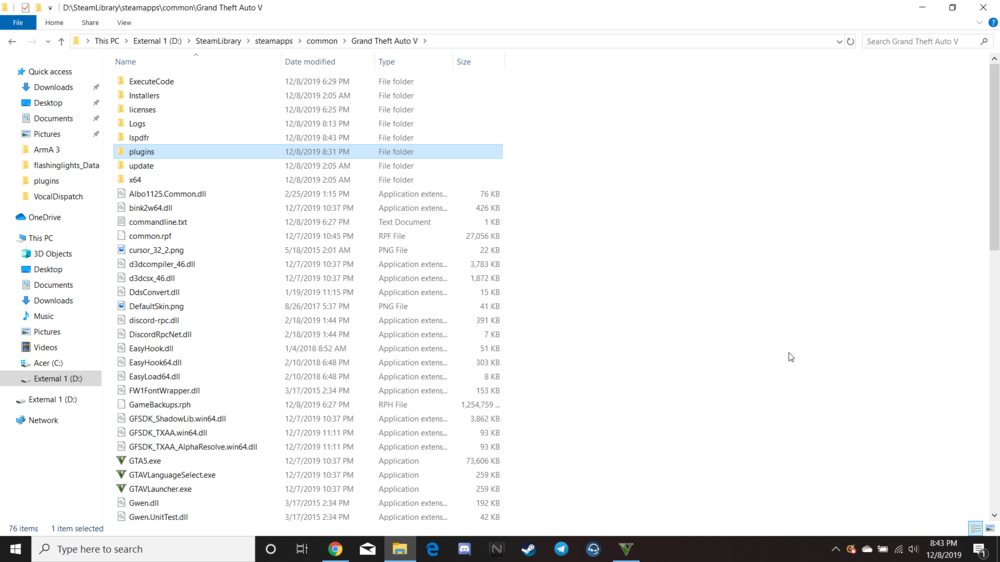
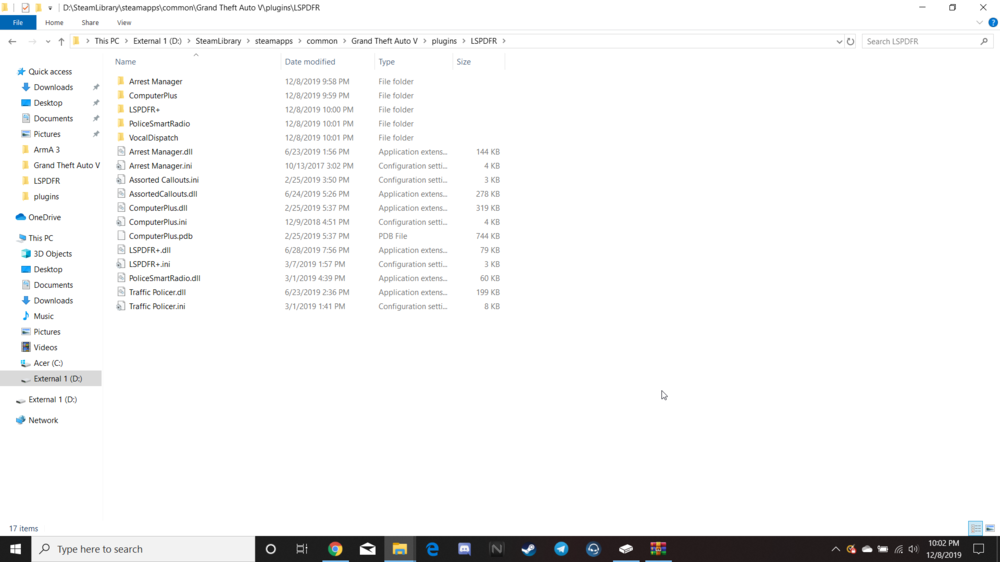
I had to manually add the LSPDFR folder into the plugins folder. is that normal and is this correct?
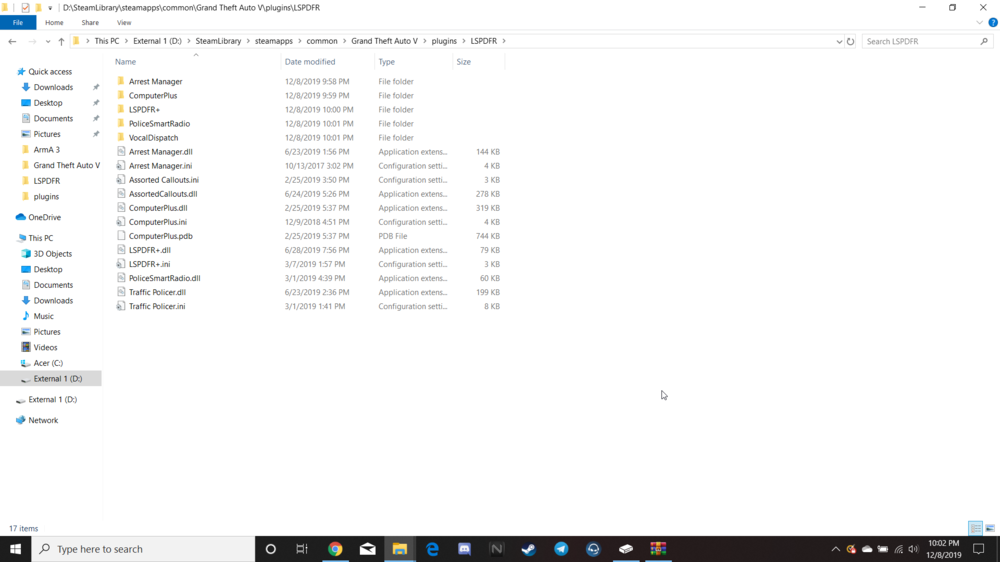
-
It is in there from what it seems. I'm not good with this
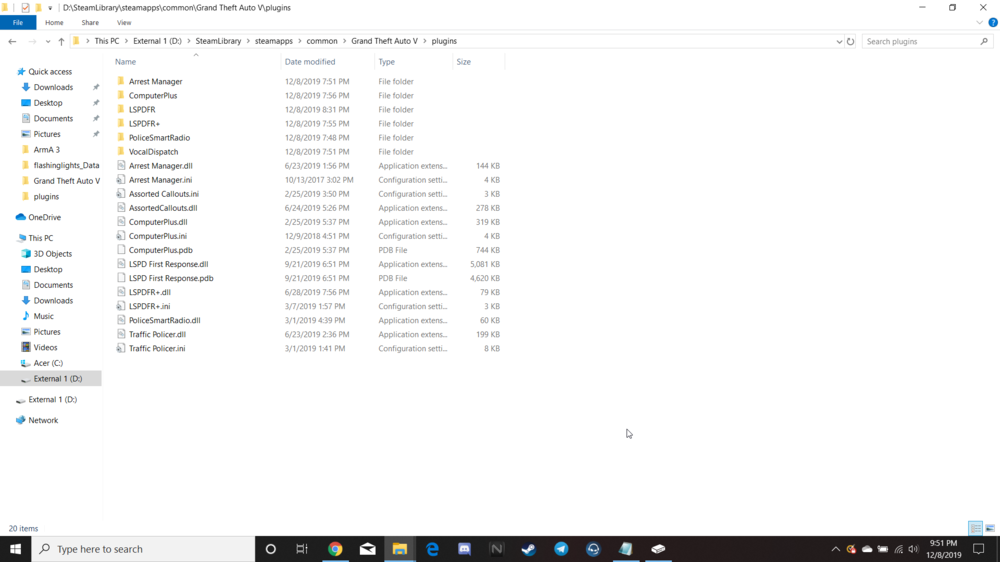
-
Unfortunately this didn't help and it's still broken
-
Thank you Matt. i'll try it and get back to you!
-
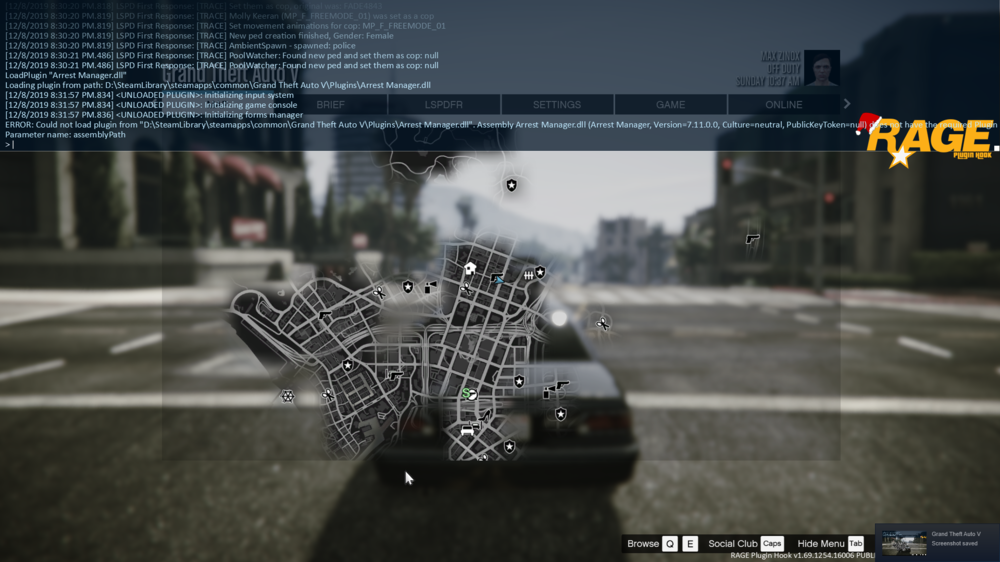
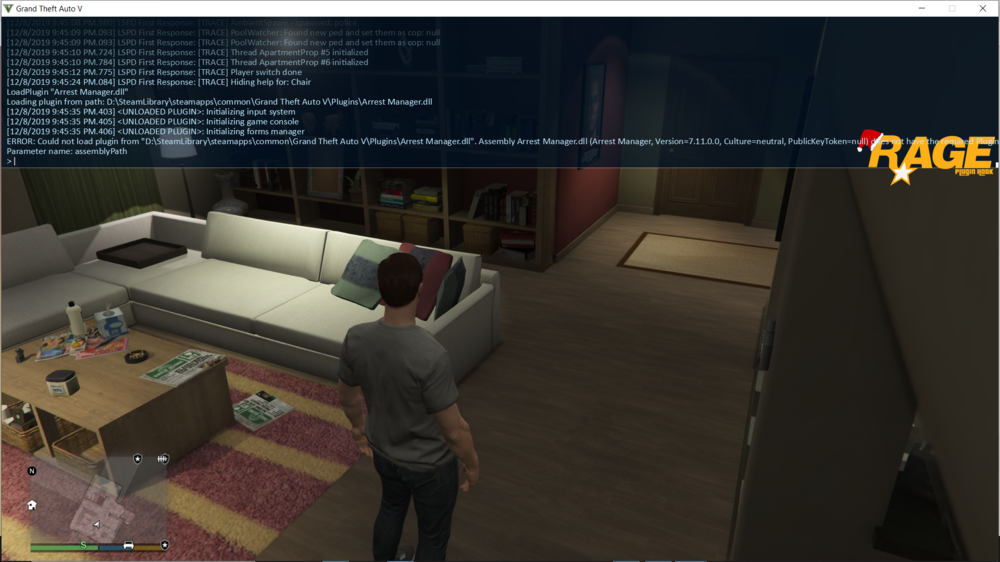
I have no clue what that is but I'd be happy to provide itHello LSPDFR forums. Sorry to be a bother but ever since the new Rockstar launcher came out. I can't seem to load any plugins. This is the console error I get. I've tried re-installing LSPDFR, GTA V, The plugins and even tried loading it through the console as seen here. I've been dealing with this issue for a while and tried to do it using older forum posts but it's not working. I've tried this on both External Hard Drive and my internal one. But my internal hard drive can no longer hold GTA V so I'm stuck. Sorry to be a bother but I truly do love LSPDFR and would hate to not have it until months after GTA 6 comes out. Not even sure my laptop could handle it. If anyone can help me. Thank you. If you've had similar issues and fixed it please let me know how to get this to work. If it helps. My pc is a Acer Nitro 5 with a SSD with 237gb standard but I only have 46.3 gb left. My external hard drive is an SSD with 2tb of storage and has 1.42 TB free. - Sincerely, Tom From Starbucks