


RyanDT
Members
-
Joined
-
Last visited
Everything posted by RyanDT
-
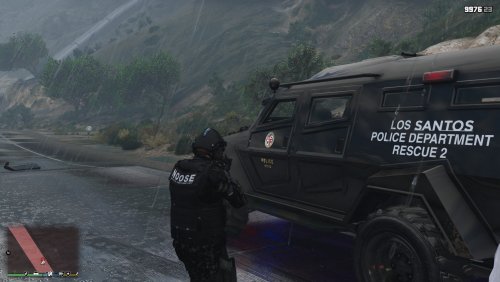 Hi ! I will se what I can do ! Kind regards RyanDeTree Hey ! If you think about it it's an insurgent but in Gta5 files it's named after a "riot" so I called it riot to not confuse people and help them out ! If you have any suggestions feel free to give one ! Kind regards, RyanDeTree Hey ! I have put it here because I have it made so you can choose what you want I have made it compatible for FiveM servers and client side! So I just thought I will put it under this ! Kind Regards, RyanDeTree
- 11 comments
- 1 review
-
-

- 1
-
-
Hello ! This is my new police riot ! This vehicle is made by POLICESCO but I made a new liverie for it it is FiveM ready and it's ready for use in your own client ! Have fun! RyanDetree
- 11 comments
- 1 review
-
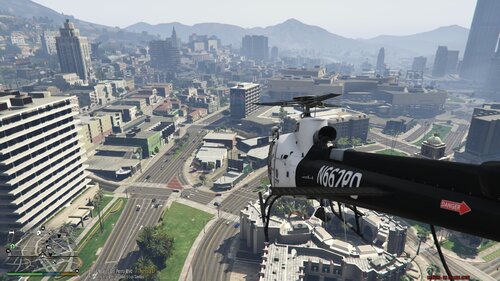 I'm so sorry for my late reply sure I will add the templates for you no problem ! Kind regards - Ryan
 -
No but it's a simple helicopter for your GTA5 or FiveM server it sayed LAPD before but now it says LSPD for more lore ! If you want me to put the templates fell free to ask ! Kind regards - Ryan
-
Hello people ! Here is a livery I have made for you it doesnt say LAPD any more but LSPD ! Kind regards Ryan DeTree
-
 Hi where can I download this truck ?

