.png.55097c97dc6315ff8d517752740d3667.png)
.png.64169084abfaf874df7d7688c133b598.png)
What A Big Man
Members
-
Joined
Everything posted by What A Big Man
-
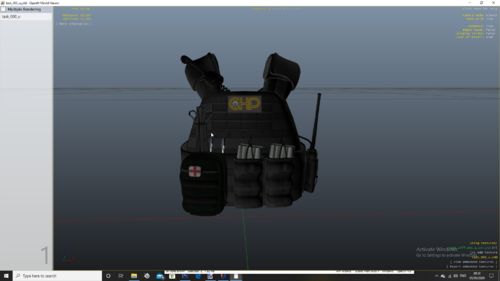 I don't like how you just can see that you took one pixel made a block, and put the logo on. And the Author being toxic on me for giving my responds
- 4 comments
- 2 reviews
-
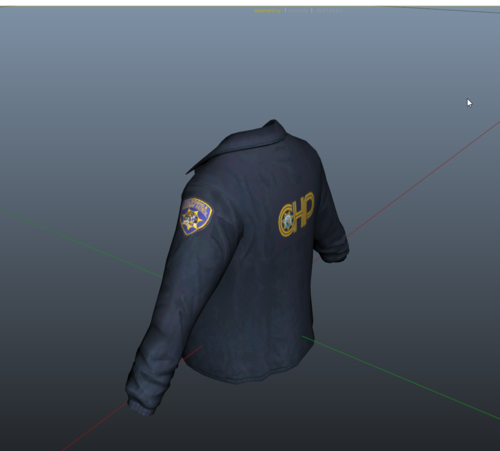 Same here, you can see you just took 1 pixel and made a block and throw the logo on
 -
-
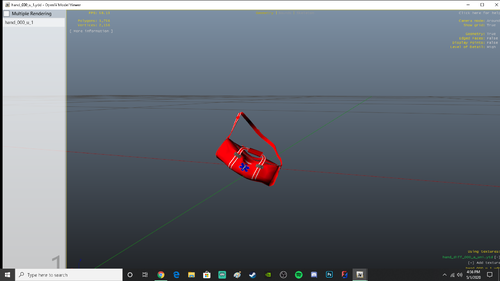 RIP Alex Ashfold and Rockstar games Lol
 -
-
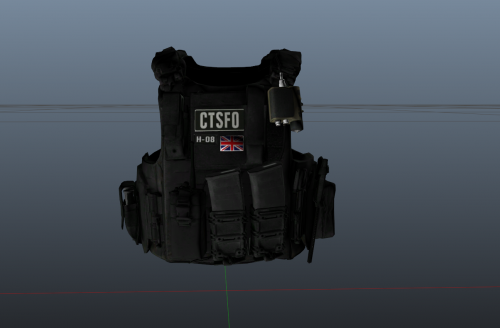 When did LSPD get CT?
 -
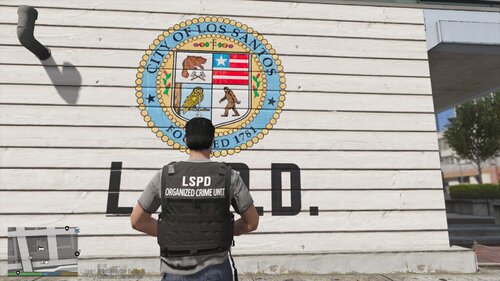 Yeah i do
 -
Why? Isn't this the time you got most of the time? @ScratchIV
-
@ScratchIV You said "More on the way LSSD version SAHP version" The 9 january you not done, or forgot it?
-
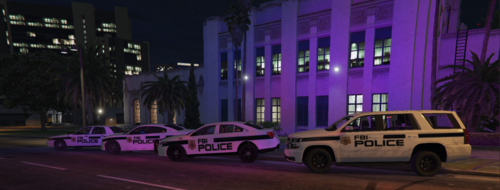 The logo looks low resolution
 -
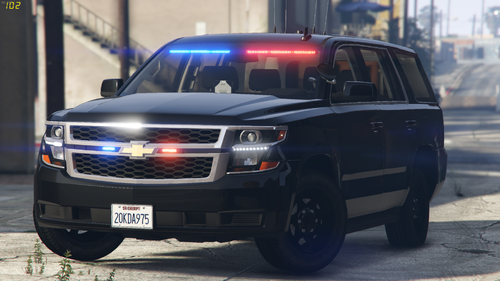
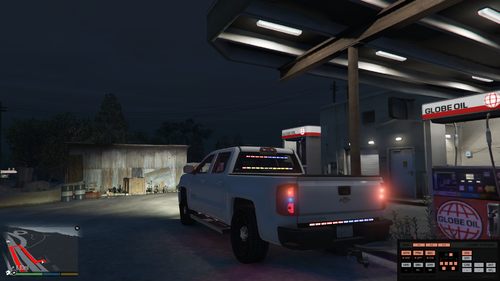
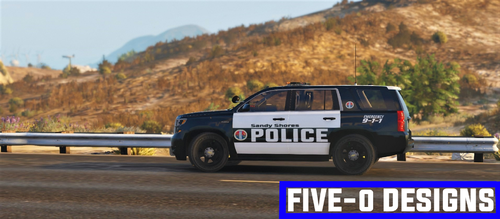 Ingame pics of 2018 Ford F-150 and Ford Crown Victoria
 -
-
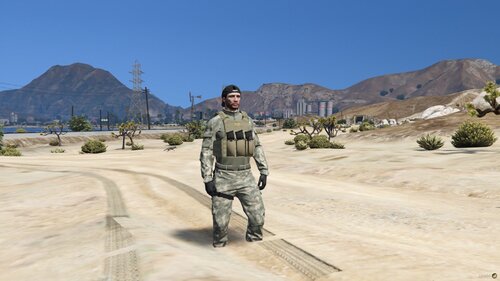 Just great! Maybe 2 things, so a black, and tan
 -
-
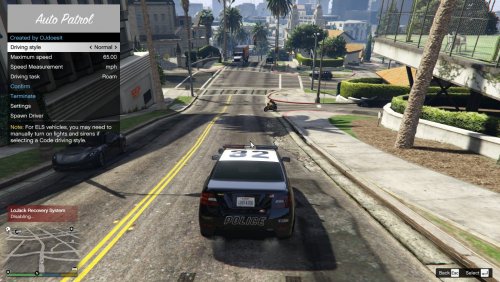 Feel like everything you make is a menu (With nice features)
 -
-
-
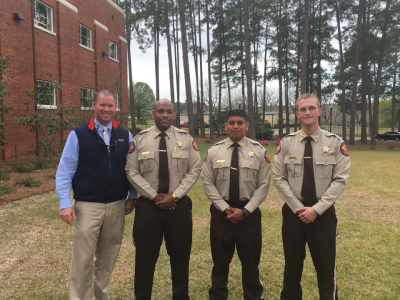 In game pictures plz
 -
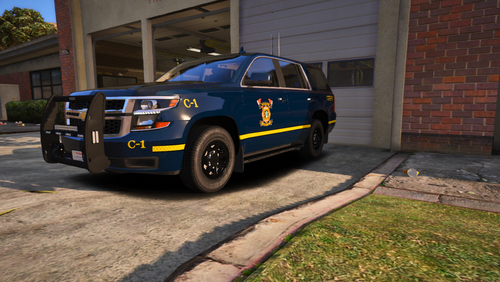 Yes
Yes -
-
 Ok so, i don't see how the follow feature is needed since its already in. At the same time i do because to follow when you have perfomed the stop they don't move (Pretty sure they can but forgot how) The other 2 seems good
- 111 comments
- 21 reviews
-
- lspdfr plugin
- legacy
- lore
- non-lore
-
Tagged with:
-
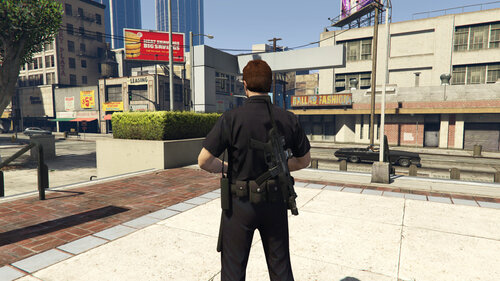 How do i find the exact position i want, i don't under stand the X,Y,Z value of MP freemode. Btw nice plugin
- 248 comments
- 21 reviews
-
Could you make a direct side view
-
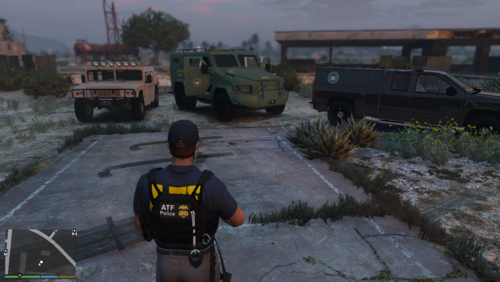 I like my vest XD
 -
.thumb.png.86e82f124f89384ad00bdb275986c9d3.png)

.thumb.png.0568dfc8e74b539360517d222c6029b0.png)

.thumb.png.98c375ec525fd44eda600d751f900946.png)