


Kyler78
Members
-
Joined
-
Last visited
Everything posted by Kyler78
-
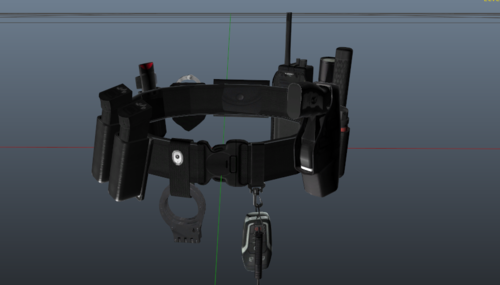 I can't seem to find exactly where this goes. Anyone got any advice?
 -
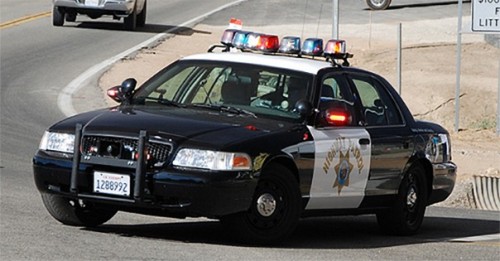 The sirens aren't called "siren" now, they got changed to stuff like "police warning" And it didn't seem to work once I dragged the .oac in
- 22 comments
- 2 reviews
-
Any chance this can get an update for the new siren names in the resident file?
- 22 comments
- 2 reviews
-
-

- 1
-
-
Oh. I completely forgot about that. So sorry.
-
-
Never mind again, I turned it off and it still won't load. it cuts off in the log at "Loading screen msg loading story mode."
-
Never mind. Windows turned my anti virus back on.
-
Game was working absolutely fine yesterday, and earlier this morning. I installed a plugin, and then reloaded and it wouldn't load. I took it out and it still won' t load. Plugin was vehicle search and ultimate backup. I verified game integrity, it found one thing, then it still wouldn't load I reinstalled LSPDFR I reinstalled RAGE and even reinstalled game and it still won' t load. (I made the rcr crash log a .txt file) CrashReport_nk_637095355741421846.txt
-
Yeah. I found one I really liked. A caprice with two. Guess it is as good as I'll get.
-
Anyone know of any really good, super realistic cars, (moving antenna, multiple liveries, customization) Any help would be appreciated.
-
I forgot to make backups for policeold1&2 and was wondering if anyone could shoot them over to me so I can have them as backups. (Not sure if this belongs here)

