MrRoryThunder
Members
-
Joined
-
Last visited
Everything posted by MrRoryThunder
-
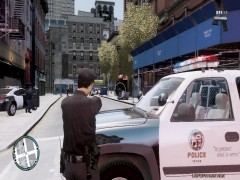
From the album: LAPD
officers are quick to respond to a large shooting involving numerous subjects -
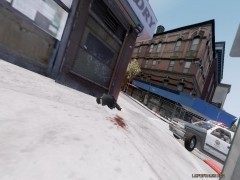
From the album: LAPD
on scene at a large shooting -
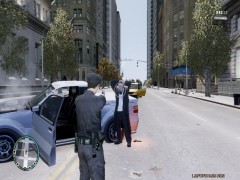
From the album: LAPD
... -
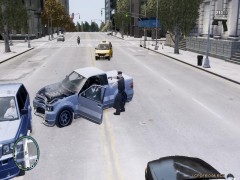
From the album: LAPD
A pursuit gets a cop pissed... -
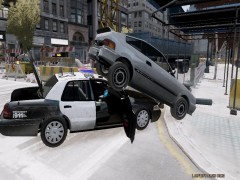
From the album: LAPD
Hope the car isn't too damaged -
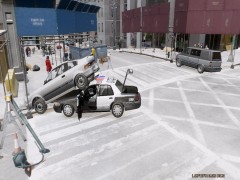
From the album: LAPD
Another report to the sarge... -
-
Just downloaded and played some lcpdfr with these but I came across a problem with the Volvo V70. when ever i go to access the computer and exit out the laptop appears out infront of the car, I insalled the handling lines that were in the text files. I also had this problem before in the previous pack with the Ford Galaxy. In addition I'm also having problems spawning the extra cars with SNT, but unlike Mousey 1571 it doesn't crash my game and doesn't tell me to re-install, i just can't exit out the SNT menu. BUT this pack is awsome! Oh and also a suggestion would be perhaps some London City Police vehicles? Would fit in nicely with the "LCPD" London City Police Department hahahah :p
-
-
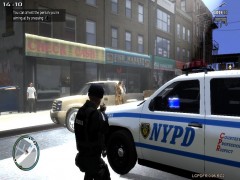
From the album: Evidence + Other
Is the first thing this officer says as the suspect crashes and surrenders. -
-
"What the f**k is wrong with you"
-
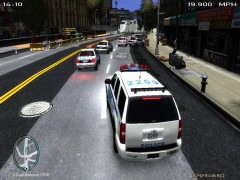 NYPD in hot pursuit!
-
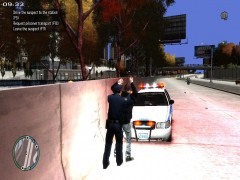 Jaywalker arrested...AGAIN!
-
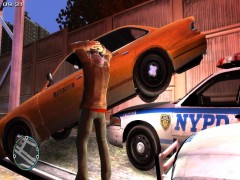 Wreckless pursuit stopped #4
-
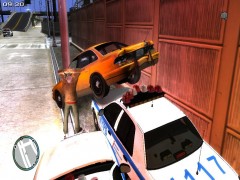 Wreckless pursuit stopped #3
-
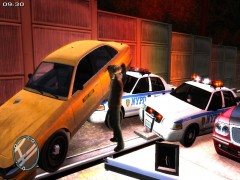 Wreckless pursuit stopped #2
-
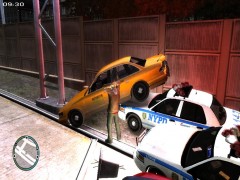 Wreckless pursuit stopped #1
-
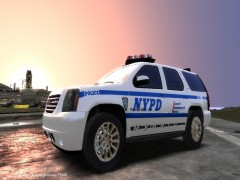 It's a beautiful day...
-
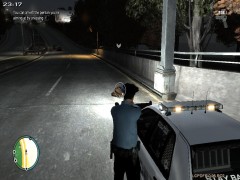 Another trespasser?
-
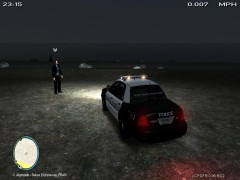 Officer in need of assistance...
-
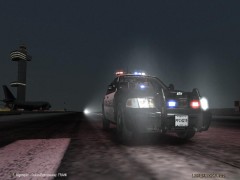 Nice screenshot #3
-
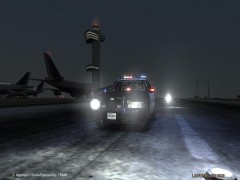 Nice screenshot #2
-
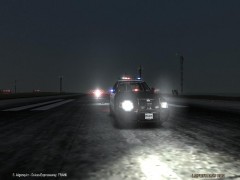 Nice screenshot #1
-
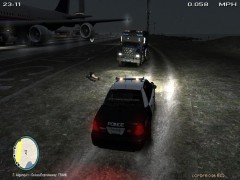 Rescue Truck 5 called...
-
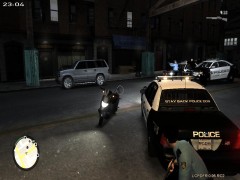 Suspect down...
-
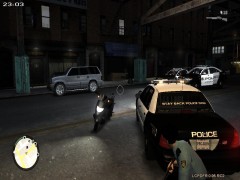 Backup arrived...
-
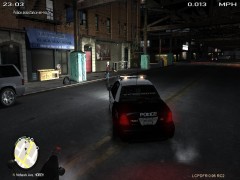 11-99!!!
-
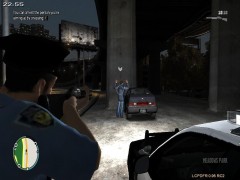 Takedown...
-
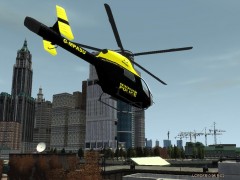 Metropolitan Police Helicopter #3
-
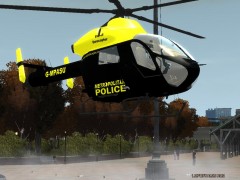 Metropolitan Police Helicopter #2
-
-
From the album: Evidence + Other
Suspect makes off after smashing into the front of me earlier, all nearby unit + NYPD chopper are alerted and forced to respond. -
From the album: Evidence + Other
Dealt with this guy many times, perhaps next time I should put a bullet in him :p -
From the album: Evidence + Other
Chasing a taxi with another unit, who was right up its backside the whole time. The taxi then lost control and crashed into a poll. The officer involved simply said he "forgot" to use the breaks. <---- that seems to be a common problem in Liberty City... -
From the album: Evidence + Other
Chasing a taxi with another unit, who was right up its backside the whole time. The taxi then lost control and crashed into a poll. The officer involved simply said he "forgot" to use the breaks. <---- that seems to be a common problem in Liberty City... -
From the album: Evidence + Other
Chasing a taxi with another unit, who was right up its backside the whole time. The taxi then lost control and crashed into a poll. The officer involved simply said he "forgot" to use the breaks. <---- that seems to be a common problem in Liberty City... -
From the album: Evidence + Other
Chasing a taxi with another unit, who was right up its backside the whole time. The taxi then lost control and crashed into a poll. The officer involved simply said he "forgot" to use the breaks. <---- that seems to be a common problem in Liberty City... -
From the album: Evidence + Other
-
Don't remember my first stop - I've stopped so many. I think it must of been a Russian, because when I first started play LCPDFR I mostly patrolled arround Hove Beach. So it wouldn't suprise me if I probably was shot and killed trying to pull someone over for the first time...
-
The uniform is not mine, but has been released by 'Kinksta100'... Go to "Kinksta100" youtube channe and you should find a video showcasing them
- 6 comments
- 2 reviews
-
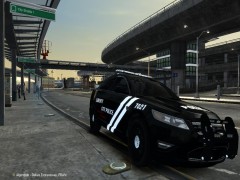 okay i was wrong haha, he only modified it :)
 -
woops! sorry!
-
Check his youtube channel. He's only released it today
-
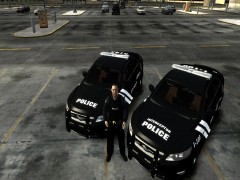
From the album: Fictional Skins by me :)
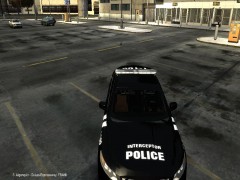
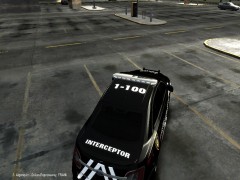
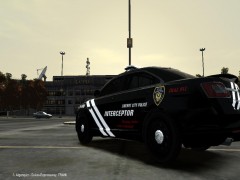
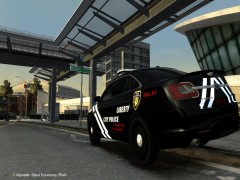
Liberty City police skin (patrol+interceptor)#6 Ford Taurus unlocked Model by F5544 Ford Taurus Modified by BritishPoliceMods -