Faisal26
Members
-
Joined
-
Last visited
Everything posted by Faisal26
-
Thank you for responding. I have all of my graphics settings either set to high, very high, or ultra. I am just very confused because i understand if i installed one bad model, but after i noticed this the first time, i went and downloaded an entirely different model. I also have a 14' Charger and a 15' Tahoe that look near perfect in game, which leads me to doubt that this issue is because of the 3rd party models. I am only having the issue with this vehicle.
-
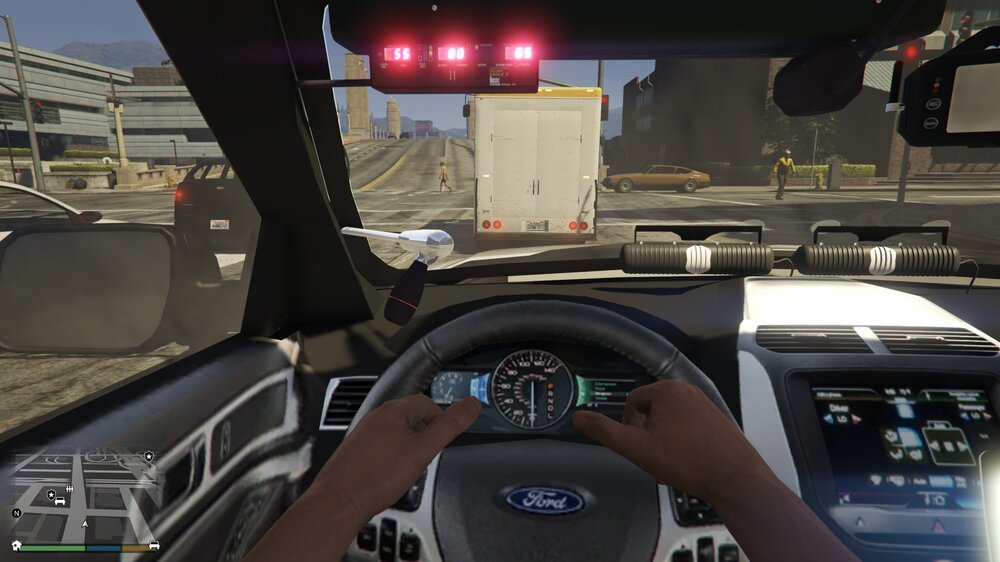
I would like to first say that I am extremely new to LSPDFR and modding and such. I have watched several tutorials on adding new vehicle models and texture packs into my game. I am having an issue where the interior of the FPIU looks awful. The steering wheel doesnt move with my characters movements and it is just outright blurry. I also tried to swap out the initial model that i tried this with, with a different vehicle model, by overwriting the other files. I am not sure what my issue is to be honest and i would also like to point out again that i am extremely new to this whole thing so please be nice. Below i attatched an image of what it looks like. The outside of the vehicle looks perfectly fine. I am just bothered by the way that the inside looks. Thank you to anyone who replies..