


CitYHunter
Members
-
Joined
-
Last visited
Everything posted by CitYHunter
-
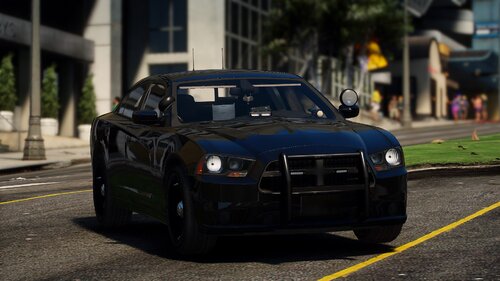 even with 7 zip I'm still getting an Extract error specially for the 14 Charger, winrar also couldn't open it
- 111 comments
- 11 reviews
-
hello just installed LSPDFR 0.4.3 i followed all steps for the installation throw all Videos, it runs accully on my laptop but i couldn't apply a traffic stop because i can't blurp anyone. there is also a problem with the plate check of other cars, i could not perform that on foot or in the Cruiser. i ran down Troubleshooter to see what's wrong and it come up with multiple installations errors for Assorted Callouts, Police Officer and Arrest manager. i tried to fix that automatically but it was not successful. RagePluginHook.log
-
hello just installed LSPDFR 0.4.3 i followed all steps for the installation throw all Videos, it runs accully on my laptop but i couldn't apply a traffic stop because i can't blurp anyone. there is also a problem with the plate check of other cars, i could not perform that on foot or in the Cruiser. i ran down Troubleshooter to see what's wrong and it come up with multiple installations errors for Assorted Callouts, Police Officer and Arrest manager. i tried to fix that automatically but it was not successful. Please help me as i'm a student and i was looking Forwards to play and enjoy LSPDFR since a couple of months 😞 RagePluginHook.log

