


Scottybwhite
Members
-
Joined
-
Last visited
Everything posted by Scottybwhite
-
-
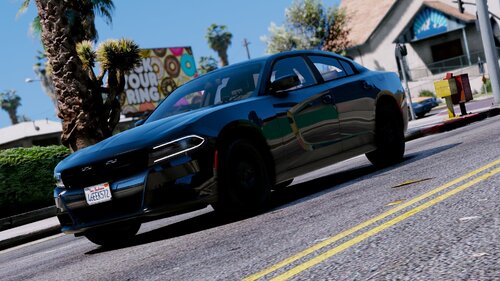
.thumb.png.af5671322261de413c8b3df30b696902.png) these files seem to crash my game. not sure if anyone else is having the same issue. either way no sweat i just took those files back out and now have no issues
these files seem to crash my game. not sure if anyone else is having the same issue. either way no sweat i just took those files back out and now have no issues- 17 comments
- 1 review
-
thank you i appreciate it. i looked more into that link above and figured it out but now scripthook needs to be updated in order for it to work unless i disable it some how but then ill loose my ELS haha. the last update was july 27th and since gta updated rage has updated fixing the issue but now script hook needs to update lmao...thanks for all the help guys i appreciate it tons! im a stupidbabyunicornnewb as a developer put it in a read me lmao. i feel old as shit at the age of 32 haha
-
Do you have any suggestions? i see my topic was moved.
-
Today i opened my rage icon and it opens gta but no longer is lspdfr being loaded like usual. Steam or gta did an update, am i the only one or is it working for you guys normally as of now? it worked last night but not today
-
oh shoot. i did not know that. thanks
-
hey i dont really have the energy to read all the comments but it looks like the creator is taking some time and stepping back...if any of you want stop the ped and ultimate back up i have both of those files.
.thumb.png.af5671322261de413c8b3df30b696902.png)