


THE KRR
Members
-
Joined
-
Last visited
Everything posted by THE KRR
-
.thumb.png.b9e18d9931090871b064059f2c315cf8.png) I give this a 5 out of 5 stars. From day one of using the plugin I have been immersed in the world and feel like the I am playing a whole new game. this plugin has made LSPDFR fun again which I personally feel has been lacking. I foresee a lot of the player base coming back and new members joining this awesome community with this plugin being the reason for that. I could go on all night but if I could this a 10 out of 10 stars that still would not do justice for what this plugin is and will become.
I give this a 5 out of 5 stars. From day one of using the plugin I have been immersed in the world and feel like the I am playing a whole new game. this plugin has made LSPDFR fun again which I personally feel has been lacking. I foresee a lot of the player base coming back and new members joining this awesome community with this plugin being the reason for that. I could go on all night but if I could this a 10 out of 10 stars that still would not do justice for what this plugin is and will become.- 707 comments
- 24 reviews
-
Howdy sir, just want to say love the plugin I have been using it a lot. however, I would like to bring to your attention that I went off duty at the station at the proper location closed out the game and then the next time I logged in and went on duty my save file looked to be reverted to what it was prior to the session I just did. Also, as a suggestion, it would be nice to see a way to add our own interiors or if we want to use an MLO to the code where we can assign our own coordinates for the fridge and bed and all that good jazz. again, that is just a suggestion I am loving the plugin and can't wait to see where you decide to take it in your development.
- 707 comments
- 24 reviews
-
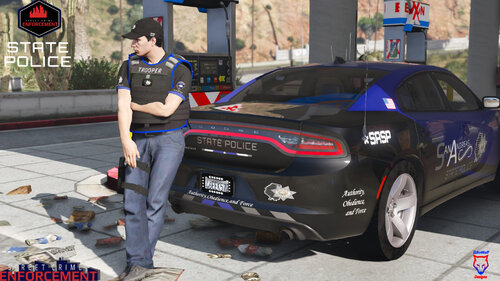 is there a way i can get the jpeg of just the shield you have on the left shoulder?
- 20 comments
- 3 reviews

.thumb.png.b9e18d9931090871b064059f2c315cf8.png)
