



aebian
Members
-
Joined
-
Last visited
Everything posted by aebian
-
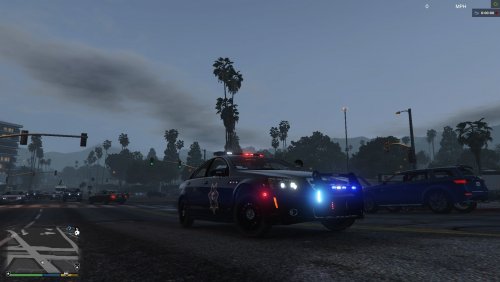 Blue and Blue. I tried to reopen the rpf and OIV said it said the archive is corrupt lol, trying again. not sure whats the issue No thats just because the mod is in "Locked" status . @72will I just noticed while I replaced the police3 car, the lights alignment (leds on the mirrors) and all that are there but the vehicle itself is still the vanilla one. Not sure if this is an issue with OIV
- 60 comments
- 5 reviews
-
@72will Hi, yes I did also. I will now try again, restored the archive from backups.
- 60 comments
- 5 reviews
-
@72will My GTA V is crashing when I either spawn this car or get a wanted level (game spawns the car then). I installed the car in x64e.rpf inside the mods folder (like I did with a T-90 Tank) and the tank worked. But not your Chevy. The vehicles.meta thingy is in my update.rpf (also in the mods folder) inside there in common/data/levels/gta5 and the carvarrations in update/x64/dlcpacks/mpheist/dlc.rpf/common/data I assume I did everything right because other mods are working. Do you see any error? I also noticed that I had to "import" (add new files) to have the police+hi.ytd and police_hi.yft
- 60 comments
- 5 reviews
-
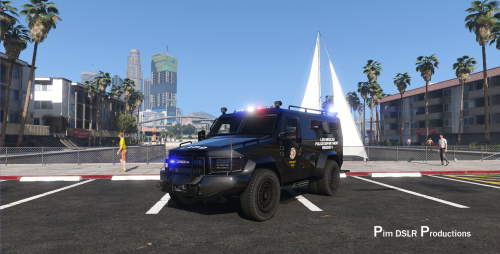 That model is awesome. It even looks better the the original picture you posted in my opinion. Glad this model has made his way to GTA V :3
- 67 comments
- 11 reviews

