



ytlemonface
Members
-
Joined
-
Last visited
Everything posted by ytlemonface
-
Anyone know how to fix that ^^
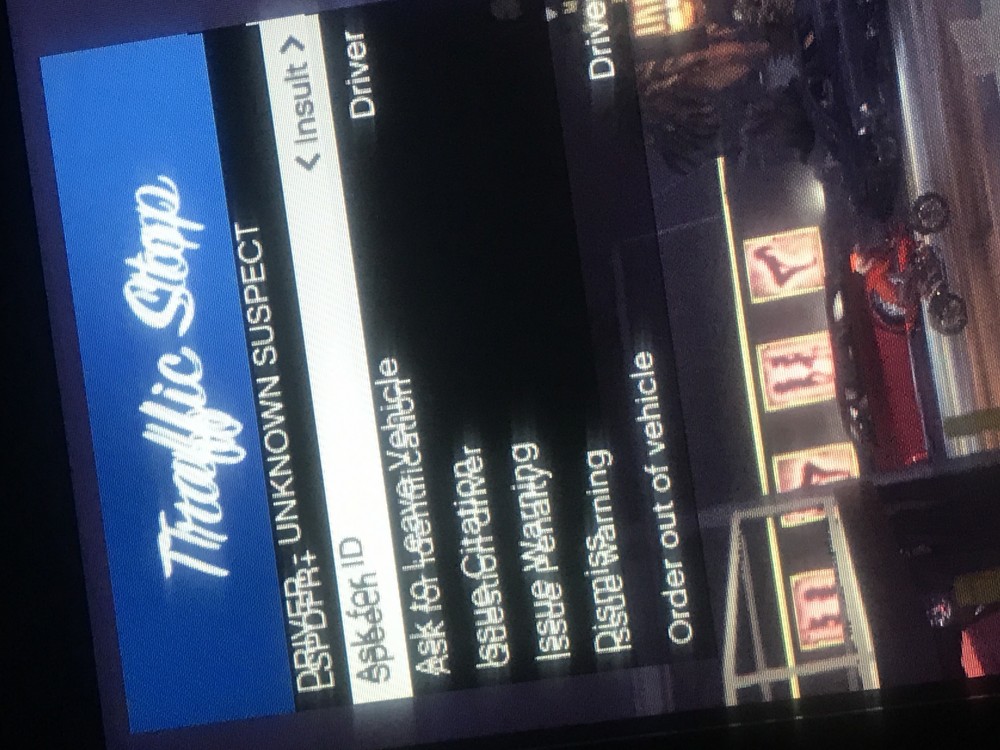
-
Really cause when I put it in plugins lspdfr it don’t show on rage or is that how it’s supposed to be ?
-
Really cause when I put it in plugins lspdfr it don’t show on rage or is that how it’s supposed to be ?
-
Do they have to be in a folder called lspdfr cause when I have them there it doesn’t show on ragehook and when I try command mode it don’t let me bring it outyes i now i added plugins cause thats when it mainly crashesIt’s working now but it’s says
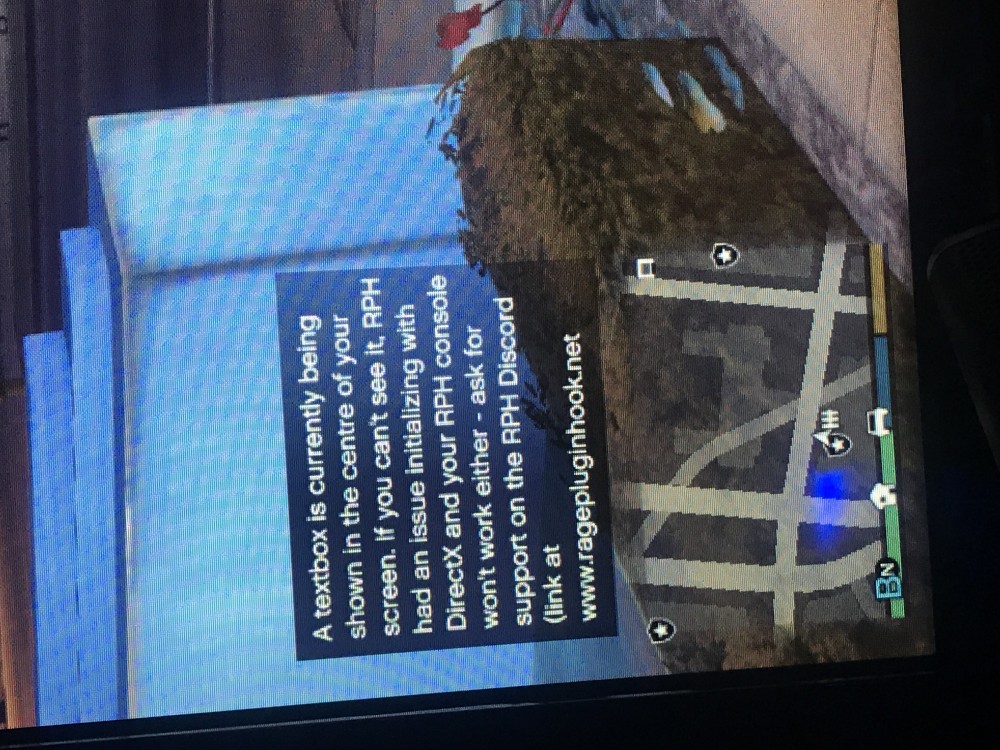 nope it just crashed againAll it said lspdfr was terminated
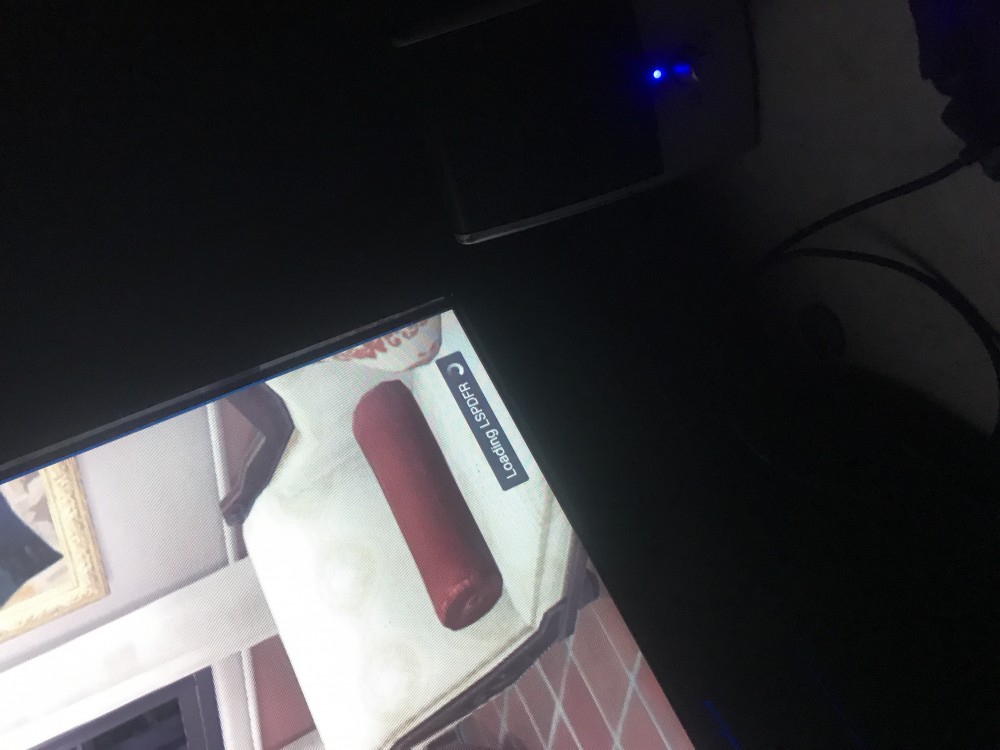 And also I put plugins and they don’t show up like to load upeverytime i start ragehookplugin it will load and then a black screen pops up and it stays there after a while it crashes anyone know how to fix ?



Account
Navigation
Search
Configure browser push notifications
Chrome (Android)
- Tap the lock icon next to the address bar.
- Tap Permissions → Notifications.
- Adjust your preference.
Chrome (Desktop)
- Click the padlock icon in the address bar.
- Select Site settings.
- Find Notifications and adjust your preference.
Safari (iOS 16.4+)
- Ensure the site is installed via Add to Home Screen.
- Open Settings App → Notifications.
- Find your app name and adjust your preference.
Safari (macOS)
- Go to Safari → Preferences.
- Click the Websites tab.
- Select Notifications in the sidebar.
- Find this website and adjust your preference.
Edge (Android)
- Tap the lock icon next to the address bar.
- Tap Permissions.
- Find Notifications and adjust your preference.
Edge (Desktop)
- Click the padlock icon in the address bar.
- Click Permissions for this site.
- Find Notifications and adjust your preference.
Firefox (Android)
- Go to Settings → Site permissions.
- Tap Notifications.
- Find this site in the list and adjust your preference.
Firefox (Desktop)
- Open Firefox Settings.
- Search for Notifications.
- Find this site in the list and adjust your preference.