danielet2509
Members
-
Joined
-
Last visited
Everything posted by danielet2509
-
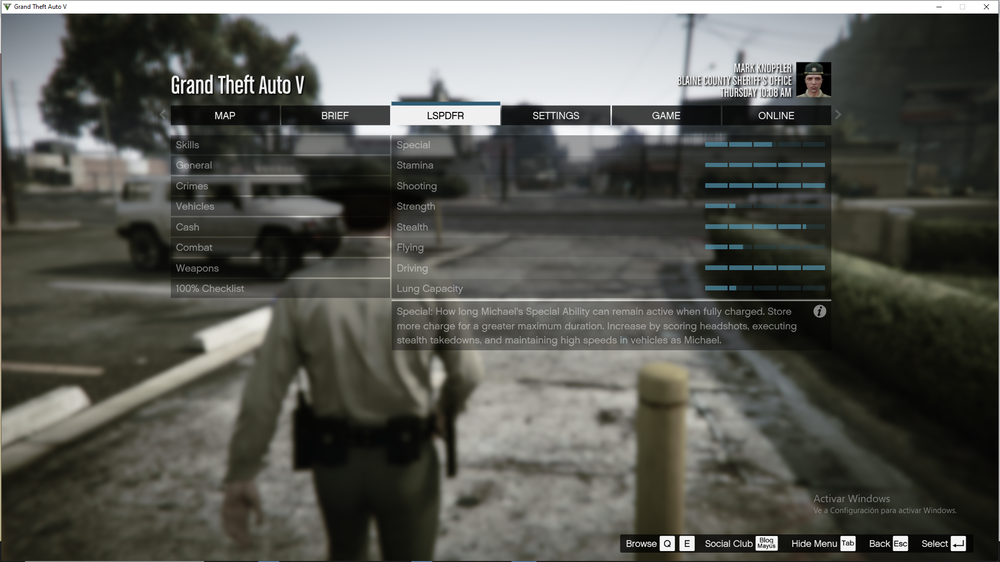
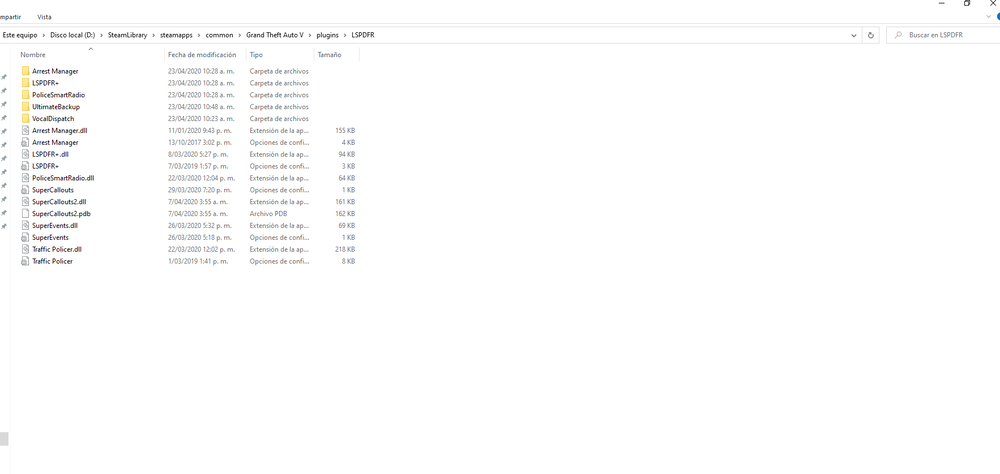
Hi, I just downloaded LSPDFR 0.4.7 a few days ago into my GTA V (latest version), and I have added this plugins that are on the image, every single one cheked, donwloaded with the latest .dll version just for making sure that it is compatible with version 0.4.7, but it keeps crashing after loading, then, with the RageHook Plugin loader, I reload LSPDFR and the menu disappears as shown in the other image. I have tried everything, I deleted LSPDFR and installed it againg, I deleted every single plugin, I even reinstalled GTA V itslef. I also have read a lot of crash reports in the support section and none of them worked, I even tried as follows: Go into the Rage Settings -> Game Settings -> Command Line Switches. Look for "Force Windowed mode." Check it. Change the plugin timeout threshold from 10000 to 60000 in the RagePluginHook.ini file and disable Main.PreloadAllModel in GTAV/LSPDFR -> LSPDFR.ini. This was supposed to help preventing LSPDFR from crashing every single time, but it didnt worked either. Please, I would love to use LSPDFR, if someone knows what to do, it is deeply appreciated. (I've also uploaded the RageHook log, if that helps) @LMS @A Stranger RagePluginHook.log