TheGamingToilet
Members
-
Joined
-
Last visited
Everything posted by TheGamingToilet
-
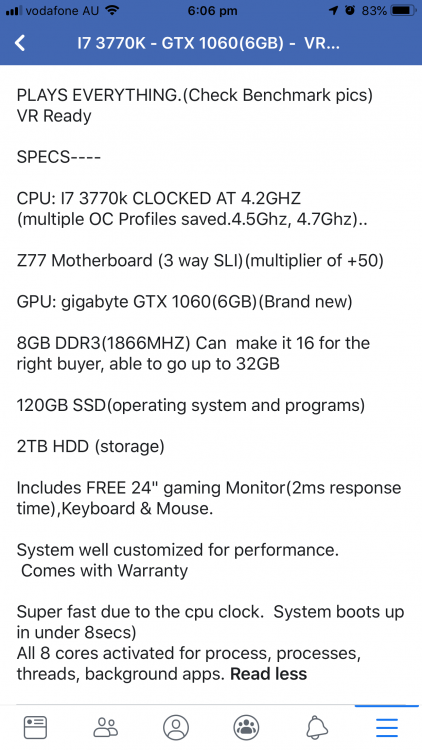
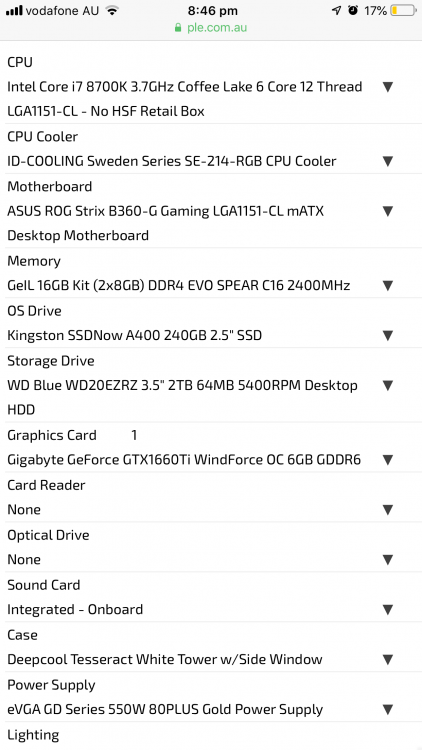
Sorry for the questions but I would greatly appreciate if someone look at this pc and maybe tell me some things I should upgrade in it or possible downgrade. Thanks
-
Thanks but I live in Australia and most websites have much higher prices. The best one I've found was an i5 9400F but with pretty good gpu's
-
So would 6 cores be fine? This is the PC I will most likely end up getting https://www.officeworks.com.au/shop/officeworks/p/hp-omen-core-i7-desktop-tower-pc-880-196a-hpom880ci7#specifications thanks for the help!
-
What would the recommended specs be Incase I get another pc like maybe a ryzen 7 2700x or i5 8400
-
Hello all! Sorry if this is a stupid question or posted in the wrong category but I've been wanting a PC for a long time to play LSPDFR and maybe FiveM later on. I've been wanting a second hand computer as they are much cheaper. Thought someone might be able to tell me if it's alright to play LSPDFR. Thanks