Mconrady
Members
-
Joined
-
Last visited
Everything posted by Mconrady
-
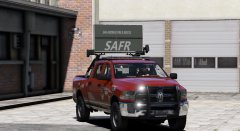
From the album: Rednecks DOT Pack (Fire Department Skins)
-
-
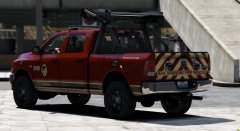
From the album: Rednecks DOT Pack (Fire Department Skins)
-
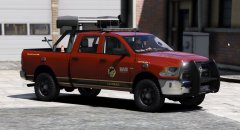
From the album: Rednecks DOT Pack (Fire Department Skins)
-
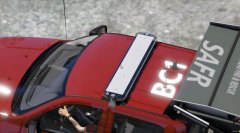
From the album: Rednecks DOT Pack (Fire Department Skins)
-
So i'm trying to get a ENB to work with my LSPDFR and whenever i try to start up my LSPDFR with my ENB it immediately crashes so i was wondering if ENBs are compatible with LSPDFR or if there is something special i need to do to get it to work.
-
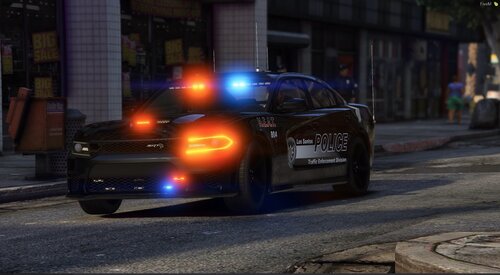 I wonder who took those pictures because they look pretty good. *cough cough*
 -
-
-
-
-
-
-
-
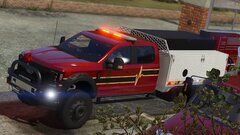
From the album: Fire Department Skins
-
-
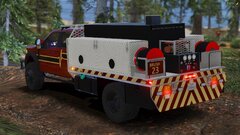
From the album: Fire Department Skins
-
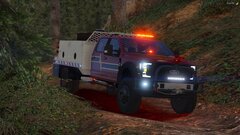
From the album: Fire Department Skins
-
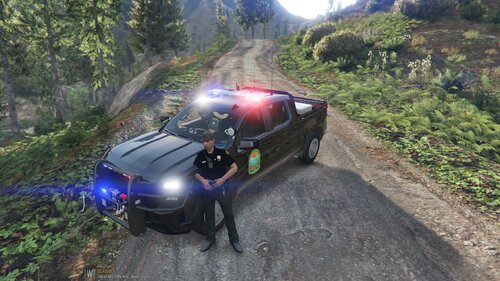 I personally live in SC so i think this is pretty cool that someone is making some DNR skins for the state that i live in, but the only recommendation i have for this skin is to make the state on the back have sharper edges not rounded off edges if you know what i mean.
 -
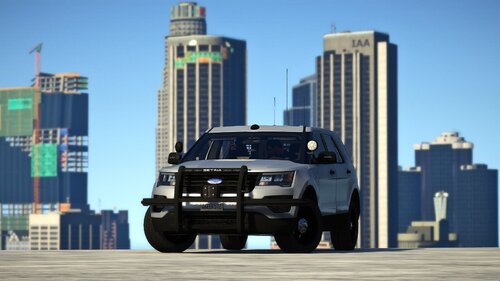 would there be a way you could possibly remove the push bar/ wrap around?
 -
-
-
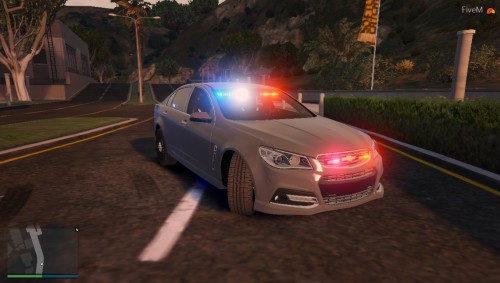 https://gyazo.com/baa3a84cbec75a55ddbf360a3a3c497b the lights are all screwed up can anyone help me fix it?
- 14 comments
- 1 review
-
all the files are not in one file so it takes like 10 min to download all of them because you have to enter some password thing every time you go to download one of the files
- 14 comments
- 1 review
-




.jpg.c54aa395b198f9f6a427b992c01f3b33.jpg)