Lafkis
Members
-
Joined
-
Last visited
Everything posted by Lafkis
-
Fixed my issue by Exiting from antivirus at all. Hope this helps someone!
-
Please guys, I've gathered all info I could, any suggestions? I'll try anything.
-
Shameful bump!
-
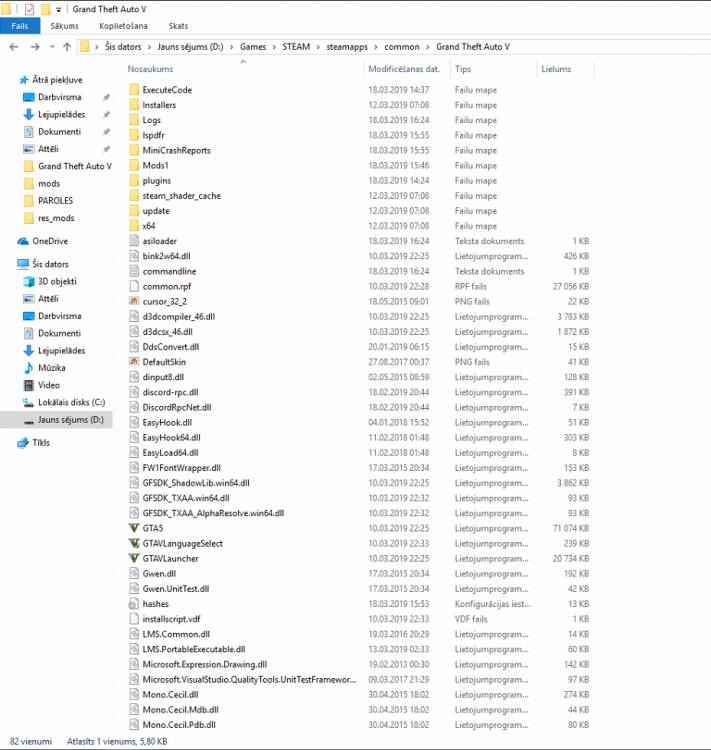
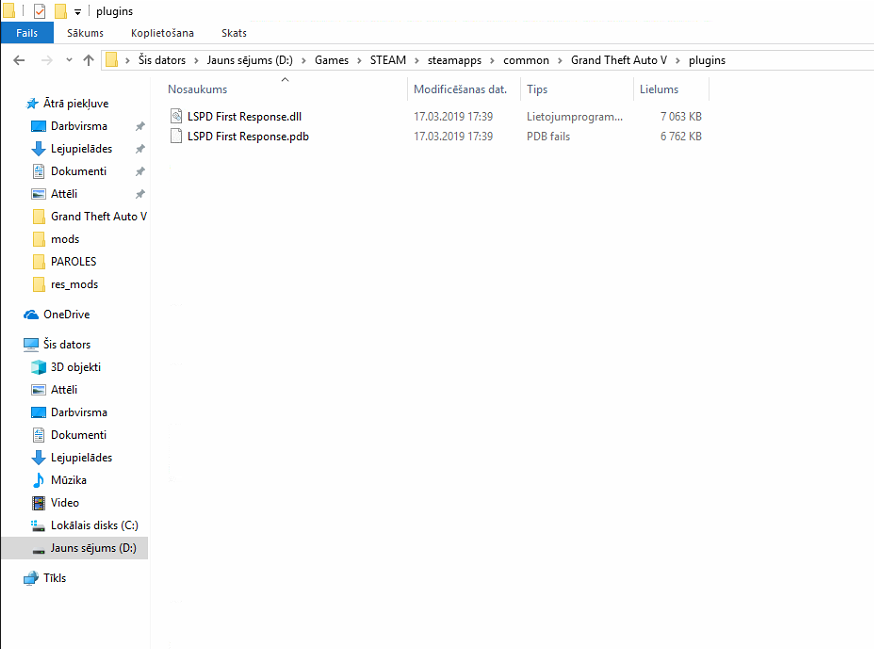
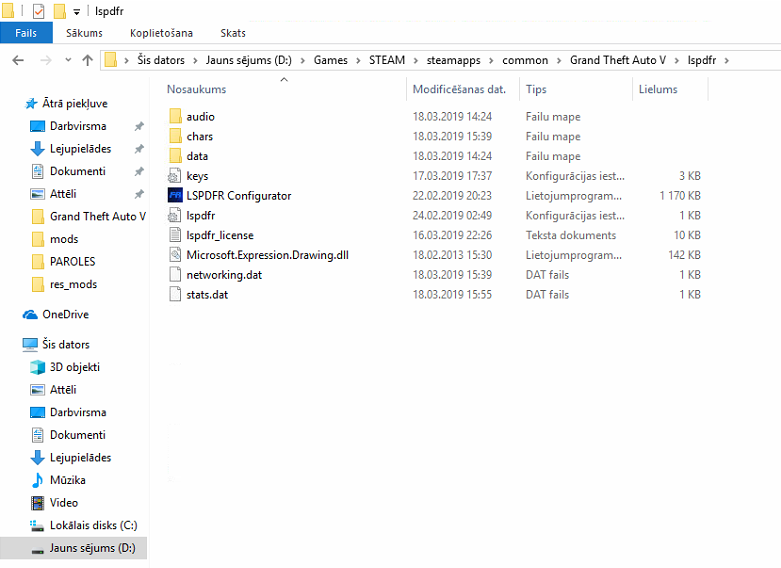
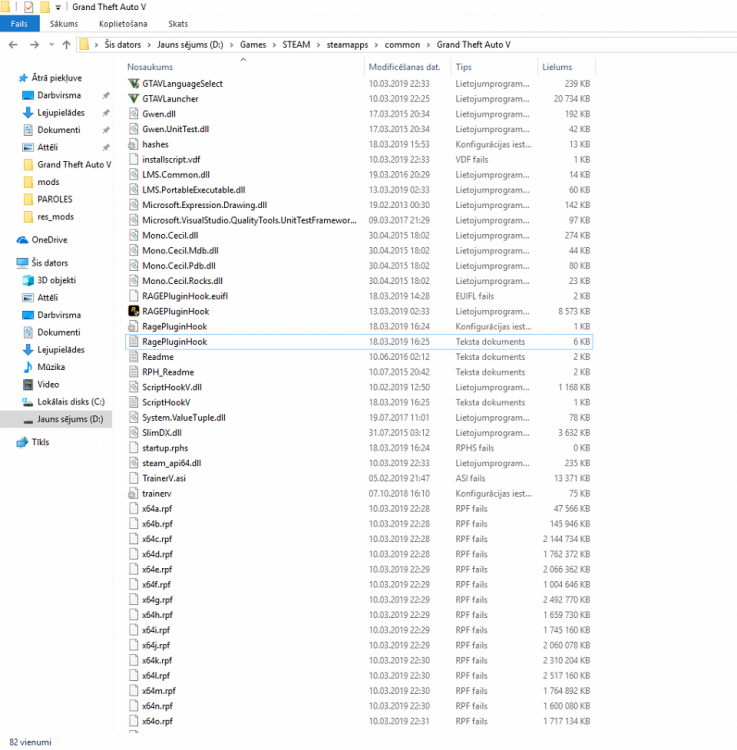
Hello, kinda new to this. 😅 Today I tried installing LSPDFR mod for my friend and without any luck. Game keeps crashing, I've searched tons of YouTube videos and surfed google for answers, and nothing seems to work. The furthest I've got is in-game wtih LSPDFR icon loading at the bottom, and after around 30 seconds game crashing. Tried different methods, things etc. : * Antivirus is 360 Total Security - All exceptions and whitelists have been done. * Folder is named "Grand Theft Auto V" in the Steam directory. * Force DirectX 11 * Force Windowed * Launching the game first and then RagePluginHook (This method has been the most rewarding for me) --- log file (RPH_GameFirst.log) * Launching with administrator privileges (Sometimes RPH didn't want to hook, because of "slow system or insufficient permissions", sometimes this fixed the issue) * Launching normally, without any administrator privileges and stuff like that (Gets only till the GTAV Police intro *flashing lights, Rockstar logo* etc. then crashes) --- log file (RPH_NormalLaunch.log) I hope someone will be able to assist me over here. P.S. Installed everything whilst following Benzo Effect's video. RPH_NormalLaunch.log RPH_GameFirst.log