Dholez
Members
-
Joined
-
Last visited
Everything posted by Dholez
-
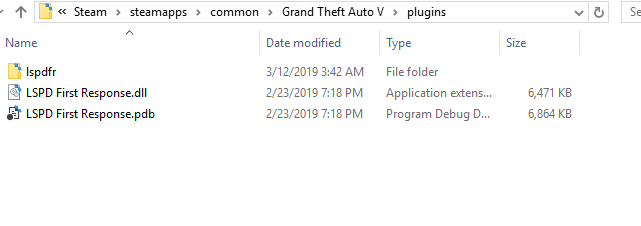
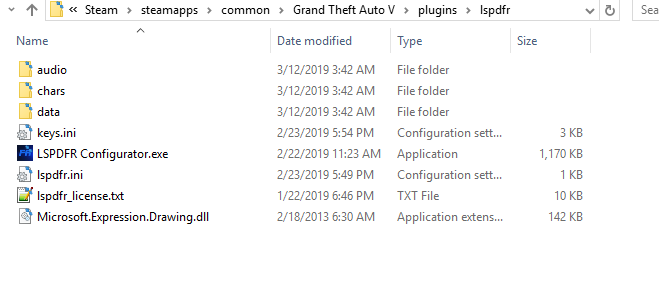
Well I had it there before, but after reading on here and finding this thread and seeing the reply from UnknownBastion above saying it should be inside the plugins folder i moved it there thinking i had misread something in the install instructions. unfortunately i have the same problem with the lspdfr folder being in the main GTA folder. Thanks for the help though and let me know if you have any other ideas.
-
Hello, I'm having a similar issue as Adder is. I've only tried playing LSPDFR for the first time yesterday and i haven't been able to get it to work at all. I have followed the installation guide to a T and when i launch Rage Plugin Hook it stays on a black screen when the game opens and a short time later it crashes to desktop. I've tried this with no other mods and a few others like open interiors, scripthookV, etc. I'm attaching the same screenshot you asked for from Adder. i have the crash report from Rage but it wont let me upload here, but i can upload externally if it will help. My GTA Version is 1.0.1064.1 and steam says its up to date and all files verify as good. I just downloaded RagePluginHook yesterday and its on version 0.64.1234.15464. I'd really like to play LSPDFR so if anyone has any ideas i'm willing to give them a shot. TIA