


.png.a9de0cf3b1b3f649277364e48d8d3147.png)
.png.dc634dc39aa59c7b9a59720a52b1bad9.png)
totallynotbriantall
Members
-
Joined
-
Last visited
Everything posted by totallynotbriantall
-
.jpg.8b992fd67e4dfe6a6f0e30aea6231411.jpg)
From the album: Gruppe 6 Armored Division
One guard shot and killed, another guard sustaining gunshot wounds, one suspect shot and killed. -
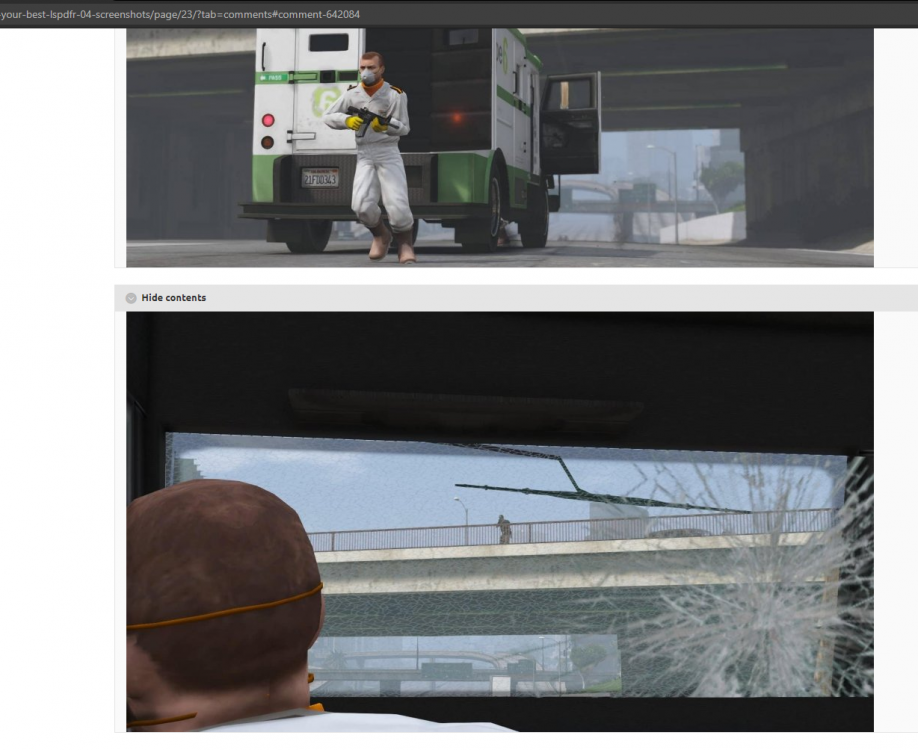
Gruppe 6 Armored Division - attempted hijacking @ Vangelico thwarted by security; one guard shot and killed
.thumb.png.1086704f975233b24293487d992f9a74.png)
.thumb.jpg.c5113b6a7cd1ea53a7c399fb9ae1c9bb.jpg)
.thumb.jpg.0e73de33ddca64137fbfcf11eb0be804.jpg)
.thumb.jpg.3911ec6d2a165d9db11017524a8962b1.jpg)
-
-
.png.68439981329b7f504ac6e3efe388282b.png)
From the album: Los Santos Sheriff's Department
-
.png.a60705d9b4e2a660e92e8d2bb73a6571.png)
From the album: Los Santos Sheriff's Department
-
.png.0acfbf0a27011d889dabff4b4f527ae0.png)
From the album: Los Santos Sheriff's Department
-
 how does the drop leg holster work? is it like just a fixed object or is it a drawable? (asking before I download)
- 47 comments
- 13 reviews
-
.jpg.3a4a026b003434e837c5b081c8733506.jpg)
From the album: Gruppe 6 Armored Division
One guard shot and injured, one suspect shot and injured. All G6 personnel escaped with their load and lives. -
.jpg.7dff501c7d1b3d72f4d3d7dfce8a8735.jpg)
From the album: Gruppe 6 Armored Division
One guard shot and injured, one suspect shot and injured. All G6 personnel escaped with their load and lives. -
.jpg.85d95d1e9fd28196c261e85fcac7496e.jpg)
From the album: Gruppe 6 Armored Division
One guard shot and injured, one suspect shot and injured. All G6 personnel escaped with their load and lives. -
.jpg.dc5fbd6da3d13825536aea80ec513b64.jpg)
From the album: Gruppe 6 Armored Division
One guard shot and injured, one suspect shot and injured. All G6 personnel escaped with their load and lives. -
Gruppe 6 Armored Division - attempted hijacking, successful prevention & evasion
.thumb.png.0af0106fe637516c39418220ac5f1c95.png)
.thumb.jpg.c663eb11ff78b6e5fecf95da7c4eec85.jpg)
.thumb.jpg.ef313f3be44199927bf3a914a7391d67.jpg)
.thumb.jpg.24933e96b06375c43d3b8550b9840859.jpg)
.thumb.jpg.5a0ac53f9db3fe4714ecce5738f23a48.jpg)
-
.png.df2043088329d9b672c07c7f33401225.png)
From the album: Gruppe 6 Corporate Security
-
.png.02d98d1ffadd1ed773e60abe4442f279.png)
From the album: Gruppe 6 Corporate Security
-
.png.6b465b595bc6cddd110d37bbbdf744d4.png)
From the album: Gruppe 6 Corporate Security
-
Buttons on the Album Upload also seem to be broken. I cannot upload any image to any album as a result. https://gyazo.com/4506fe4fc70da4534f0dc8e669bd04f8 (<--- gif)
-
Had this issue since yesterday. I went to go upload a few screenshots, no issues when it was first uploaded. I check back later, and for whatever reason it's in the form of links. I asked my friend if she could see the links, but she saw images (which is what I am also supposed to see). -I could see my previously uploaded screenshots with no issues -I could see other people's screenshots with no issues -Reuploading the image didn't help either (what it's supposed to look like)
.thumb.png.b20b7c6292c9fad43b73e8150f5eedbf.png)
-
yeah same issue, been having it for a couple of days
-
LSPD JTF Unit ambushing a hijacked armored truck on an overpass
.png.402712ee5666d651e67e92da2c4bdb90(1).thumb.jpg.8dcb9aa9df1791ac939bb8b0a789bdaf.jpg)
.jpg.e7eefb9a788d5eb6692bfd3065c11558.thumb.jpg.0b6d402522122637247c968524d65b4b.jpg)
.jpg.daa3b638df6b835006f47a0983a7cea1.thumb.jpg.032b5da4b92ae6a5ce29d0aa50721a5b.jpg)
.jpg.9b396e3898c9fd1f6ea3c15b678999f7.thumb.jpg.6ab272e4ce3f1eb27ea9f83f03a777be.jpg)
-
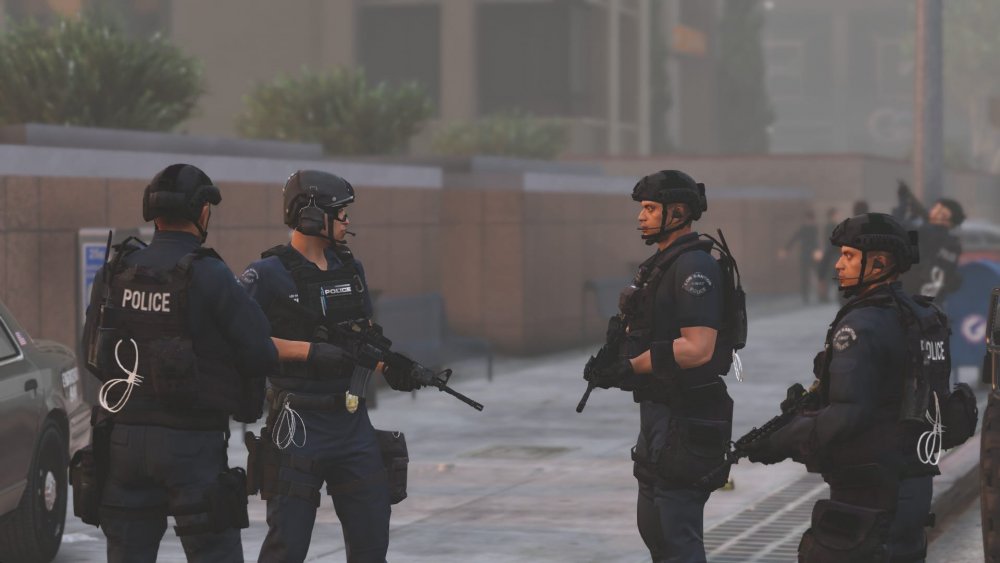
staging at the scene of a barricaded hostage taker
.thumb.png.a4bbebde734ab69391d1e88f5f1eec8a.png)
-
deploying spikes on a stolen SAHP Charger
.thumb.png.53c052445d8afdecfe8a823b8cb751ba.png)
.thumb.jpg.bb7d754ae2220a7de862136cd51e1491.jpg)
.thumb.jpg.8ca937fdc66ec5c293a22c713d64af77.jpg)
-
traffic stop turned shootout
.thumb.png.6861d9e7324be14a5789f78a379c2330.png)
.thumb.jpg.67a1275de2137f2c6b07e2b3b7a8564d.jpg)
.thumb.jpg.f25e0651c59c8a1030d25a2e083df73d.jpg)
.thumb.jpg.b59b392144f96702c5b575f163b7e5e4.jpg)
-
silent alarm
.thumb.png.dd63e78c1b6acd71b03da634f4acb400.png)
-
-
.png.c8d36effec967ab1917f4fbaf01836c4.png)
From the album: Rookie Ride-Alongs
.thumb.png.2d9a82ccd30b692ffe0c6c8fd662e3e0.png)
.jpg.8b992fd67e4dfe6a6f0e30aea6231411.jpg)
.png.203c2f9d63ba2bbbbefe5ae52c9f046d.png)
.jpg.68299f9a75ba37e494a966f5bdcdf405.jpg)
.jpg.b7dda3a5ea198b457f3981810fc434eb.jpg)
.jpg.dc55c1bc27af77014cc3c906b8234b6a.jpg)
.png.68439981329b7f504ac6e3efe388282b.png)
.png.a60705d9b4e2a660e92e8d2bb73a6571.png)
.png.0acfbf0a27011d889dabff4b4f527ae0.png)


.jpg.3a4a026b003434e837c5b081c8733506.jpg)
.jpg.7dff501c7d1b3d72f4d3d7dfce8a8735.jpg)
.jpg.85d95d1e9fd28196c261e85fcac7496e.jpg)
.jpg.dc5fbd6da3d13825536aea80ec513b64.jpg)
.png.2e5a033f55cc141af3b12009f3fd785a.png)
.jpg.2e5e907c1db997c529e7ce0bbfc9b48f.jpg)
.jpg.a3f4941d7134741ede43fc2c0eebdbbe.jpg)
.jpg.21f6d9ef3ca137097878b3b4c3329964.jpg)
.jpg.ac175ca9146b263a10a7a5a08f610044.jpg)
.png.df2043088329d9b672c07c7f33401225.png)
.png.02d98d1ffadd1ed773e60abe4442f279.png)
.png.6b465b595bc6cddd110d37bbbdf744d4.png)
.png.ab69a9a7a57f2bffad177e593e5ca148.png)

.png.402712ee5666d651e67e92da2c4bdb90(1).jpg.4f7dfcdcedcd613f18955cb7bc56a33c.jpg)
.jpg.e7eefb9a788d5eb6692bfd3065c11558.jpg.bfaf592f1d9d166b84b0c58b81413ea0.jpg)
.jpg.daa3b638df6b835006f47a0983a7cea1.jpg.2514d9aebb56fbfcd327911c6c681372.jpg)
.jpg.9b396e3898c9fd1f6ea3c15b678999f7.jpg.5b8e6e5b087e9cef1e5d7e11015bd4a6.jpg)
.png.e9a71dbc736b4e0a623599452cce6dea.png)

.png.fec35cb9091a68e2a7aa7f7bfcbc4fab.png)
.jpg.4dc715c5245e5ad4e9e8bc72a8a653fe.jpg)
.jpg.f0cb11c769974661ed8eb1601cd1e95b.jpg)
.png.9cd2df0d20ee81218295dc761ac6fcd8.png)
.jpg.1f2693b176a10feb5657ca2fcab118fc.jpg)
.jpg.3d3b2fc2401af054d1242868036ef0ba.jpg)
.jpg.21ecc276c88727f11e280e95d357ee38.jpg)
.png.96f68cfab3f65a9a5472055706957ab7.png)
.png.c8d36effec967ab1917f4fbaf01836c4.png)
.png.45d632516bf809a7c7fac830db40222a.png)
.png.0c556727bb64456b949180f1c5480af4.png)
.png.db92cc9e6d880d0a10886cd69c3ba59d.png)
.png.3647b78c627dfacf949dac1903cd19ea.png)
.png.791def82cce1e10bfdf40c79107b2c6b.png)
.png.2fbf5f35e8a8c92ae105bdcbb96417cc.png)
.png.d6a029cab9d5f54ef00ea4466ad88a58.png)
.png.bf2bf10387d0a4cda6473dca6c7a0af1.png)
.png.5e8365d2c970adcb321e01172aa25b86.png)
.png.38e2c19fa5811441111e4b82f3d071d5.png)
.png.ec187899f5a4f11fe600a57476388b77.png)
.png.6681492e235c26c78394bfd26f6ff466.png)
.png.89089abc9033c112e2bad2f33f0c86a6.png)