


.png.a9de0cf3b1b3f649277364e48d8d3147.png)
.png.dc634dc39aa59c7b9a59720a52b1bad9.png)
totallynotbriantall
Members
-
Joined
-
Last visited
Everything posted by totallynotbriantall
-
.png.3f84173009f35254ca19cc36d88c796c.png)
From the album: Los Santos Police Department
-
.png.c45360df4ed84f85f3266e95e787cf2a.png)
From the album: Los Santos Police Department
-
.png.6c2bc3f886499251229f61a42dd8d2d2.png)
From the album: Los Santos Police Department
-
.png.5b8726c78c889ac5c2cd9416236d2fba.png)
From the album: Los Santos Police Department
-
.png.2a89bf24c4c67af566c431b29debc526.png)
From the album: Los Santos Police Department
-
.png.ec38428e4b4e31f3fd145b3efafe000b.png)
From the album: Los Santos Police Department
-
.png.3746893d4ce8c0b6dd2cbf4c794ca49e.png)
From the album: Los Santos Police Department
-
Chilly Morning Sunrise in Sandy Shores
.thumb.png.8aaaaf774bab16f04879895c88f93c04.png)
-
.png.14fd3dd90f9378eabc00e93ec4fd10a4.png)
From the album: SA-CHP
-
.png.26ed5f2df866e3eb5425b283f84b8849.png)
From the album: SA-CHP
-
.png.de350f041d55fd09b28adcddfdc70b4c.png)
From the album: SA-CHP
-
.png.e1276e5daa0e5a052eaadac61ed3a2c3.png)
From the album: SA-CHP
-
.png.8518129bdcc15b80b408a2e895aa2c05.png)
From the album: SA-CHP
-
.png.2769cf7dca973b082e0601f9eeb300ee.png)
From the album: SA-CHP
-
-
.png.40fcc3c21173a1766a47c7a3861e682f.png)
From the album: Los Santos Police Department
-
The Old Capt' Still Kicking
.thumb.png.9d575c16b55ea1db82826ce0ab568fe9.png)
-
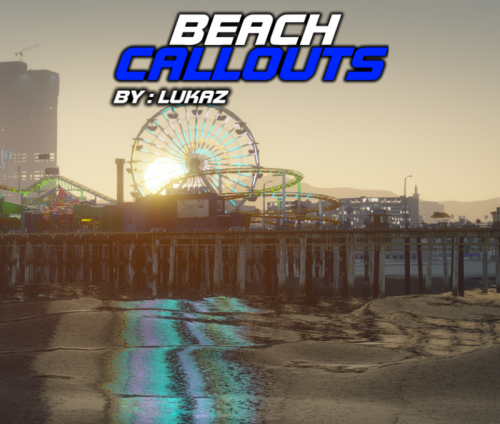 ah yes i was thinking when someone would utilize the beach for callouts, now i got a reason to use my beach uniform lol
 -
totallynotbriantall replied to totallynotbriantall's topic in Website Problems, Feedback & SuggestionsI get an image that's 1/10 loaded ( https://prnt.sc/ta6qma )
-
totallynotbriantall replied to totallynotbriantall's topic in Website Problems, Feedback & SuggestionsNope, doesn't work, just shows the file name even after the Ctrl+F5 method you mentioned
-
totallynotbriantall replied to totallynotbriantall's topic in Website Problems, Feedback & Suggestionshttps://gyazo.com/fe8a823ef6fcc69e08516428a68f9ce1 (gif) still not working
-
totallynotbriantall replied to totallynotbriantall's topic in Website Problems, Feedback & SuggestionsI will try that and see what happens
-
Not sure if this is just me, but I'm having some issues with getting certain images to load (typically images loaded by myself). It will show the file name, which is odd, but not the picture itself. Could be something wrong with my computer or with the site, I am not sure.
.thumb.png.deada5bb5615d998eb95b318eaa03241.png)
-
Rude Welcoming @ the Pillbox Hill branch of Fleeca
.thumb.jpg.f3e06f4c513841b242ab0a985d3ce44e.jpg)
.thumb.jpg.c4afd85e86ecaefbb99f8c5972236570.jpg)
.thumb.jpg.47612e939db89d40a16a6865ca504f07.jpg)
-
Just some screenshots of me experimenting with EUP on the 3 main protagonists of the campaign
.thumb.png.2d9a82ccd30b692ffe0c6c8fd662e3e0.png)
.png.3f84173009f35254ca19cc36d88c796c.png)
.png.c45360df4ed84f85f3266e95e787cf2a.png)
.png.6c2bc3f886499251229f61a42dd8d2d2.png)
.png.5b8726c78c889ac5c2cd9416236d2fba.png)
.png.2a89bf24c4c67af566c431b29debc526.png)
.png.ec38428e4b4e31f3fd145b3efafe000b.png)
.png.3746893d4ce8c0b6dd2cbf4c794ca49e.png)
.png.a84d0c5a4f6855f9a48f546369ba9864.png)

.png.14fd3dd90f9378eabc00e93ec4fd10a4.png)
.png.26ed5f2df866e3eb5425b283f84b8849.png)
.png.de350f041d55fd09b28adcddfdc70b4c.png)
.png.e1276e5daa0e5a052eaadac61ed3a2c3.png)
.png.8518129bdcc15b80b408a2e895aa2c05.png)
.png.2769cf7dca973b082e0601f9eeb300ee.png)
.png.bc7514aac6ed4265c7dc195ffa0236ab.png)
.png.40fcc3c21173a1766a47c7a3861e682f.png)
.png.938fd9f102361a7e0d8389e53be650c3.png)
.png.c7b3f8485a8ccaa8ad4a60eef4d14547.png)
.jpg.a621d984f3b6630b2c9d4900579b6e3a.jpg)
.jpg.545cae29af976c8dd69a6ce75eaad897.jpg)
.jpg.a1fda507e447b04db6532197ecaa4043.jpg)
.png.b25698393f7f818914665bbecef53667.png)
.png.53d086fbd0facc1f61ff5a196e2e57e8.png)
.png.cb519525d332ebeee79419583260bb9f.png)
.png.2bbccad156f0ade90d5d47e7c087537e.png)
.png.c228d8db7953c5ec46363eb0341110bb.png)
.png.ecaa1296b205853bf02f89119170b333.png)
