


ShadowPTX
Members
-
Joined
-
Last visited
Everything posted by ShadowPTX
-
I've recently got back into LSPDFR and things of the sort. However, I've seemed to notice my OpenIV pathway to "vehicles" isn't the same as everyone else's. When I add in a new vehicle, in game it spawns the default car. How I currently have to get to my vehicles section. For instance, will be the default police2 in game. If I'm just mentally unstable, let me know. Thanks.
-
@rabbit1988 THANK YOU!! I redownloaded Scripthook V and it works properly now. Thank you so much!
-
I've installed it 2 times clean. I don't understand the problem. I've watched videos on it, and I've went from the installation.
-
@rabbit1988
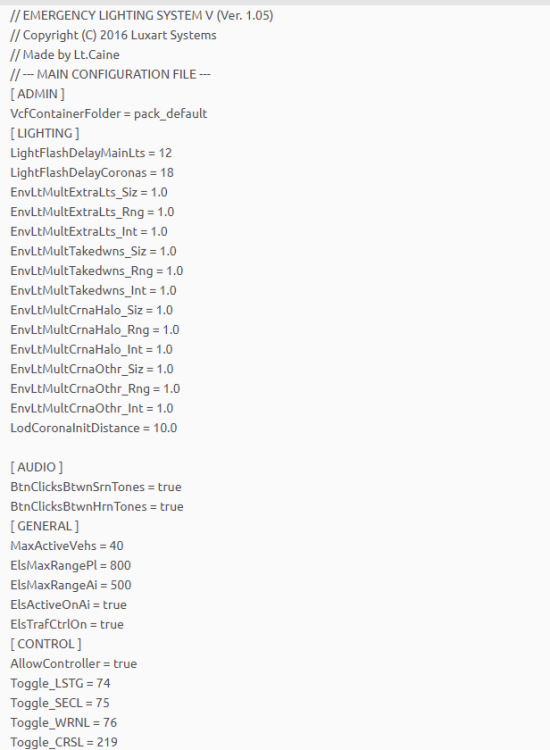
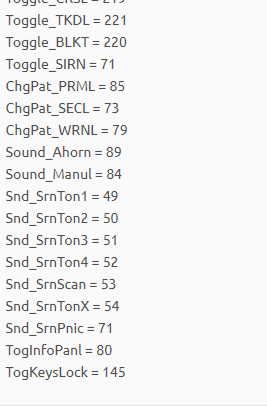 Here is my config file if that would help. If you need something else in files please say the location.@Reddington I know you're familiar with things of this sort. I'm thinking maybe you know the problem?Yes, I've got the vehicle file in the ELS Folder.
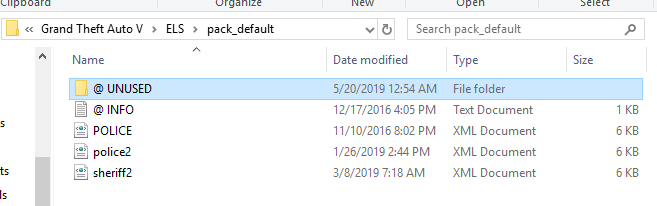 (Apologies in advance if i'm not doing this correctly.) However, I just reinstalled LSPDFR, ELS, etc. When I go in game and start everything, the ELS menu doesn't pop up, a couple of lights stay on, on the vehicle, and the back wigwags flash. I've tried reinstalling the OpenIV asi, and restarting. Nothing that I've seen has worked.




