copest
Members
-
Joined
-
Last visited
Everything posted by copest
-
Hey, this was my first thread, please look it up first: So I think I figured out why I cant run GTA V via RagePluginHook. I can only play GTA V using desktop shortcut "Grand Theft Auto V" or just by clicking "Play" from Steam. But when I double click on GTA5.exe from my GTAV folder the error says "Please run Grand Theft Auto V using PlayGTA.exe". I think thats the reason why RPH dissapears after "Validating hook" and "Validating system", because it tries to launch game trough GTA5.exe? Am i right? Is there any way to get RPH working? i googled it for hours but no fix so far but i really like to play LSPDFR and appreciate anyone, who help me closer to find solution. Thanks and sorry for quite incomprehensible story 🙂
-
Any ideas? Already tried verifying game and selecting “force window mode” etc. but no luck with fixing it.. 😕
-
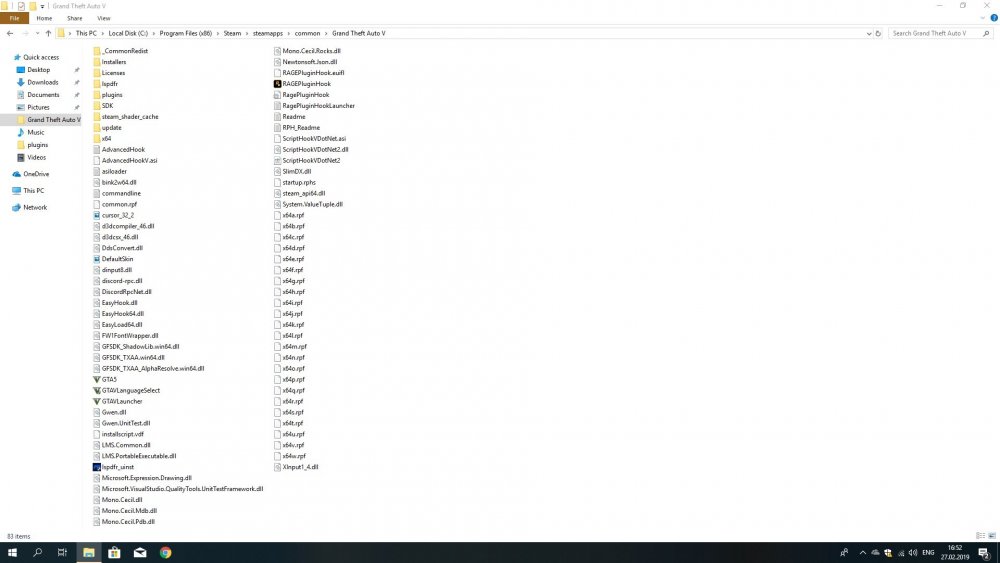
Hello, I have a issue with RPH which is not launching GTA. When i double click RagePluginHook there comes the RPH screen which says only “validating hook” and “validating system” and after that the RPH screen dissapears and game wont launch. I already tried to google it but it seems to be not very popular issue and have no luck with fixing it so far. I have a legally bought GTA from Steam and latest versions of LSPDFR and RPH. Here is the logfile and screen of GTA folder: