


Officer Dirk
Members
-
Joined
-
Last visited
Everything posted by Officer Dirk
-
Hi, Wonder if anyone can help me out with my game crashing. Thank You! RagePluginHook.logSame with me! Hopefully they can figure it out.I'm sorry it still crashes even if I load up regular GTA5 Story Mode. Here is the crash report if you could help. Thanks! Untitled document.txtSounds good! Thanks for the help!Yes it does! And I can send the crash report tomorrowStill Crashing For Me. RagePluginHook.logRagePluginHook.logRagePluginHook.logHave you fixes this problem? I have been having troubles with this. Thanks!Hi, I was wondering if anyone also had trouble with this. Every time starting up lspdfr rangepluginhook, before getting into the game it has me do the Display Calibration. Every time I continue past that part it would crash my game. If anyone has suggestions let me know! Thank You!
From the album: Gta5 LSPDFR
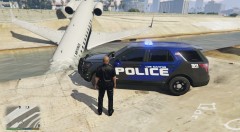
Responding to an emergency landing. Everyone made it out okay.LSPDFR Patrol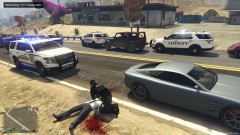
From the album: Gta5 LSPDFR
Performing CPR until EMS arrives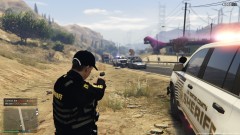
From the album: Gta5 LSPDFR
Shots fired during traffic stop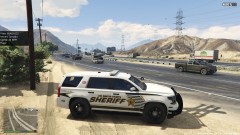
From the album: Gta5 LSPDFR
Running radar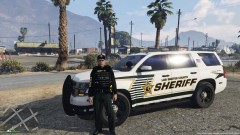
From the album: Gta5 LSPDFR
Sheriff Patrol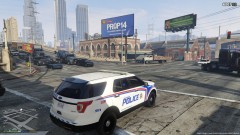
From the album: Gta5 LSPDFR
Busy day in the city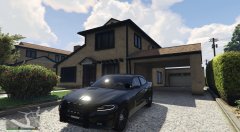
From the album: Gta5 LSPDFR
That sunset 😯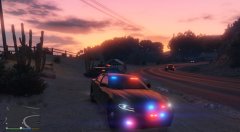
From the album: Gta5 LSPDFR
Night patrol!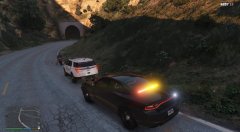
From the album: Gta5 LSPDFR
Traffic stop backup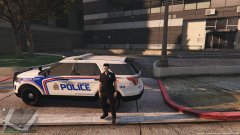
From the album: Gta5 LSPDFR
Loving the new update!


