
Caesar
Members
-
Joined
-
Last visited
Everything posted by Caesar
-
Yes, but right now I am working on another project.
-
Hahaha.....check your dummy size
-
I dont need the sirens, but the lights would be cool
-
What state is this in?
-
Ohio is North East.
-
Ohio is not the Midwest...wow..someone failed geography
-
You did a great job! That was my first time, which was a few years ago (I don't remember what gun I shot lol)
-
 Looks good :D
 -
Here let me say....nevermind. Your wasting my time.
-
Omg I love that Silverado :D
-
About time that Jay was demoted.
-
Damn. Hope he pulls through
-
 Looks great man :)
 -
Map in to a different black material
-
Holy crap, good luck lol
-
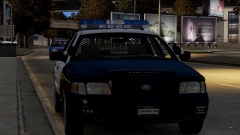
From the album: RobertB's WIPS
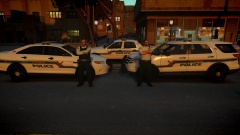
The LCPD decides to show off their '01 Vic. -
 What about if we cant trade anything :(
 -
 But i will take a look :)
 -
No
-
I want this damn enb ace :(
-
 Hell yes.
 -
How long is soon?
-
-
Does that mean he did a fantastic job on that car? Or..?
-
 Project scrapped. Relentless amount of RC20 errors.