Rylxnd
Members
-
Joined
-
Last visited
Files posted by Rylxnd
-
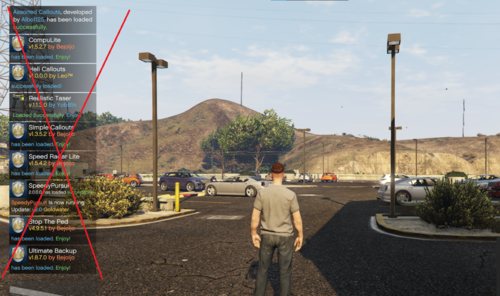
This simple plugin flushes and removes all those annoying notifications that pop-up for the first 20 seconds of your shift. Personally, I find these very annoying, as it blocks the entire side of the screen. And gets annoying really quick.
Warning
This plugin blocks all notifications on start-up. Meaning it WILL block notifications warning you about updates, and other critical notifications. Use at your own risk! I am not responsible if anything happens to your game or mods.
Installation
Simply drag the "plugins" folder into your GTA 5 directory.
Configuration
Included with the DLL, is an INI file with settings that you can configure to fit your needs. Such as configuring how long after you start your shift, the plugin will clear notifications. And how often the plugin will clear notifications and flush the queue.
- 18,798 Downloads
- 26 Comments
Updated -
This file gives you one of the most popular agencies in LSPDFR that is missing a station... SAHP!
This adds the following:
Entrance Garage Jail Drop Off
Location:
I chose a location that I personally — and this is my opinion — is the best option for the station. It's right off the highway and easily accessible.
If you have a location you think my be more suitable, lmk.
Installation:
Installation instructions are in the read me included in the download. If you can't read it, then how are you reading this?
Vehicles Used in Photo:
- 1,109 Downloads
- 10 Comments
Updated