


Lenny4Live
Members
-
Joined
-
Last visited
Everything posted by Lenny4Live
-
-
 I am also a bit confused, because in the ReadMe it says: "Replace/Drag and Drop" but if I use the green plussymbol, it just adds the files and doesnt replace anything I guess.
- 283 comments
- 95 reviews
-
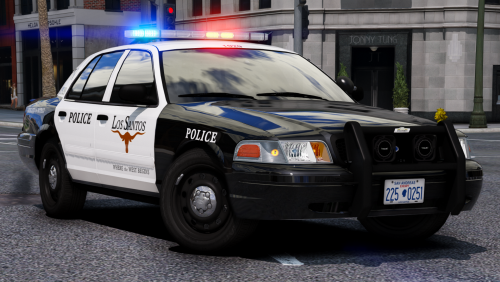
Hello Community, I recently installed GTA V and LSPDFR, so I am not that familiar with these installations. I have already installed Traffic Policer, SmartRadio etc. I watched YouTube videos, so I can be sure to do nothing wrong. Now I wanted to download this pretty pack of police cars. Again, I watched a video, how to install this pack. (OpenIV-installation) I did everything like him (Models into :Mods - Update - x64 - DlcPacks - Patchday15 - dlc.rpf - x64 - levels - gta5 - vehicles.rpf:). To paste the files, I clicked on the green plus sign in OpenIV, while in the "Edit Mode". I did that with every file in the pack. I've also packed the VCFs and meta in the given paths, but somehow the cars do not appear, in the menu. I do not know what else to do. Thanks for your help! Kind regards Lenny
- 283 comments
- 95 reviews
