




UndoTheDoing
Members
-
Joined
-
Last visited
Everything posted by UndoTheDoing
-
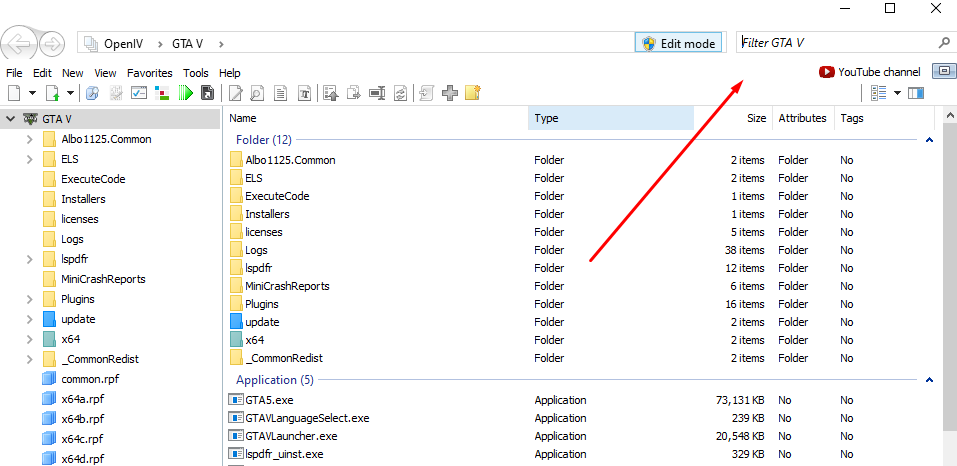
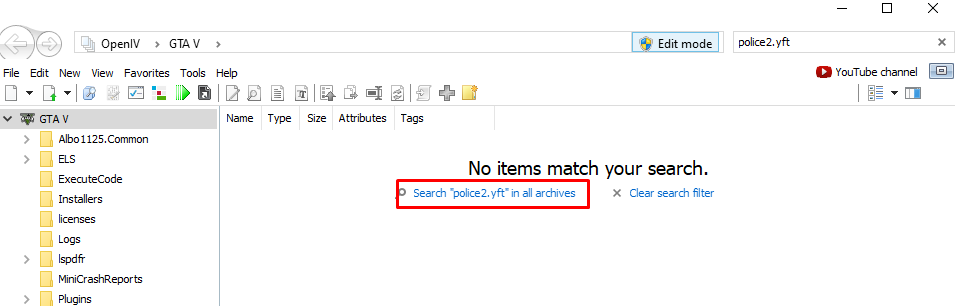
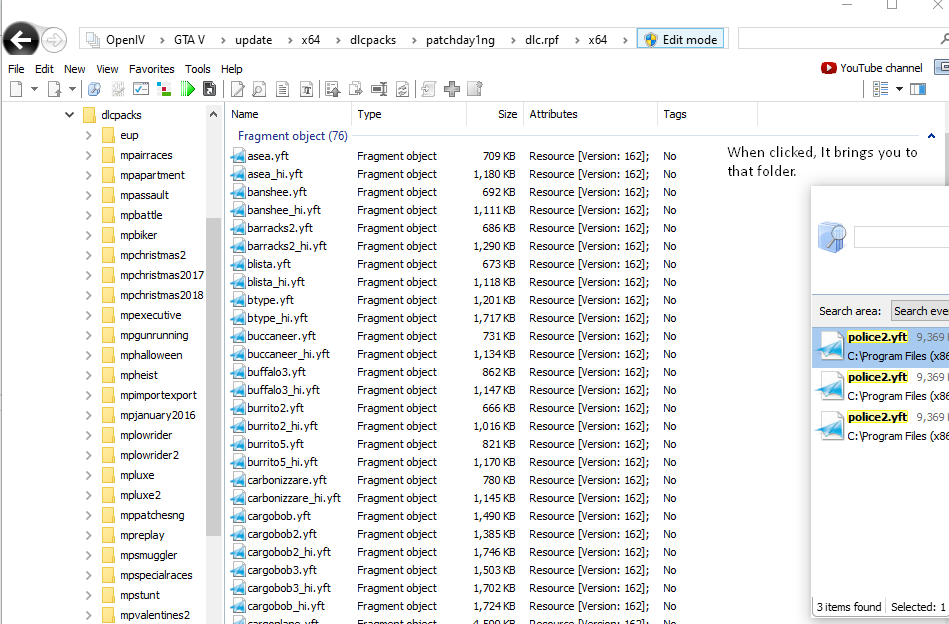
So basically, you simply search whatever vehicle you're looking for, i.e "police2", in the search bar in the main folder of GTAV. There will be a button when nothing is resulted saying "Search all archives". Click this. Once the little pop-up window is present, you can click through all of the police2 files in the archives, to replace them, click on each individual file location. This will bring you to that file. Once there, you can replace the files located in that file normally. Once finished with that file, you can go back to the pop-up window and replace down the line until they are all replaced. Your problem lies in the fact that the file that is primarily used in the game is not replaced. Replacing that file causes it to change in-game also. My solution makes sure this never happens again, as every file of that name is replaced. Hope this helps! Edit: It's best to search file type with it, or you're gonna be there all day, best to search something like "police2.yft"
-
Had a similar problem, started when I installed NVR. Same issue with ScripthookV missing / being non-functional, Looks to me like NVR does something to it when you do a clean install of it. Thanks for the help.

