otilane
Members
-
Joined
-
Last visited
Everything posted by otilane
-
Doesn't advancedhook = scripthook or am I being dumb? And I was dumb, thank chu.
-
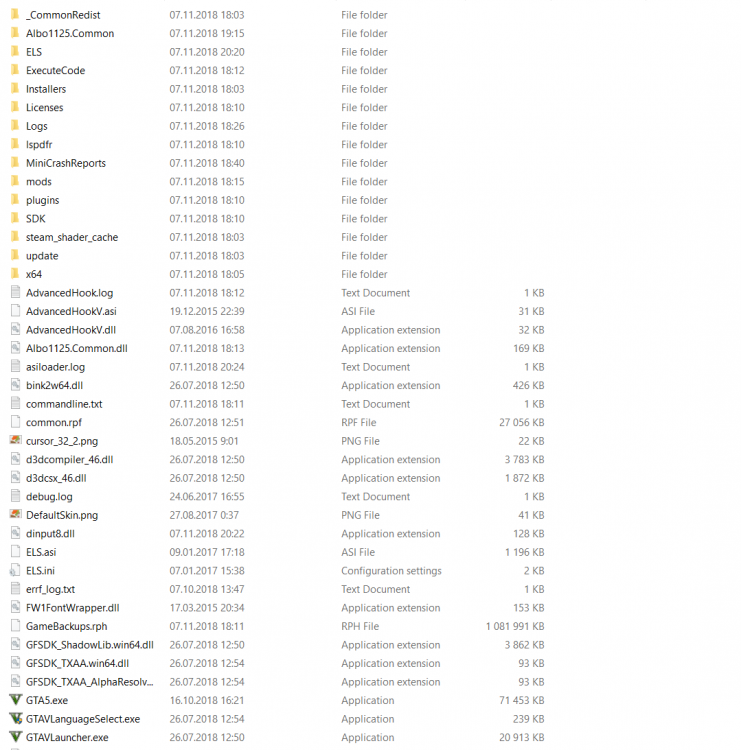
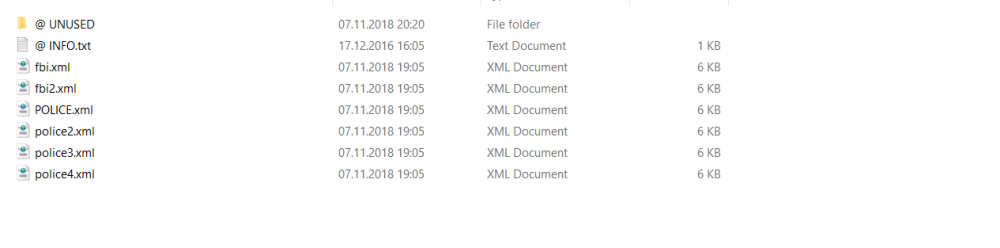
So for the past 2 hours I've been struggling to get ELS to load. At one point I was able to use J to toggle the siren sound, but that was it. I have tried a fresh install, I have made sure that everything is in the correct place where it is supposed to be, I've scoured google far and wide and tried every single solution I could find (Yes even the restart PC trick with OpenIV or reinstalling visual and .net) and I have had 0 results. // GTA V ASI LOADER (build May 2 2015) // (C) Alexander Blade 2015 LIB: "C:\Windows\system32\dinput8.dll" => 00007FFE31290000 API: "DirectInput8Create" => 00007FFE3129A150 API: "DllCanUnloadNow" => 00007FFE312A9340 API: "DllGetClassObject" => 00007FFE312A9410 API: "DllRegisterServer" => 00007FFE312B2A70 API: "DllUnregisterServer" => 00007FFE312B2CF0 LOADER: Loading *.asi plugins ASI: Loading "G:\Steam Client\steamapps\common\Grand Theft Auto V\AdvancedHookV.asi" "AdvancedHookV.asi" => 00007FFE64FB0000 ASI: Loading "G:\Steam Client\steamapps\common\Grand Theft Auto V\ELS.asi" "ELS.asi" failed to load ASI: Loading "G:\Steam Client\steamapps\common\Grand Theft Auto V\OpenIV.asi" "OpenIV.asi" => 00007FFE55AA0000 LOADER: Finished loading *.asi plugins I'm using this pack and MARKED 2014 CHARGER - UNMARKED 2014 CHARGER files. I have by this point exhausted all my resources and this is my final attempt at any useful information or ideas/tips to get ELS working.