


SimCasHD
Members
-
Joined
-
Last visited
Everything posted by SimCasHD
-
Vielleicht Hilfreich
-
Hallo, ich habe nun eine längere Zeit kein LSPDFR mehr gespielt und musste deswegen alles neu Installieren. Soweit so gut... unter Anleitung MEHRERER Tutorials installiert und anschließend ausgeführt. Sobald ich nun aber auf Launch im RPH Screen drücke, lädt es kurz und stürzt danach ab... "Spiel wurde unerwartet geschlossen" Haben das Spiel früher öfter gespielt... hab dann Repaints eigefügt und seitdem gehts nicht mehr.. (kann.. muss aber nicht daran liegen) Vielen Dank schonmal im Voraus... Simon
-
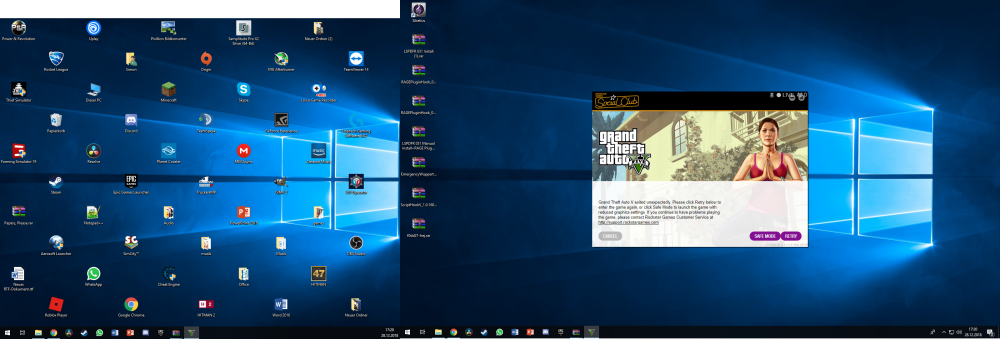
Ich habe keine Ahnung mehr was ich machen soll... wenn ich RPH starte läuft alles GTA öffnet sich und im Ladebildschirm dann das.. PLS Help (liegt nicht an LSPDFR... kann auch nicht hochfahren wenn ich NUR RPH starte) (Ich habe das Spiel auf Steam) (Ich habe das Spiel ungefähr 80 mal deinstalliert und wieder Installiert)
-
Hey, ich hab früher öfter mal LSPDFR gespielt... hatte dann eine Zeit Pause gemacht und wollte Gestern wieder anfangen... daraufhin wollte ich alles nötige Installieren. (normales GTA funktioniert) Wenn ich RagePluginHook starte ist alles gewöhnlich... sobald Gta startet kommt die Meldung... GTA ist plötzlich abgestürzt und starten sioe das Spiel neu... Brauche dringend Helfe.. Danke schonmal im voraus Simon aka. SimCasHD

