




Gepard
-
Joined
-
Last visited
Everything posted by Gepard
-
Hello I'm getting back into LSPDFR and installed a fresh version of GTA V to my G drive. I went through the typical LSPDFR install process and then installed this pack: https://www.lcpdfr.com/downloads/gta5mods/vehiclemodels/31838-els-los-santos-pd-mega-pack-lapd/page/4/ as a replacement file. I then decided to try and install the pack as an addon, following the installation instructions found within the .rar file of the pack. I'm not unfamiliar with the process, but it has been some time since I have last done something like this. In order, my installation process was as follows: - Installed carvariations.ymt to Grand Theft Auto V\mods\update\update.rpf\x64\data - Installed vehicles.meta to Grand Theft Auto V\mods\update\update.rpf\common\data\levels\gta5 - Installed gameconfig.xml to Grand Theft Auto V\mods\update\update.rpf\common\data - Installed visualsettings.dat to Grand Theft Auto V\mods\update\update.rpf\common\data - Installed PackfileLimitAdjuster.asi and PackfileLimitAdjuster.ini to Grand Theft Auto V - Installed GTAV.HeapAdjuster.asi to Grand Theft Auto V When I launch the game, it will now crash at the "Loading into Story Mode with RagePluginHook". I removed the dlcpack from the dlclist.xml and restarted the game however the game continues to crash. If anybody could point out any mistakes I may have made during installation or help troubleshoot I would appreciate it. Attached is my latest crash log. crash file.txt
-
A collection of photos taken from my playtime on FiveM servers.
-
 20201214032459_1.jpg
-
 20201128052219_1.jpg
-
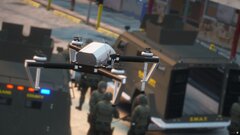 20201121201910_1.jpg
-
 20201121201602_1.jpg
-
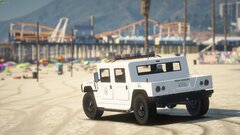 20201117142814_1.jpg
-
 20201013112532_1.jpg
-
 20201013112450_1.jpg
-
 20201013112625_1.jpg
-
 20201013113418_1.jpg
-
 20201013113503_1.jpg
-
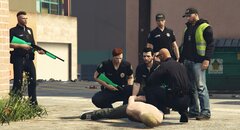 20201013120846_1.jpg
-
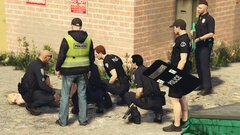 20201013121019_1.jpg
-
 20201013115335_1.jpg
-
 20200924051931_1.jpg
-
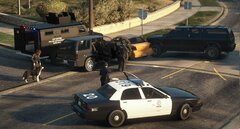 20200924051748_1.jpg
-
 20200926234045_1.jpg
-
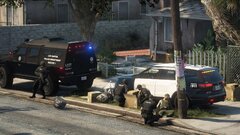 20201019233025_1.jpg
-
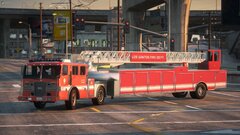 20201019232236_1.jpg
-
 20201028233011_1.jpg
-
 20201025015649_1.jpg
-
-
From the album: Gepard's FiveM Screenshot Collection
-
From the album: Gepard's FiveM Screenshot Collection
-
From the album: Gepard's FiveM Screenshot Collection
-
From the album: Gepard's FiveM Screenshot Collection
-
From the album: Gepard's FiveM Screenshot Collection
-
From the album: Gepard's FiveM Screenshot Collection
-
From the album: Gepard's FiveM Screenshot Collection
-
From the album: Gepard's FiveM Screenshot Collection
-
From the album: Gepard's FiveM Screenshot Collection
-
From the album: Gepard's FiveM Screenshot Collection
-
From the album: Gepard's FiveM Screenshot Collection
-
From the album: Gepard's FiveM Screenshot Collection
-
From the album: Gepard's FiveM Screenshot Collection
-
From the album: Gepard's FiveM Screenshot Collection
-
From the album: Gepard's FiveM Screenshot Collection
-
From the album: Gepard's FiveM Screenshot Collection
-
From the album: Gepard's FiveM Screenshot Collection
-
From the album: Gepard's FiveM Screenshot Collection
-
From the album: Gepard's FiveM Screenshot Collection
-
From the album: Gepard's FiveM Screenshot Collection
-

From the album: Gepard's FiveM Screenshot Collection
-

From the album: Gepard's FiveM Screenshot Collection
-

From the album: Gepard's FiveM Screenshot Collection

