


Dppetsson
Members
-
Joined
-
Last visited
Everything posted by Dppetsson
-
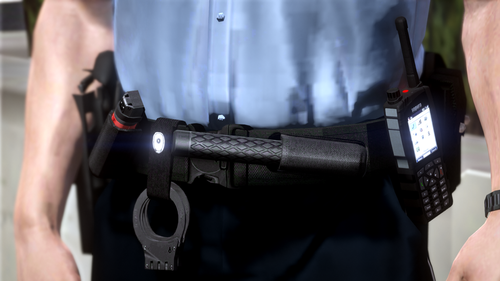 Nice duty belt! I have one question. I do this for my private. Where do you edit at the end of the baton? That part who is visible, thx!
 -
-
-
-
-
-
-
-
This is my first time i upload a skin. I hope you will join it. File include: *Textures *Readme YOU NEED TO DOWNLOAD THE VOLKSWAGEN PASSAT BEFORE YOU CAN INSTALL MY SKIN! To install you need Open IV or Spark IV.
- 4 comments
- 3 reviews
-
-
This is my first time i upload a file. This mod is made by Dppetsson. Video: File include: *Siren_1 *Police_warning I hope you will join it! :) How to install this file: 1. You must have Gta-IVaud 2. Use Spark Iv 3. Click browse, and find pc, audio, sfx. 4. Click on Sfx and find resident.rpf, and click on that. 5. Find HORNS.ivaud, and export that file to the desktop, or somewhere else there you can find it. 6. Open Gta-IVaud. Then find HORNS.ivaud and open it. 7. Then replace siren_1 and siren_2 with my file "siren_1". After that you replace police_warning, ambulance_warning with my file "police_warning" 8. Then click on save ivaud 9. And the last thing, you must replace HORNS.ivaud in spark IV, and then you are ready to use my siren. For any questions you can reach me on dennis_innebandy@hotmail.com I hope you understand what i have posted.
- 6 comments
- 2 reviews

