Jesus moulesfrites
Members
-
Joined
-
Last visited
Everything posted by Jesus moulesfrites
-
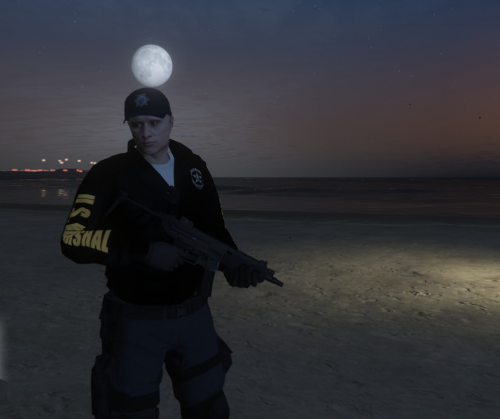 you got to remplace the good files in your eup files. you need to have open iv
 -
-
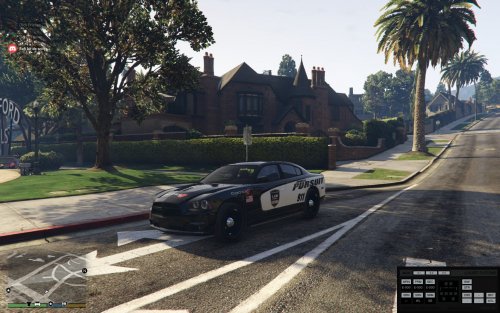 yes sorry for the screenshots i were downloading my gta v sorry i update new screens sorry men i'm french and the charger dosn't exist here i realy don't know wich one is it i just have a template named "charger_sign" sorry i modify that
 -
you can aply it in any 2015 charger no specific one
-
i'm french ,this model is like the images on google or in films .i never see any marshal on my life so if you see something bad pls report this to me on the comment of this page made by me of course no credits so it's great
-
-
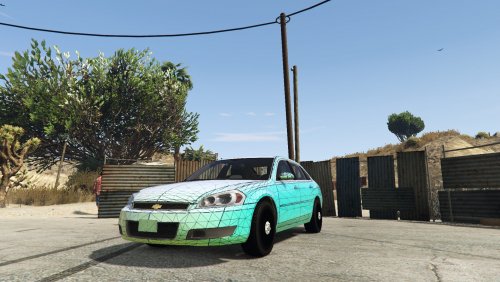
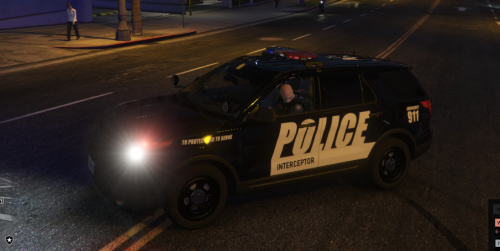 you need this car first ELS is better but do as you want
 -
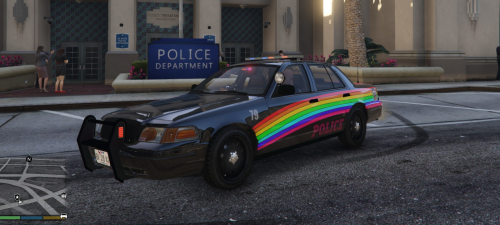 car needed (non els) instal guide inside my zip
 -
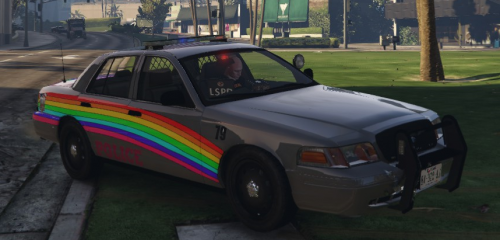 car needed (non els) instal guide inside my zip
 -
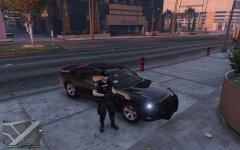
From the album: eup sheriff with style
-
amazing skin done with eup , very nice .
-

From the album: eup sheriff with style
-
nice sheriff done with eup , very nice.