
Bing Z
Members
-
Joined
-
Last visited
Files posted by Bing Z
-
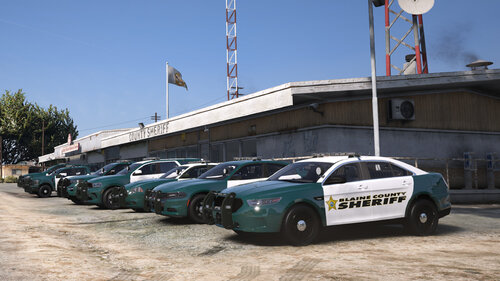
A lore-friendly, Florida-based, livery pack to be used with SoCal Thero's Orange County Roleplay (OCRP) Version 4 Leo Fleet.
Link to the car pack used:
There is a livery for every vehicle in SoCal Thero's pack (28 in all).
The departments included are:
Blaine County Sheriff's Office (BCSO) - Inspired by Broward County, FL Sheriff
Grapeseed Police Department (GSPD) - Inspired by Clermont, FL Police
Los Santos Police Department (LSPD) - Inspired by City of Miami, FL Police
Paleto Bay Police Department (PBPD) - Inspired by Tallahassee, FL Police
San Andreas Fish And Wildlife (SAFW) - Inspired by Florida Fish & Wildlife Conservation (FWC) Law Enforcement
Sandy Shores Police Department (SSPD) - Inspired by Sarasota, FL Police
This pack includes liveries that have transparent backgrounds, so you can mess around with the background colors. Here are the colors that the pack was built with in mind:
BCSO = Sea Green
GSPD = Black
LSPD = White (LSPD's BMW Motorcycle has 2 livery options, one works best with Black and the other with White). The Tahoe requires a secondary paint for its doors).
PBPD = Black
SAFW = Bluish Silver (including wheel color).
SSPD = White
Requirements:
You will need OpenIV (for editing .ytd files) and SoCal Thero's Leo Fleet V4 (linked above for the vehicle models) to use these liveries.
Thank you for your interest in my very first livery pack. Let me know if anything needs to be worked on or fixed, and I will get around to it at some point.
- 464 Downloads
- 8 Comments
Updated