
Mr.crabs
Members
-
Joined
-
Last visited
Everything posted by Mr.crabs
-
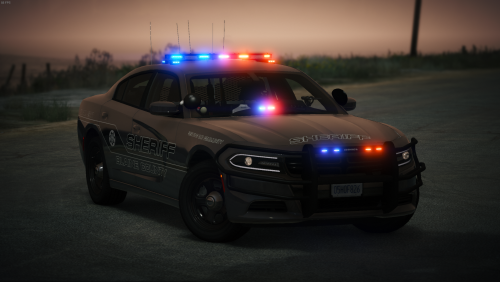 1. Download ELS using The Link Below and install into your game 2. In the BCSO pack there is a folder called ELS. open this and select which lighting you would like (red and blue lights or all blue) and open that folder 3. Lets say you wanted to install the 2015 Tahoe's ELS file from this pack. by default, RangerZ has put it in the Police4 slot. this means that Police4.xml in the ELS folder is the correct file for the Tahoe. 4. In your Grand theft auto V folder, open ELS > Pack Default and drag and drop the Polioce4.xml into there. if you wanted to put the 15 Tahoe into the Sheriff 2 slot, simply Re-name the Police4.yft police4.ytd police4_hi.yft and Police4.xml files to Sheriff2. I did my best to try and explain it but it probably dosent make sense😂, let me know if you need help!!
- 127 comments
- 24 reviews
-
SEXY AFFFFFFFFFFFFFFFFFFFFFFFFFFFFFFFFFFFFFFFFFFFFFFFFFFFFFFFFFFFFFFFFFFFFFFFFFFFFFFFFFFFFFFFFFFFFF!!!! Great Job!!
- 127 comments
- 24 reviews
-
Its something to do with ELS, Make sure that the XML files are in ELS > Pack Default and that you have the correct ones installed. If this does not work try re-installing ELS it has happened to me before and that's how i fixed it but it was with all cars.
- 127 comments
- 24 reviews
-
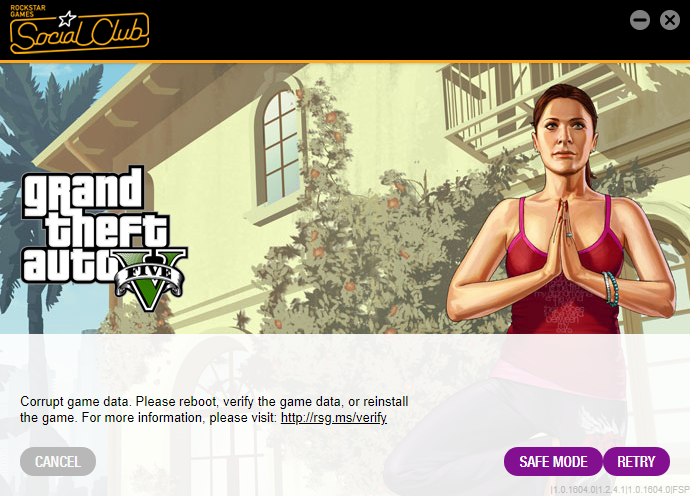
So i used to play a lot of LSPDFR and to get my ELS lights brighter i would manually change it in the Visualsettings.dat file(s) with no problem. Now, every time i try this error message pops up with a game crash on startup. Absolutely any help would be appreciated...Thanks. (I have also tried it in safe mode with no luck...)