


Amon Stachat
Members
-
Joined
Everything posted by Amon Stachat
-
Ich hab jetzt lspdfr nochmal deinstalliert und diese Version installiert und es startet immer noch nicht vielleicht hab ich doch irgendetwas nicht richtig installiert...
-
Es geht leider immer noch nicht zuerst startet es ganz normal und dann steht bei dem Ragepluginhook schon ganz kurz enjoy und dann kommt die Meldung vom Socialclub. Allerdings steht bei mir unten links eine andere Version und nicht Retail sondern Steam kp ob das irgendwie wichtig ist. Ich hab jetzt alles versucht was du geschrieben hast und verstehe nicht warum das bei manchen sofort funktioniert und bei mir nicht. Vielleicht habe ich ja doch irgendwas falsch installiert... Oder wie ich gerade gesehen habe gibt es schon die 0.4.3 brauche ich diese Version?
-
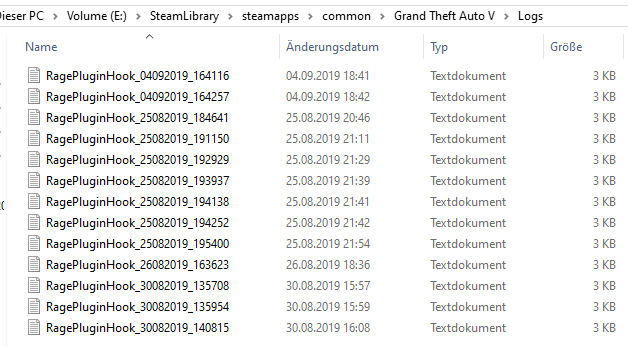
Sooo, hoffe das ist das richtige 😅🙃 RagePluginHook.log
-
Ich hoffe das ist das richtige und vielen dank... 🙂 Die beiden Tipps die du mir gegeben hast haben leider nicht funktioniert.
-
Hallo, mein Problem ist das sich lspdfr nicht starten lässt ich habe alles richtig Installiert aber immer wenn ich den RagePluginHook starten möchte kommt nach einer etwas längeren Ladezeit das Socialclub Menü von Gta und sagt mir das GTA leider nicht richtig gestartet werden konnte und dann kann ich auswählen zwischen abgesicherten Modus usw. kann mir da jemand helfen?
