


TheGreatSimulator
Members
-
Joined
-
Last visited
Everything posted by TheGreatSimulator
-
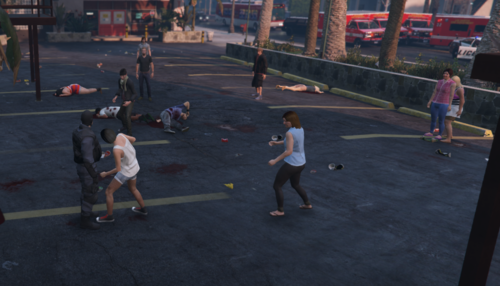 Riot Response Video (mod has potential… like others have stated the GPS doesn’t work when you initiate the call)
- 12 comments
- 1 review
-
-
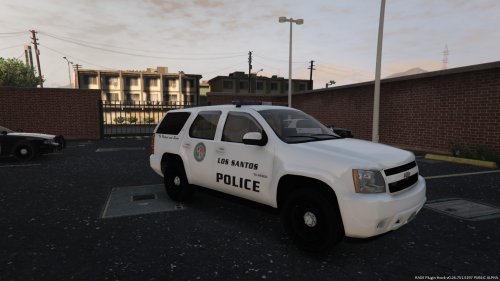 I start all my mod ratings at 1. Nothing against the modder itself, but this way I feel I can rate it fairly. Not on to the mod itself, the 2008 Chevy Tahoe. I downloaded this for the purposes of installing an Erie County (NY) LSSO skin. This is the first vehicle I was able to get installed and working in LSPDFR. So I added another star. Now we are at two stars. The installation was very easy (thanks to the readmefiles) I followed directions from within the file, and it showed up in game. Following your directions gave me a better idea on how to install other vehicles and replacing them in the future. That earns another star. Now we are at three stars. Handles well. That's where I have to stop my star rating. This is a work in progress, so I won't complain about how this Tahoe doesn't compare to others, but I give the modder the credit to have the knowledge to do what many cannot. That actually earns another star. So now we are at four stars. The rest is trivial stuff, sure it needs to be shaped up, tuned up, cleaned up whatever you want to call it but after that, for it to be WIP its not too bad.
- 183 comments
- 38 reviews


