Skip to content
View in the app

A better way to browse. Learn more.

LCPDFR.com

A full-screen app on your home screen with push notifications, badges and more.

To install this app on iOS and iPadOS
  1. Tap the Share icon in Safari
  2. Scroll the menu and tap Add to Home Screen.
  3. Tap Add in the top-right corner.
To install this app on Android
  1. Tap the 3-dot menu (⋮) in the top-right corner of the browser.
  2. Tap Add to Home screen or Install app.
  3. Confirm by tapping Install.

Tac01

Members
  • Joined

  • Last visited

  1. Hi there, awesome pack, so where do i get the Meta Files from?
  2. Guys I made it!!! LOL. I was missing the RPH requirement drivers, thank you so much... -------> http://ragepluginhook.net/Requirements.aspx Be safe and stay home!!!
  3. Thanks for the help guys, but I will report back tomorrow. I will look into the antivirus stuff first, then move on to the next step. Thanks and cheers to all, stay- home..
  4. Yes i have, i wish i had the 4.6 files to revert back. It was fine with older lspdfr.
  5. Yes, all updated. Ive tried everything still nothing.
  6. Good day all, I have a fresh install of lspdfr 4.7 and the new RPH, still getting a crash.. Never had issues until now, Please help. Oh by the way, I have no mods just starting out. RagePluginHook_07042020_134555.log
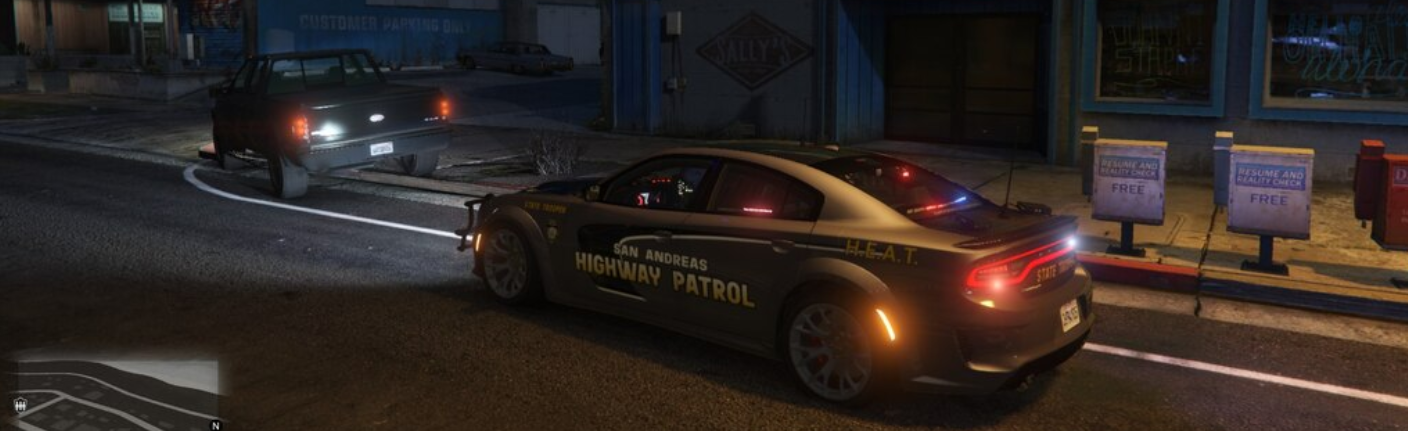
  7. Early morning patrol with LSPD and our Chp units, working together targeting vehicles not stopping for pedestrian trying to cross the street. we started a joint ops with local LE agencies called operation crosswalk enforcement. So far we have issued a lot of summonses and impounded vehicles.
  8. Hi all, went out for a quick morning patrol.
  9. Images added to a gallery album owned by Tac01 in GTA V Galleries
    Early morning joint patrols with LSPD and our CHP units, first day with operation crosswalk enforcement.

Account

Navigation

Search

Search

Configure browser push notifications

Chrome (Android)
  1. Tap the lock icon next to the address bar.
  2. Tap Permissions → Notifications.
  3. Adjust your preference.
Chrome (Desktop)
  1. Click the padlock icon in the address bar.
  2. Select Site settings.
  3. Find Notifications and adjust your preference.