Damien Development
Members
-
Joined
-
Last visited
Everything posted by Damien Development
-
 Relevant Terms of Service (full TOS in ZIP) BY PURCHASING ANY PRODUCTS SOLD BY DAMIEN DEVELOPMENT, YOU AUTOMATICALLY AGREE AND ARE BOUND TO ALL TERMS OF SERVICE. VIOLATIONS OF ANY TERMS MAY RESULT IN THE REVOCATION OF PURCHASING RIGHTS. Prohibited Use: Under these terms of service, you may not: Redistribute any products purchased UNLESS it is a private commission and credit is given accordingly. Resell any products purchased Rip or claim any asset as your own Intended Use: All products and assets sold by Damien Development are provided and are intended to be used as FiveM assets. Note: Any damage to your game, server, or computer will not fall under the responsibility of Damien Development. All products purchased MAY be used in GTA 5 Story / LSPDFR but is not the responsibility of Damien Development to provide the correct configuration.
 -
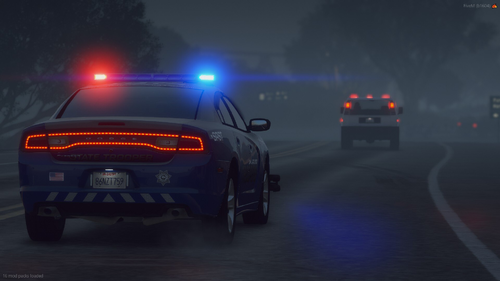
First free release!! Featured in this post is a 'Whelen Based' 2011-2015 Dodge Charger made by Damien Development FEATURED SKINS ARE NOT INCLUDED. SKINS ARE MADE BY SERGEANT FRANKI AT THINLINESANCTUARY. Youtube Video Showcase My Discord <3 (p.s. You are agreeing to my TOS by downloading and using this product. A copy of the TOS is in the ZIP.)