ShepardCommander
Members
-
Joined
-
Last visited
Everything posted by ShepardCommander
-
-
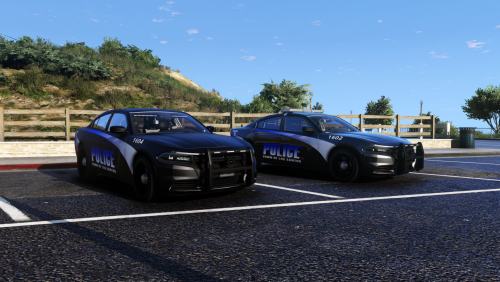 Based on the pictures, I love it. However, when I installed them as add-on vehicles, I cannot launch the game. it will start to, but every time it will crash, without fail. I narrowed it down to these cars in the following way: I had installed these cars plus the LSDWP van in addition to a few others. I deleted the LSDWP utility van and kept these. still crashed on start up. I deleted these plus their XMLs and .meta entries...and voila it works. I really love the look of these cars. I'll try and fiddle with it more, see if I can get it working. However as I am a complete novice, any insight would be appreciated.
- 26 comments
- 8 reviews