


MarmeladenTorben
Members
-
Joined
-
Last visited
-
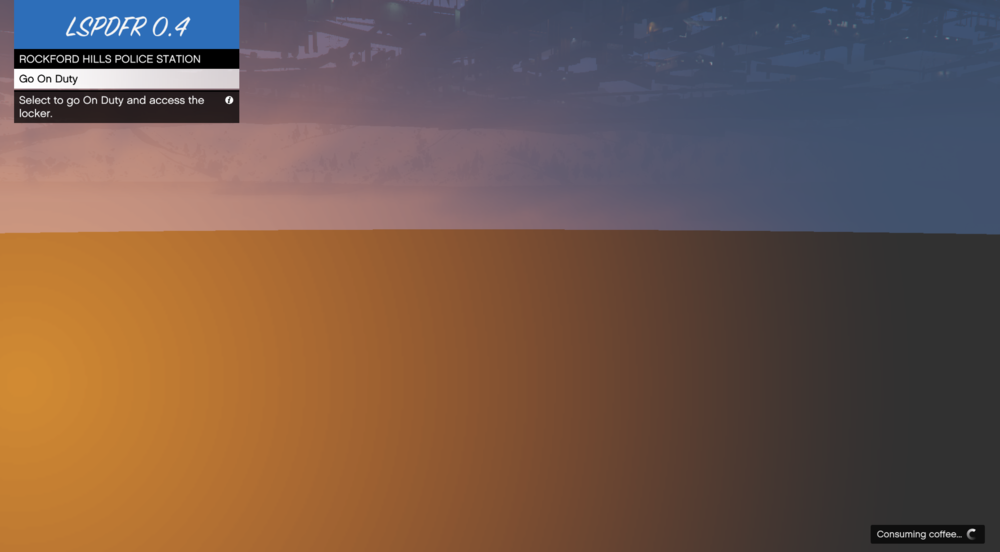
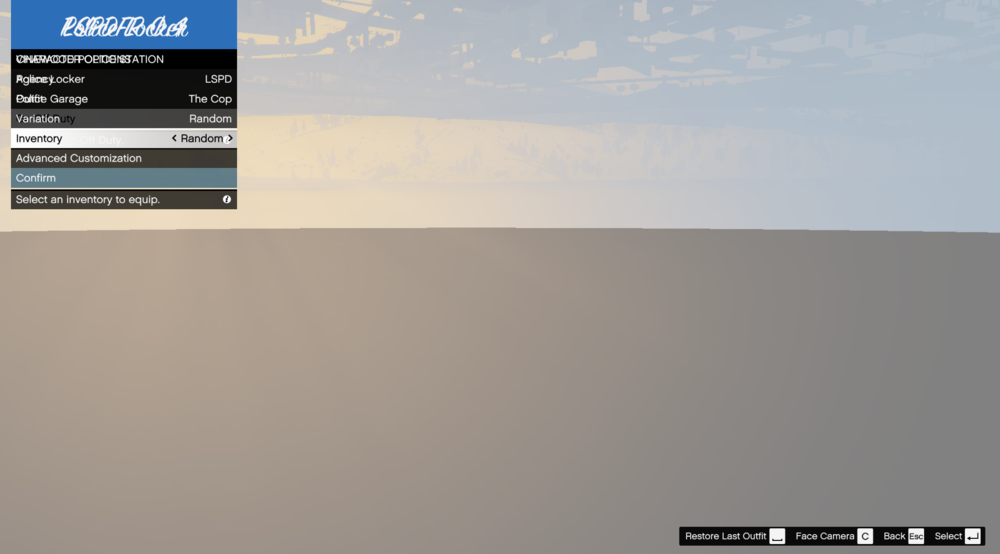
Hello, i was using LSPDFR a year back and just started again. I installed the newest version of LSPDFR. I´m loading LSPDFR when i start RagepluginHook ("LoadallPlugins") as soon as i go on Duty the menu pops up. i click on "Police Locker" to change my outfit and for some reason a 2nd Menu pops up. If i navigate through both menus both of them "work" and if i press enter both menus do something. (i think it only does it in the Vinewood Police station) if i use the F4 menu (RagePluginHook) to do "ForceDuty" i hear the "Beep" of LSPDFR crashing and right after that my game crashes too. if i want to go on duty the normal way, the camera isnt in the Police department, its underground and i can see the streets and buildings from under the map LSPDFR was crashing after a few seconds when i used the Plugin "LSPDFR+" by Ablo1125 so i had to remove it. Sometimes the game crashes if i go on duty with the loadingbar saying "Consuming coffee..." If i go to the normal Gta options menu and go to "Graphics" my game crashes instantly (i think its because i installed ReShade but i´m gonna see if i can fix it) I hope everyone could understand me as english isnt my first language. if you have any idea whats going on with my LSPDFR and can help me, i´m thankful for every comment. Thank you 🙂 Torben 1st Screenshot: Game Crash 2nd Screenshot: Duplicated Menu
-
.thumb.png.7fd857a0be870a0a230ee7a859f4ed46.png) How i did it with some other cars> Download, open the file and rename the carnames. if it's "police4.yft" rename it to "sheriff.yft" or "sheriff2.yft"
How i did it with some other cars> Download, open the file and rename the carnames. if it's "police4.yft" rename it to "sheriff.yft" or "sheriff2.yft"- 17 comments
- 23 reviews


.thumb.png.7fd857a0be870a0a230ee7a859f4ed46.png)