


xFNx Jay
Members
-
Joined
-
Last visited
-
xFNx Jay changed their profile photo
-
-
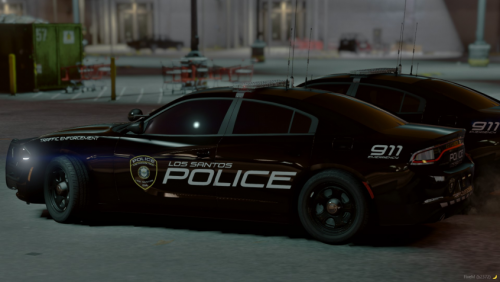 would love to see this skin on other cars such as the '14/'20 Tahoe's and the the '16/'21 Explorer's. Great JOB! Didn't read the second have of the description section myb. I'll be waiting on the vehicles you plan to release later on
- 4 comments
- 1 review
-
-

- 1
-
-
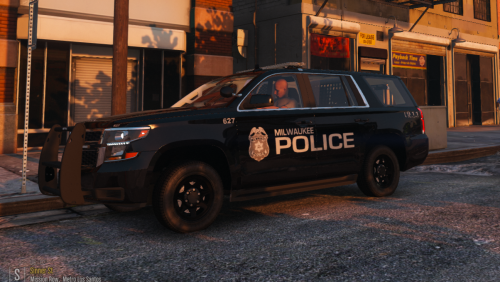 sounds good nice work. And I actually haven't seen the a lot of the black Tahoe about maybe 2 or 3 from time to time. but yeah good work man
 -
-
dope I love this I from Milwaukee myself and this is accurate. The have fleet of explorers and Tahoe's especially used during winter months and still some vics strolling around. and they did actually switch to the new all black theme, if you get time id say do the all black theme on the newer Tahoe and possibly added the new traffic safety unit. where they replace the badge with the one specific to that unit as well as put "TRAFFIC" on the back right trunk or bumper. Nice work

