Skip to content
View in the app

A better way to browse. Learn more.

LCPDFR.com

A full-screen app on your home screen with push notifications, badges and more.

To install this app on iOS and iPadOS
  1. Tap the Share icon in Safari
  2. Scroll the menu and tap Add to Home Screen.
  3. Tap Add in the top-right corner.
To install this app on Android
  1. Tap the 3-dot menu (⋮) in the top-right corner of the browser.
  2. Tap Add to Home screen or Install app.
  3. Confirm by tapping Install.
Due to overzealous filtering on Microsoft’s side, some emails to Outlook and Hotmail addresses may not be delivered. If you’re affected, please use a different email address or try again later.

Maplee

Members
  • Joined

  • Last visited

Reputation Activity

  1. Like
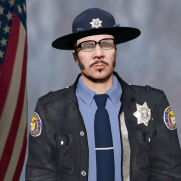
    Maplee got a reaction from Slendis for a gallery image, LSP3.png   
  2. Like
    Maplee got a reaction from Slendis for a gallery image, Grand Theft Auto V Screenshot 2020.11.01 - 03.57.20.58.png   
  3. Like
    Maplee got a reaction from Slendis for a gallery image, Grand Theft Auto V Screenshot 2020.11.01 - 03.56.27.21.png   
  4. Like
    Maplee got a reaction from Slendis for a gallery image, Grand Theft Auto V Screenshot 2020.11.01 - 03.56.59.65.png   
  5. Like
    Maplee got a reaction from Slendis for a gallery image, LSP1.png   
  6. Like
    Maplee got a reaction from Slendis for a gallery image, LSP2.png   
  7. Like
    Maplee got a reaction from Francis2018 for a gallery image, LSP3.png   
  8. Like
    Maplee got a reaction from Mikofiticus for a gallery image, LSP3.png   
  9. Like
    Maplee got a reaction from Francis2018 for a gallery image, Grand Theft Auto V Screenshot 2020.11.01 - 03.56.27.21.png   
  10. Like
    Maplee got a reaction from Mikofiticus for a gallery image, Grand Theft Auto V Screenshot 2020.11.01 - 03.56.27.21.png   
  11. Like
    Maplee reacted to Gump for a gallery image, Blaine(Carrol) County K9 Charger WIP   
  12. Like
    Maplee reacted to Gump for a gallery image, Andreas State Trooper Early Morning Radar   
Account

Navigation

Search

Search

Configure browser push notifications

Chrome (Android)
  1. Tap the lock icon next to the address bar.
  2. Tap Permissions → Notifications.
  3. Adjust your preference.
Chrome (Desktop)
  1. Click the padlock icon in the address bar.
  2. Select Site settings.
  3. Find Notifications and adjust your preference.