Royul
Members
-
Joined
-
Last visited
Everything posted by Royul
-
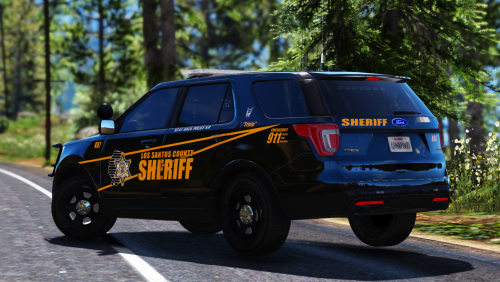
I'm having trouble with installing police vehicles in different slots. This pack says to install one of its cars into "police3" but I want to install it in "sheriff2" but when I do that certain things mess up, e.g. If the car is dirty the windows get pitch black. I need help finding the correct way to do this, what to change etc. p.s. Very new to this if you couldn't tell.
-
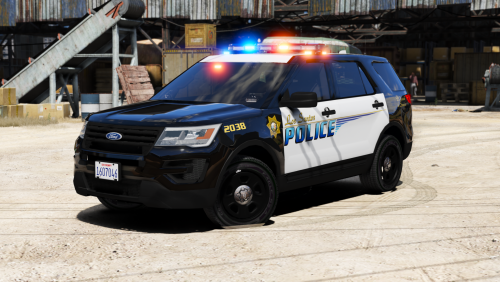 How do I correctly change police3 to sheriff2 without messing everything up? When I do it the longer I drive the darker the windows get because of the dirt texture. That's just one problem.
- 210 comments
- 59 reviews
-
-
-
 Soon as I open the computer my game freezes doesn't crash just freezes, and the only way to get out of it is to restart the game or reload all plugins from the console. It's not just this mod it's anyone that uses this type of menu like the plugin "Spotlight". If anyone knows a fix write me, thanks. Type of menu that crashes my game: (note: I know this isn't computer+ just giving an example).
- 1,743 comments
- 172 reviews
-
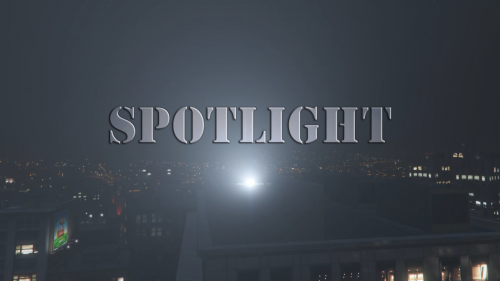 When I open up the menu to change the spotlight color my game freezes, doesn't crash just freezes the only way to get out of it is to restart the game or reload AllPlugins through the console. I'm having this issue with any mod/plugin that uses that type of menu like LSPDFR-computer+. If anyone knows a fix let me know, thanks. Type of menu's that breaks my game:
- 477 comments
- 73 reviews