


Superwasi
Members
-
Joined
-
Last visited
Everything posted by Superwasi
-
i just got it now , little bit bigger but not bad.
-
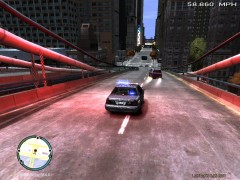 he maybe a good driver so whenever we try PIT he can easily carry that risks to make steers good.
 -
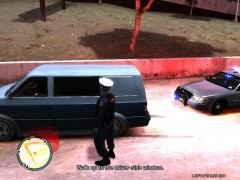 Officer , i need that uniform , look so good and realistic.
 -
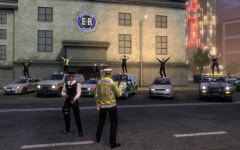
From the album: Unit 19 Officer Wasi's Records.
Officers enjoying party... -
-
When on duty press Shift+TAB , list of controls will pop up on your screen . or Also there is pdf file with all the controls in the downloads section here : http://www.lcpdfr.co...keys-printable/
-
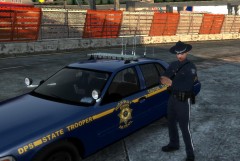 ...
... -
-
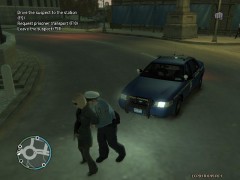
 This is Highway Patrol officer Unit 219 , I saw he drove the car on oncoming vehicles , we were finding him for handcuff him , now im glad to see you catch him from up there officer .
 -
Sniper269 it is a great job you have done i glad to see that but i'm having some trouble with it please look at my attached picture , no speed shows of mine or other vehicles . whats wrong ?
-
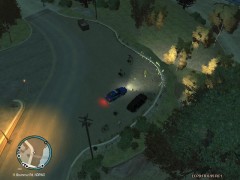 yeah officer , left side is a parking area .
 -
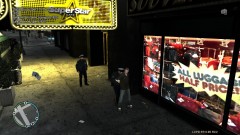
 she tried to double dealing with someone.
 -
Thanks Aparna. :)
-
From the album: Unit 19 Officer Wasi's Records.
This is Unit 219 Found a Vehicle on North Grummer Road . i file a case on that car number . someone stolen and he was out of gas so he leave the car. -
Thank you +1
-
no i promise.
-
i imported 2 new cars today before couple of hours ago , but after that i didn't save game yet . :blush:
-
Thanks. +1
-
Yes , i am using 2 police mod car always on duty , but i never saved that car at ma safe house . still error. :confused:
-
-
Hi everyone , i am having problem while chasing , sometimes i request for anyone , it kicked me out to desktop with a error message , look at that...
-
-
Hello this is unit 219 too having same problem sometimes requesting NOOSE Air support or Ground Support . here i attached the error message.
-
From the album: Unit 19 Officer Wasi's Records.
This is unit 19 . i was on Soldiers Plaza , i heard people screaming from a side i saw a lady looks beautiful and she try to escape from seeing the warning lights from me , i hit her by the car to stop running and hand cuffed to near station . Over ! -

From the album: Unit 19 Officer Wasi's Records.



