


It's A Trap
Members
-
Joined
-
Last visited
-
And when I say I did that, I mean I opened went to ASI Manager and everything was installed with nothing to be updated.
-
Did that. Still the same.
-
Hmm. I can't seem to get the red box to pop up when I click edit mode. Perhaps showing you what my OpenIV looks like can help better.
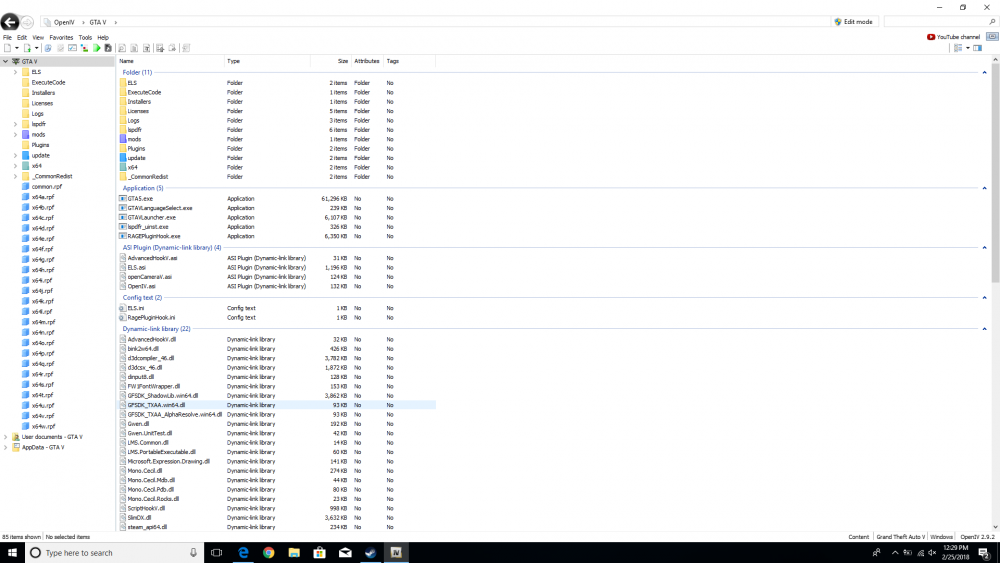
-
Hi there. Last night I was just installing lspdfr for the first time ever and had it downloaded properly. I downloaded ELS fine and went to download an ELS vehicle to try it out and see that it worked. Well I didn't know how to properly mod in a car, so I watched a youtube video on it. However, the video I chose to watch to explain how to do it seems to have totally fucked mods folder up in the GTA 5 folder. The video had me switch to edit mode and then click my way through the mod folder down to the patchdays. It was around here that the video basically went to hell as the folder he opened (patchday11ng) looked nothing like what I had in front of me and there was no explanation given. So I exited edit mode and the video and went to try another by a big time youtuber to follow his instructions, only to find that my mod folder now only consists of patchday11 in the dlcpacks. I just uninstalled and reinstalled the game to see if it would reset it, but absolutely nothing had changed and I can't see any of the other patch days or anything else that I didn't click on while in edit mode. Am I screwed? Or can someone help me out?
