


gaylolmeme
Members
-
Joined
Everything posted by gaylolmeme
-
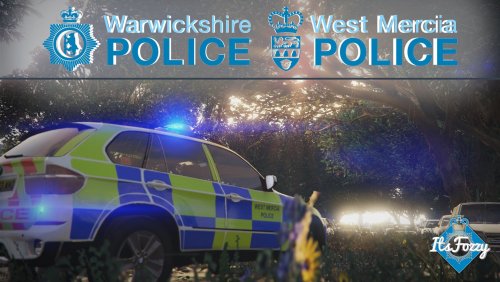 I found a working ELS file for all vehicles, including many other ones outside of this pack. All I did is use a fire truck's XML files and it works perfectly. Just rename the XML file to all the vehicle files you use, boom.
- 5 comments
- 2 reviews
-
The problem you're having with ELS is that you dont have ELS .xml files which are required for the lightbar to show up, if a vehicle comes with [filename].xml place it into your ELS > pack_default for it to work. As for the replacement of vehicles, use the most recent patchday (e.g. 15) whenever replacing any vehicle. This is because every single vehicle is available in patchday 15 lets say, and only some are available in patchday 3. I had the same problem when I first started modding, but this should fix it.
-
-
-
-
-
-
-
-
-


