



mkalash
Members
-
Joined
-
Last visited
Everything posted by mkalash
-
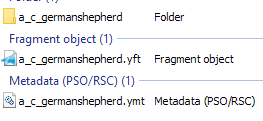
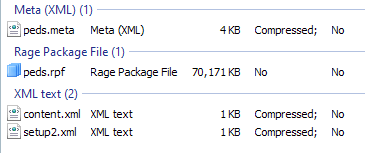
Yes, loading it with OpenIV is working for me. Here's my peds.meta: and my dlc.rpf: and peds.rpf is just what I have in the LML folder:
-
Edited: Tried out your changes, and the model is still invisible. For clarity, since I noticed that you still used a_c_shepherd in your install.xml: I am trying to make this ped an addon instead of a replacement, so that I can spawn it as a_c_germanshepherd and still have the original a_c_shepherd as normal. That's why I renamed the files and added a ped.meta. I know that my conversion to addon works, because it loads correctly as a_c_germanshepherd when I load the edited mod with OpenIV. I've gotten LML to successfully load the original mod as a replacement too. Original post:
-
I'm trying to install the following ped, updated to be an addon instead of a replacement: However, when spawned into the game, the ped is invisible (but otherwise seems to function normally). I installed the files using OpenIV instead, and it worked as expected. Here's my install.xml: And the relevant logs: Thanks!
-
Since I am no longer personally working on this project, I have it made it open source. It is currently without any documentation (sorry), but if there's interest in continuing the work, I'll write some. Until then, I can answer questions.
-
 Since I am no longer personally working on this project, I have it made it open source. It is currently without any documentation (sorry), but if there's interest in continuing the work, I'll write some. Until then, I can answer questions.
- 11 comments
- 1 review
-
The program is still early in development. User experience will be improved, but the current priority is to finish functionality. The current set up just mimics how the config files are arranged, so the LSPDFR wiki is a good place to start to learn what everything means and what you need to edit to accomplish what.
- 11 comments
- 1 review
-
UltimateBackup files do not contain enough information nor are they set up in a sane enough way to import from. Just import the information from LSPDFR, edit it to your liking, then export. This will create a CustomRegions.xml for you. All of the stuff that UltimateBackup has that LSPDFR doesn't will still be saved in the LSPDFR files so that they will not be lost on the next import. There is a section in the description with an explanation and a video showcasing this. Use the import from EUPMenu button to import EUP outfit files. Keep in mind the beta warning in the description, the exported LSPDFR files will not have the information listed as not implented under there. Also note that the latest version is still under review and not yet available. They have to be manually reviewed since there's an .exe
- 11 comments
- 1 review
-
Yes. But agencies, regions, and backups will also have to be configured, as the UltimateBackup file relies on all of that information.
- 11 comments
- 1 review
-
-

- 2
-
-
I have uploaded the first release and so I will no longer be updating or looking at this thread. I expect that the file will be hidden for a while, as it is an executable and requires manual review.
-
LSPDFR Data Configurator Easily import, edit, and export LSPDFR data configuration files. Convert between EUPMenu and UltimateBackup configurations. No longer edit several UltimateBackup custom region sections just to add another custom vehicle. IMPORTANT WARNINGS BETA RELEASE This is a beta release. By using this version, you are doing me a favor by testing an incomplete product. Please report any bugs, confusion, or other problems to me in the comments; but don't be surprised or angry when you run into an issue! Always backup your current settings in case there is an error in the export. PLANNED/MISSING FEATURES All settings are now available in the program, however there are several quality of life features not yet a part of this release, including: IMPORTANT Scanning imported files for common errors, like a zone being applied to multiple regions, or overlapping script names List of useful known TextureDictionary and TextureName entries Provide a list of known vehicle weapons Setting on agencies to include in duty selection Option to autofill ambient spawn from station agency's ped or vehicle list USAGE INSTALLATION Simply extract the zip file anywhere you'd like and run the executable. CONVERTING TO ULTIMATEBACKUP While you can just import all of your configs and then immediately export, I recommend creating additional agencies for K9 and female units and setting them as backups for UltimateBackup. This video shows an example of using the duplicate feature to create a female backup unit. Just duplicate an agency, change the script name, set the parent to the original agency, delete the male peds, and set the female backup for the proper regions. SUPPORT I am always happy to provide support for your problems, but please understand that I have many responsibilities, so I may not be able to respond immediately or quickly push out a problem. It will be easier to help someone who is understanding and respectful of my time, and I will be more willing to put in effort for you. Please also do not come to me for help with general problems not directly related to this program, there are proper places to get support for broader issues. Some common problems and solutions: I don't know what any of these options mean As this program is still pre-release, no help or documentation is included. The look of the program may change drastically to be easier to use for users not familiar with LSPDFR's configuration files. For now, the program is organized in the same way the configuration files themselves are. Reading the LSPDFR wiki is a great place to start for understanding the meaning of the options available. If all else fails, there are plenty of resources and helpful users available on the LSPDFR forums. I get an error while importing/exporting The problem likely lies in the configuration files you've imported. I will eventually include better feedback for these issues in the program to help you solve them on your own, but for now, even if a file successfully imports, it can still have a problem with its settings that will surface later. Please contact me with the error and the files you've imported
- 11 comments
- 1 review
-
-
- 4
-
-
LSPDFR exports are all done, so all that's left for me to do is write the UltimateBackup export code, which I will do when I get home or tomorrow. The first release will not be 100% feature complete, as some user error handling and niche settings won't be included yet, but there will be enough for a good first impression. To show off some utility, watch how easy it is to convert an agency into a female response unit for use by UltimateBackup: https://streamable.com/245a7 (sorry for FPS issues, recording on my laptop and some setting must have been weird) Any one's free to PM me on this site, though I'm not sure what you want to talk about!
-
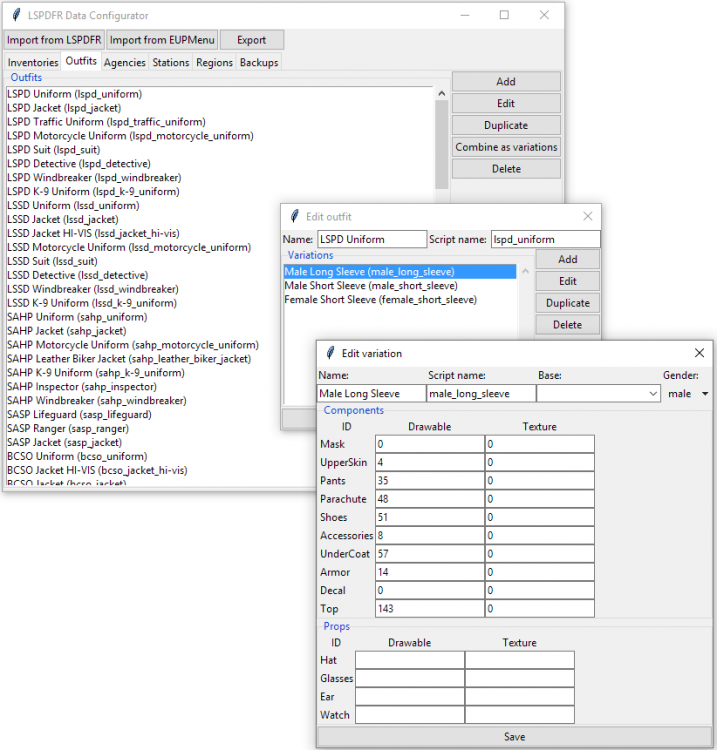
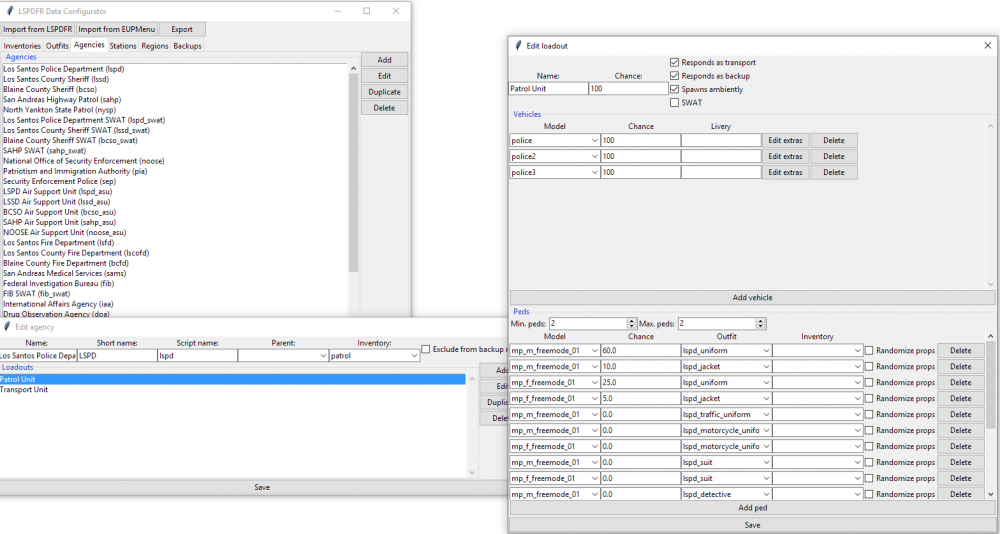
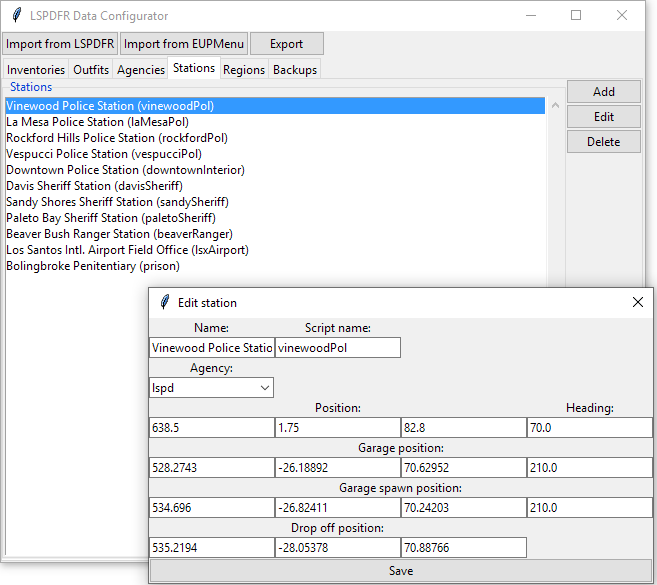
So here's every screen as it looks now. Just need to add exporting and some better user error handling and I'll be ready to release.
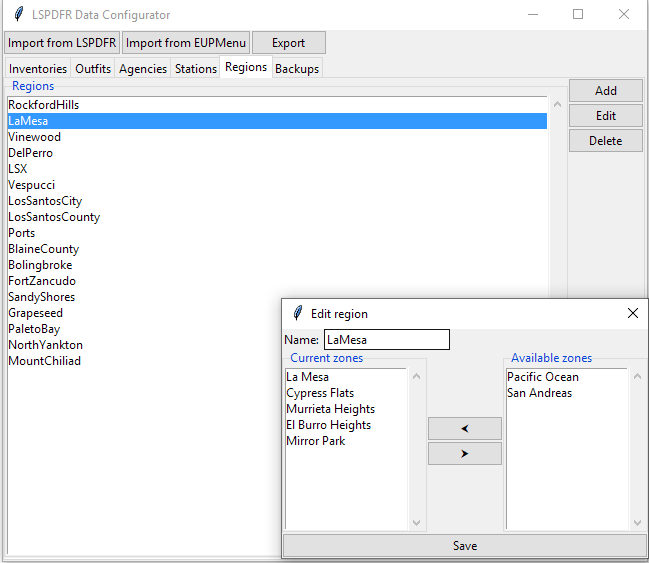
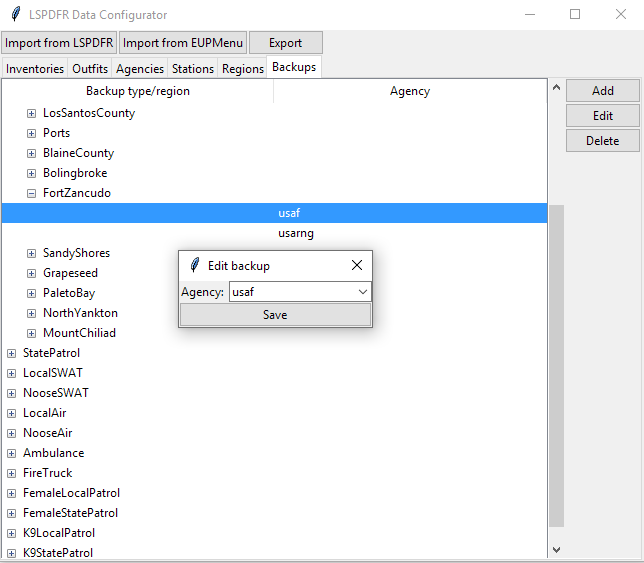
-
I'm getting close to the end. Here's regions done. It will only allow you to add zones to a region that aren't already in another region, to prevent errors.
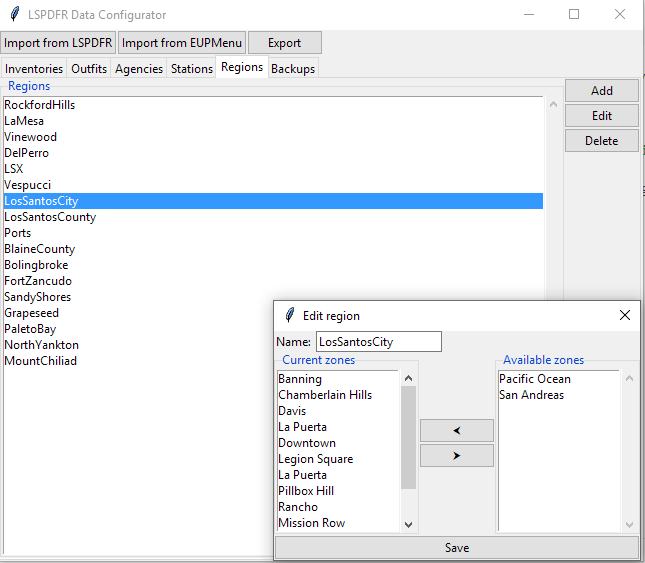
-
Stations are done. As usual, the agency dropdown is automatically populated and filtered as you type. I also moved the separate import buttons for each category into a single one that supports selecting multiple files at once so that you can import all of your configs in one go from any screen.
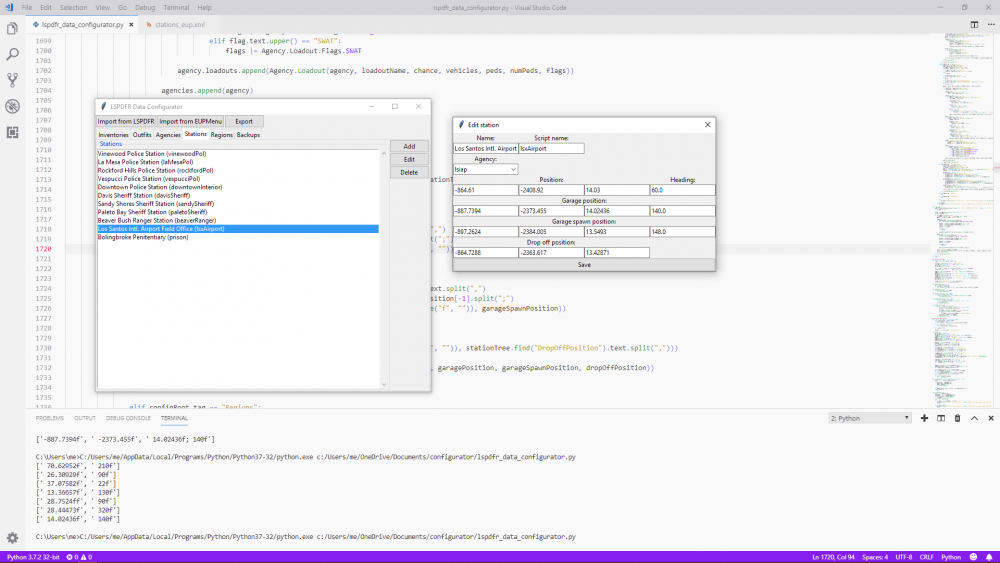
-
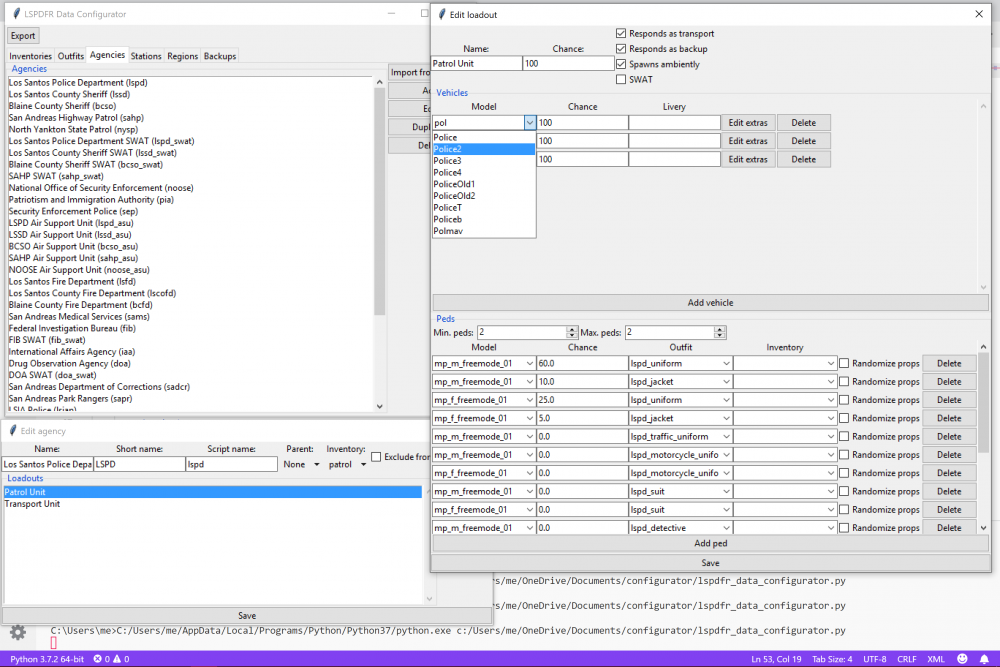
This is the big one, the agencies menu. Parent and inventory on the edit agency menu are automatically populated from the other configured agencies and inventories. The same goes for the model, outfit, and inventory options on the edit loadout menu. The model and outfit options will also automatically pop up a filtered list based on what you type as you type it for quick input. Or they can be used like normal dropdowns to see the full list. Next I'm doing stations, which should be fairly simple. Regions will be slightly more complicated, then I'll probably take a bit to get backups done. But then it'd just be the export code and we'll be ready for an initial release.
-
-
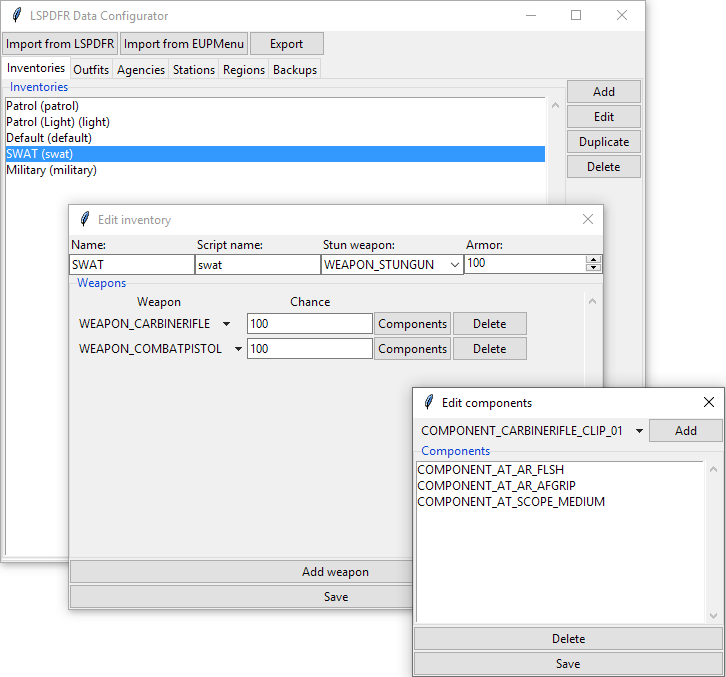
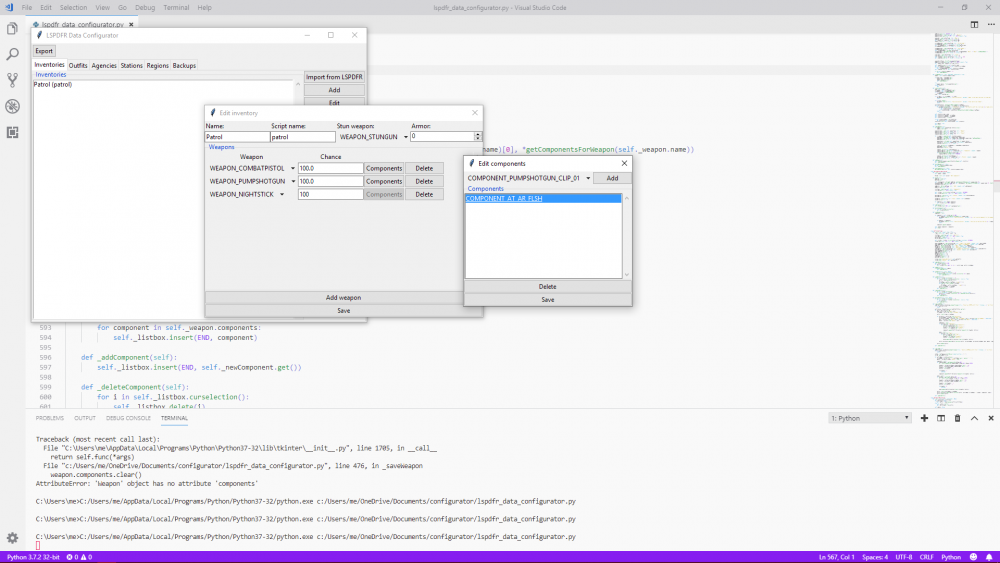
After a lot of learning and refactoring the back-end, I don't have much to show for the time put in, but I did finish the inventory menu: You can select your weapon from a dropdown of what's available in the game, and the component menu will only show components compatible with the selected weapon, so you no longer have to juggle the IDs of everything. I also added several QOL features like double clicking to edit an entry and the delete button deleting an entry. All that back-end work really should speed up the process from here on out.
-
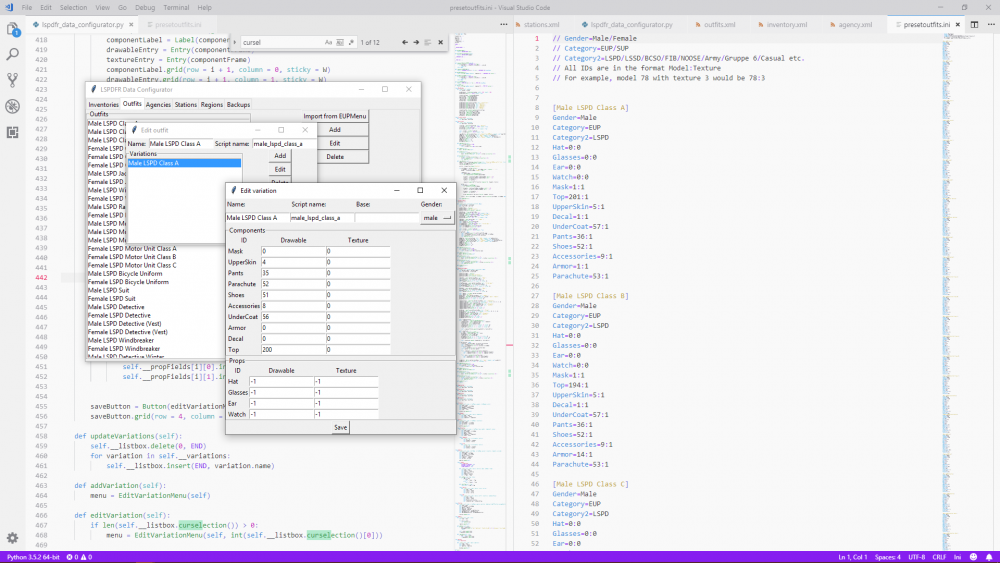
https://streamable.com/vf4ua This video showcases how easy it is to create variations for ranks using the program. I imported the outfits from EUPMenu, combined the female and male versions of the LSPD Class A by ctrl+clicking each of them in the list and clicking the combine button, renamed some things and made a variation for Officer III that inherits from the base variation. From there (here's where the video starts), it's just a matter of duplicating and changing the decal texture and other options for each rank. I feel pretty done with outfit management after a day's work. The other parts should be easier now that I've got a base to build off of (never did GUI in python before). So, what do you think? Enough utility to continue the effort?
-
Preview: My goal here is to create a UI that will let you easily create configs for LSPDFR, including importing outfits from EUPMenu and importing/exporting UltimateBackup settings. It will make use of the whole picture to make configuration easier (for example, selecting from a dropdown of the configured outfits while adding peds to agencies), and will prevent errors such as accidentally adding one zone to multiple regions. The question is, are people messing with their configs/exporting to UltimateBackup enough to make this worthwhile?
-
 I will not be updating these files, see the description. The most I will likely do is update my script that converts from LSPDFR to UltimateBackup configs to be more robust and get everything done in one shot, once the official XML files get to a more complete point, assuming that @Alex_Ashfold or @BejoIjo don't release official versions themselves as well.
- 195 comments
- 24 reviews
-
-
- 1
-
-
Thank you for the quick response in reverting the keybinding changes.
-
The report crime being tied to the backup menu and computer key being tied to a GTA V bind changes are really annoying now that we can't disable these menus to use ones from other plugins.
-
Just the cars are wrong, or they are LSPD NPCs as well? Are they just spawning at the station, or ambiently and in response to backup requests too?
- 195 comments
- 24 reviews
-
Edit agency_eup.xml to change the Vehicles section of the agencies you want to change and add your addon vehicles.
- 195 comments
- 24 reviews
-
You'll probably have better luck in the support thread for EUP, which is linked in the description above. If you're using my settings, you no longer need EUP Menu. Just make sure you run the OIV for LEO first, then SAR, then install my configs or EUP Menu. Yep. Edit till your heart's content. Follow the installation instructions in the description to get EUP peds for Blaine and LSSD properly configured for their respective counties. If there's a specific issue you're having, please let me know.
- 195 comments
- 24 reviews


