


JonSohn
Members
-
Joined
-
Last visited
Everything posted by JonSohn
-
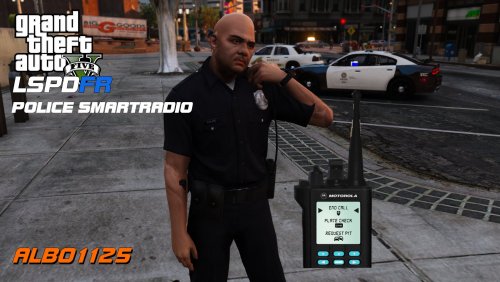 Hey, here's a possible solution for everybody who's experiencing the problem of the Police SmartRadio working, but being invisible. If you: - can hear the SmartRadio buttons responding by making a sound, but can't see the panel itself, - are able to turn on the RageHook console (by pressing F4), yet still can't see the Radio, - tried forcing the DirectX 11 mode and/or Windowed display mode, and it still didn't help, - used the position and scale modifier tool, ESPECIALLY TO ALTER THE SIZE OF THE RADIO, try doing this: Go to your GTA5 folder>plugins>LSPDFR>PoliceSmartRadio and open a file called DisplayConfig. This is where your current SmartRadio's size and position are stored, and this file is being overwritten when you modify those aspects in-game. Now, MAKE SURE that the value next to DisplayScalingFactor is a number containing a DOT, NOT A COMA. I have no idea why, but after I rescaled my SmartRadio, this value turned into 0,7 for me (and IT HAS TO BE of the number.number format, so in my case it should've been 0.7). I spent hours of online researching and going through the mod files until I stumbled upon this. After I switched the coma into a dot, the SmartRadio works again like a charm - fully visible (and of the size and positioned like I wanted it to be). TL;DR version: check the DisplayConfig file inside the mod's folder and make sure that the value next to DisplayScalingFactor includes a dot, not a coma. Might be a long shot, but hey, it did work for me, after nothing else did, so... ;) P.S.: It's almost a cliche at this point, but what the hell: Albo, fantastic work, thanks A LOT! :)
- 1,196 comments
- 127 reviews
-
-

- 2
-
