
RangerZ
Members
-
Joined
-
Last visited
Everything posted by RangerZ
-
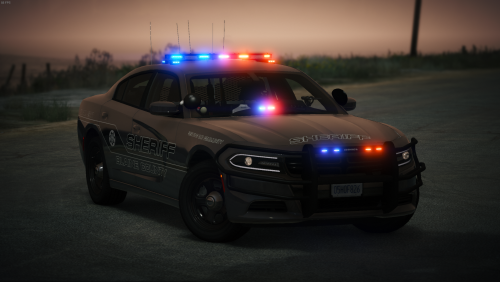 No the only slots you can replace are Sheriff and sheriff 2. Total, you can use the following: Fbi fbi2 police police2 police3 police4 policeb (motorcycle) policeold1 policeold2 pranger sheriff sheriff2
- 127 comments
- 24 reviews
-
-

- 1
-
-
-
-
-
-
-
-
-
-
-
The tail lights were not tampered with. There’s an issue but I will look into it after vacation.
- 127 comments
- 24 reviews
-
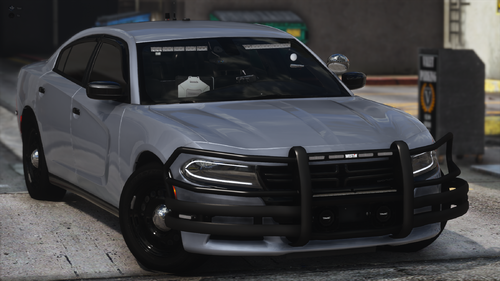 Make sure the vehicle is being installed into the correct path as stated in the description. If that doesn’t work, go to @FirstThirtyMinutes YouTube channel and look for his “How to install ELS vehicles” video.
- 175 comments
- 24 reviews
-
-
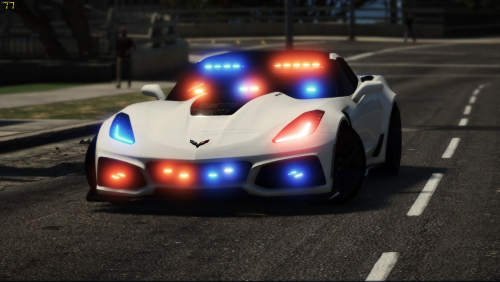 Yes I am aware and I’m on vacation right now but I’m going try and fix it in a little.
- 69 comments
- 6 reviews
-
-
-
-
-
So I’m confused, I didn’t have perms even though it was uploaded to the dev section?
- 69 comments
- 6 reviews
-
I didn’t release the vehicle until it was released in the resources section for that reason
- 69 comments
- 6 reviews
-
-
-
-
-