
Lozano71
Members
-
Joined
-
Last visited
Everything posted by Lozano71
-
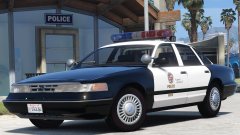 Don't worry, i'll made all LF textures for this car.
 -
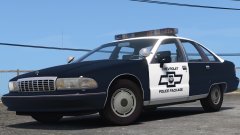 Okay... All my models will be in the pack. I plan release it after RDE 3.0 and 1996 Ford Crown Victoria. There wll be NYSP (as separate addon), LSIA, an Port Police. Here NYSP:
 -
I work on SAHP version.. Old model.. I make the same new. Unmarked finished.
-
Good, i like it. Old textures will work with it?
-
I prefer Caprice.... This is new model or remaked old?
-
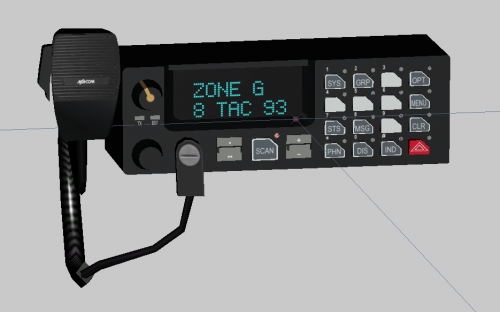 Good. I will use it.
 -
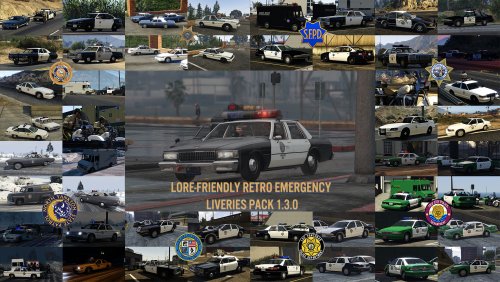
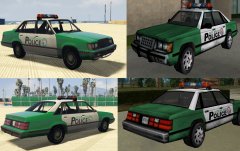 www.lcpdfr.com/files/file/10216-lore-friendly-retro-emergency-liveries-pack/
 -
-
Here this staniers is standalone:
-
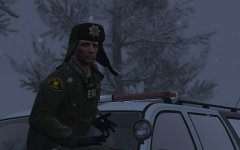 Yea, i wear the same every day. And in the summer too. Because i'm real russian.
 -
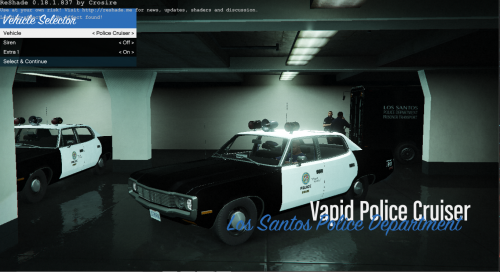 Do you have solo's permission for his car (Fury)? I ask him about my retropack - he does't allow me put his models to archive.
- 14 comments
- 2 reviews
-
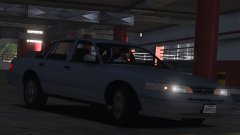 Great work, Lundy! I can't wait when i sit behind the wheel. It's my dream-car.
 -
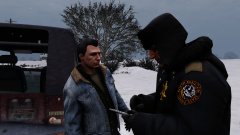
From the album: Lozano's album
NYSP stopped the speeder. For the first time, he received only a warning. -
You may made so: 4 extras. In game spawned only one, by trainer exactly, with RPH and LSPDFR i will check. P. S. Can you give me some dev .yft beacon for this car?
-
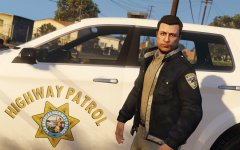 Nice, very nice.
 -
-
Man car on this pic - chevy impala. Here is Chevrolet Caprice:
-
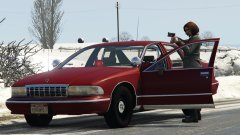 Yes, it's here. I tried to take this siren, but zmodeller gives an error when you export it. There are some problems with shaders.
 -
From the album: Lozano's album
My first time... -
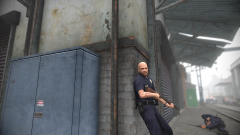 Where i can download shotgun?
 -
-
7) LSPD 1989 Unlucky gangsters tried to rob some parked cars. Cops responded.
-
https://ru.gta5-mods.com/vehicles/federal-signal-vintage-siren-pack If you about LSSD 1975... I rename "Federal Signal PA-5 - Fire Truck" sirens like policesirens If you don't want to download pack:
-
6) BCSO 1999 - Russian criminal mastermind decided to put local criminals to the test. He wants to work only with the ace of aces. Who will finish the race first?
-
5) LSSD 1975 - A story of one arson.