georgegtav
Members
-
Joined
-
Last visited
-
Fixed it... It seems it was my DLCLIST.xml thank youuu
-
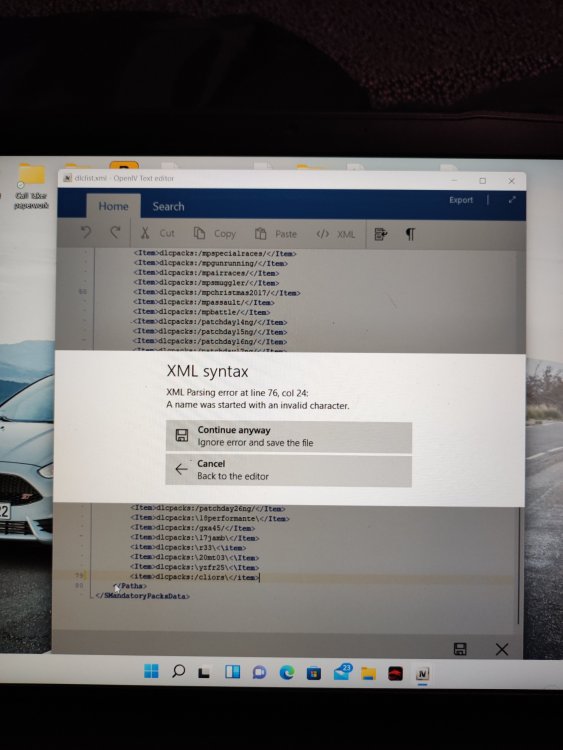
So renaming the folder worked so now I assume I need to find what mod caused this (I've only added cars tho) (and 1 ymap file) no weapons or is weapons just a generic crash go do with mods Could this pic below have anything to do with the crashing
-
Hey i followed what the banner said and got the updated version of the file..... so it now lets me start game however it still says Ragepluginhook.dll crashed RagePluginHook.log

-
hello i have been playing lspdfr and all of a sudden when i load the game up and go through the art when loading the game up, it says the .dll file has crashed.... ive then done so much to try fix it such as pull plugins out of my files replace scripthookv with the newest version ive reinstalled rph however nothing all it says now is this: The current game version is not supported. Installed game version: 2545 Latest game version: Unknown Supported game versions: 2372 Please visit http://ragepluginhook.net/Downloads.aspx to see if an updated version of RAGE Plugin Hook with support for this game version has been released. i now dont know what to do with this as as far as i am aware everything is up to date.... if i am wrong please send a link to the newest version. RAGE Plugin Hook - 1.87.1293.16189 - this is the version i have installed