
Officeruhhcode3
Members
-
Joined
-
Last visited
-
Alright will do, I'll see if that helps!
-
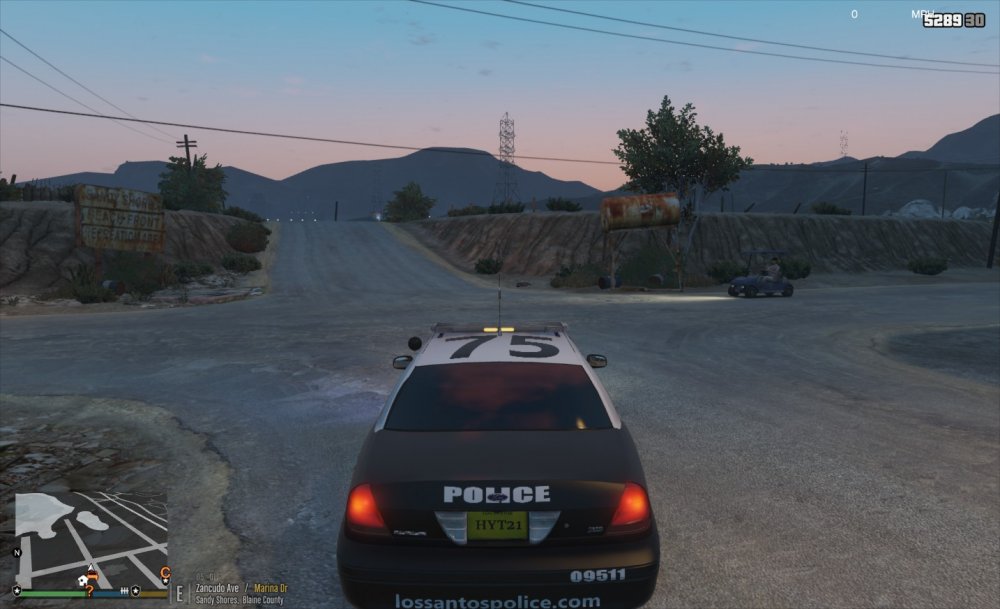
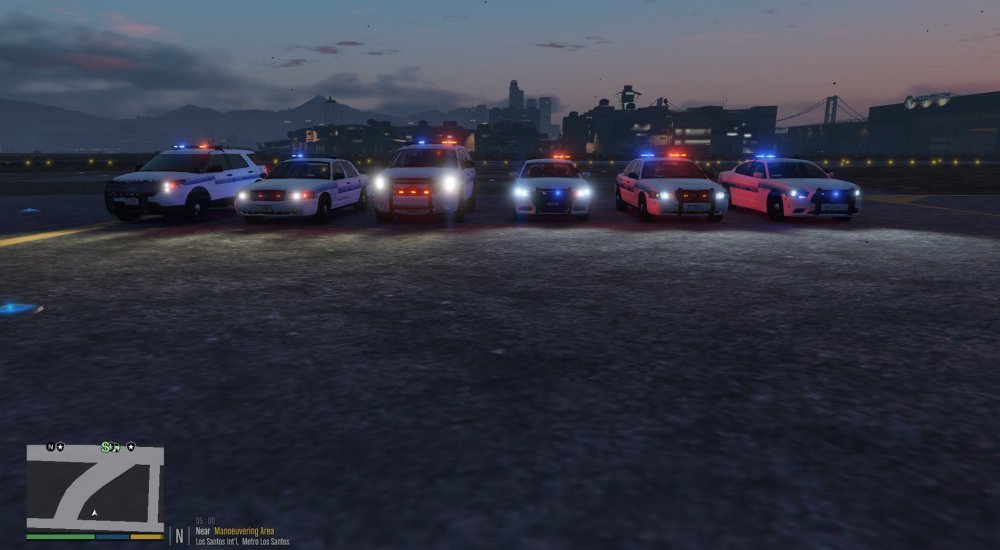
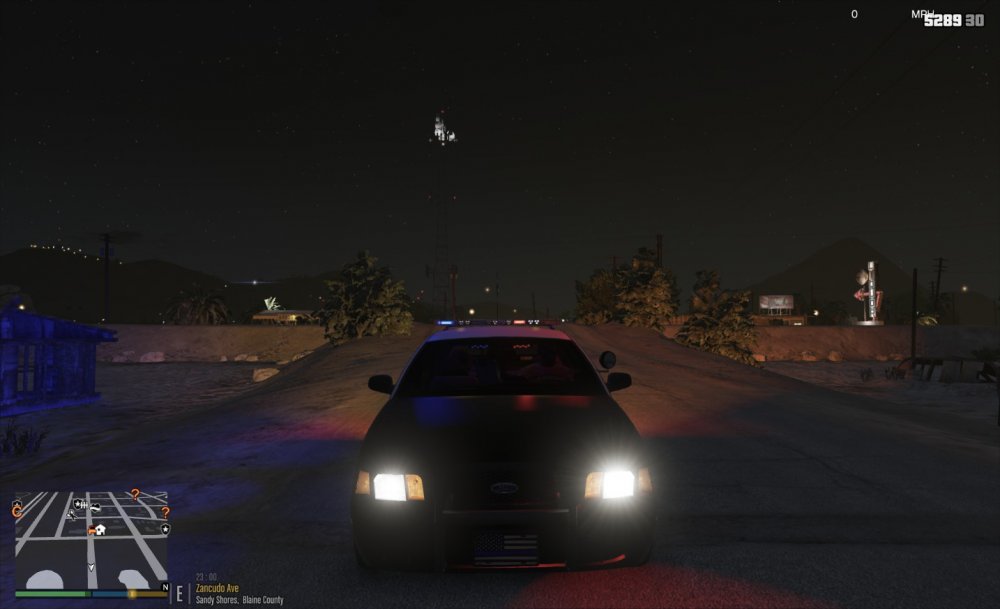
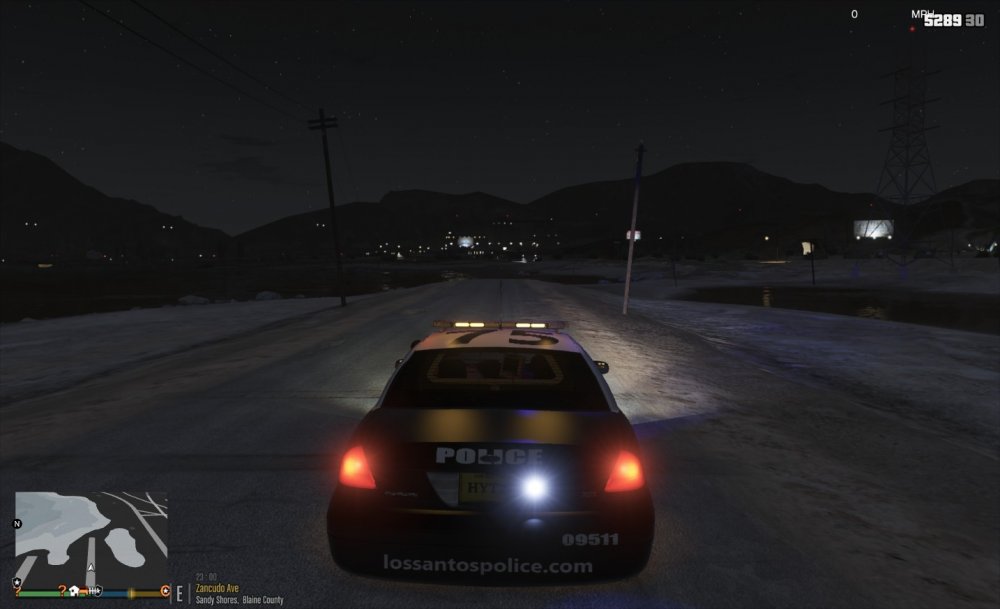
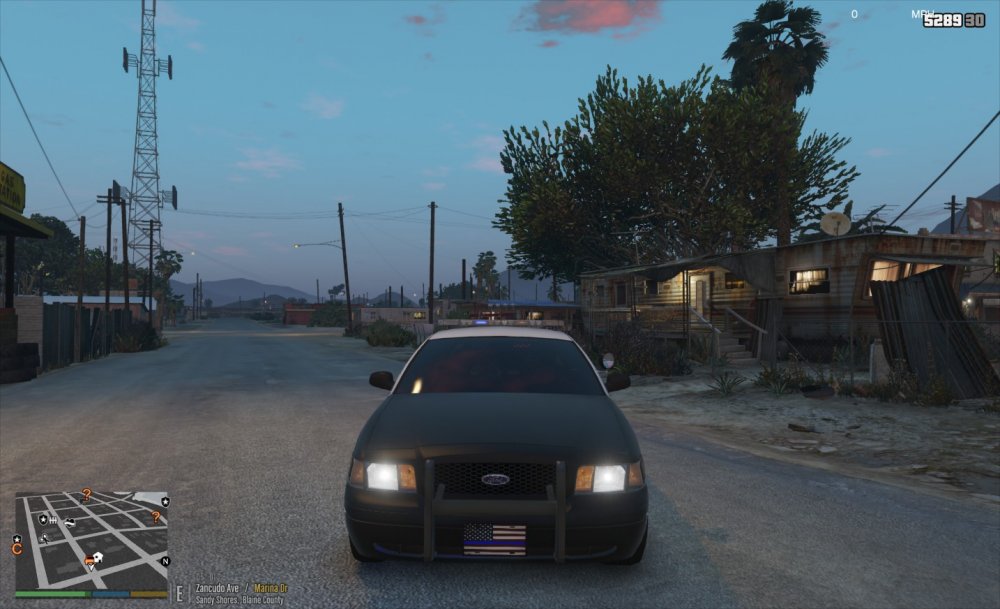
Hey all, just installed the new Visual V and had a problem with my lights being weird now. I went back and then installed the older version to see if that might help getting them to be how they were, but no luck. Anyone know a solution? Is it maybe ELS or? The pic is bad but I hope you guys get the idea. So the first pic is my issue (again sorry for the bad pic) and the next one is how they looked beforehand. Any help is appreciated!
-
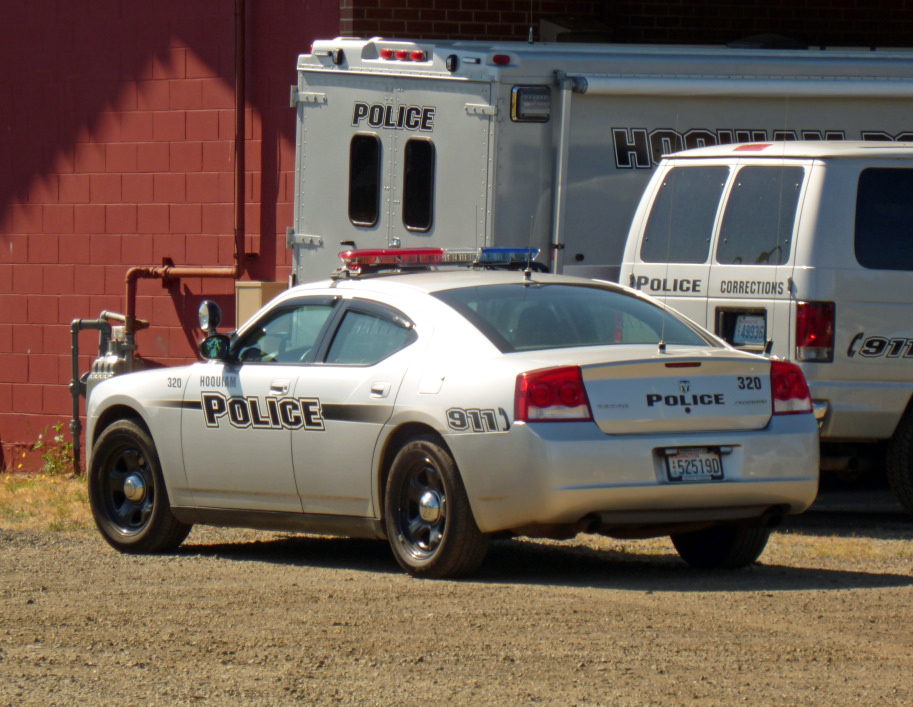
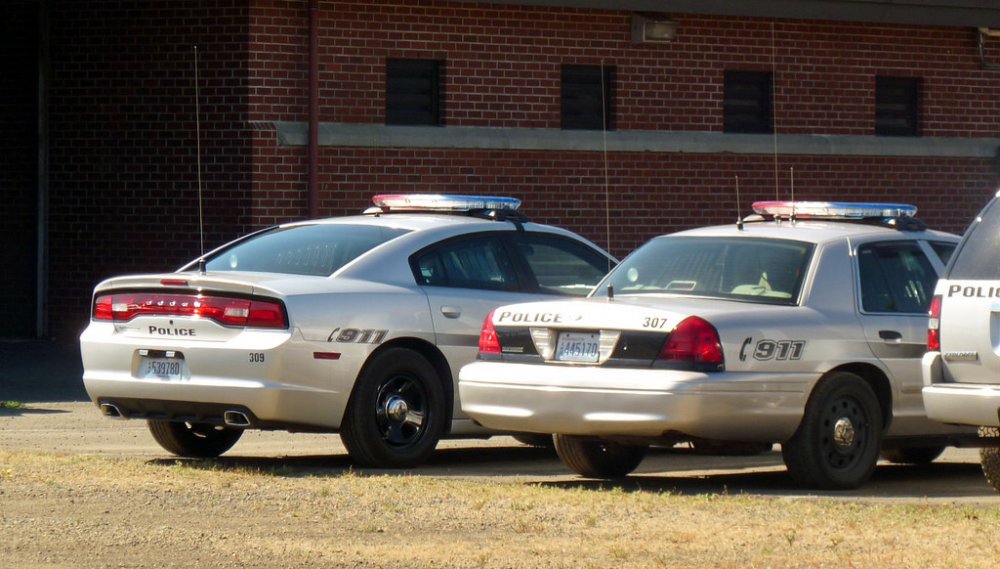
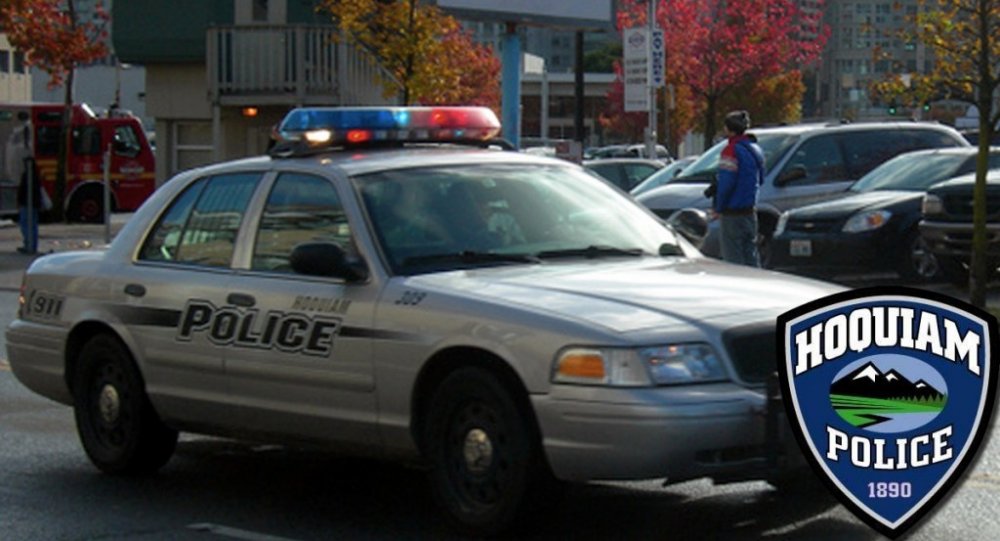
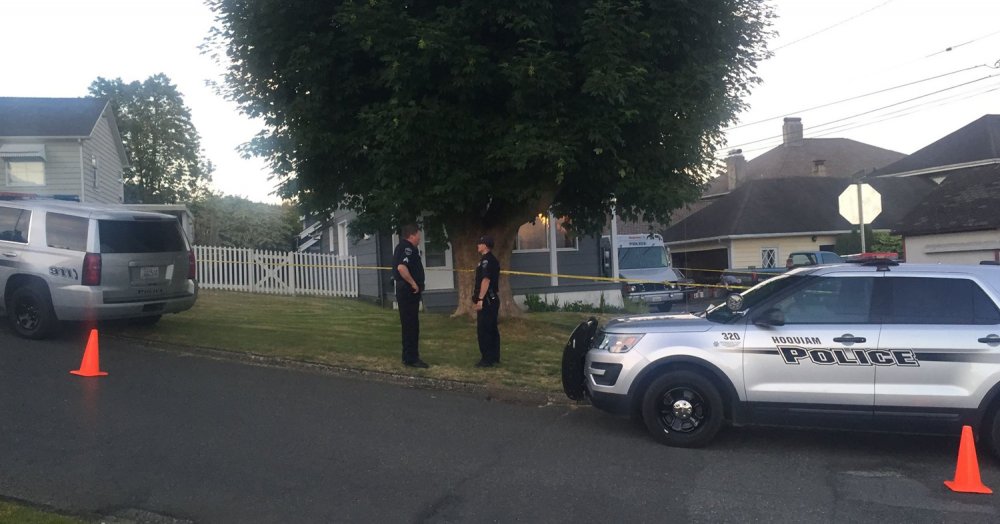
Hey all, this is my first post on LSPDFR and I was wondering if anyone could help me out? I didn't know where to post this but if there is anyone that could make a texture for me that has free time i would be very appreciative! I will attach files if anyone is interested. I have tried to make a few but can't seem to get the hang of it, and I know people don't like others asking for handouts I just figured I'd ask since it doesn't hurt to try haha